Roles
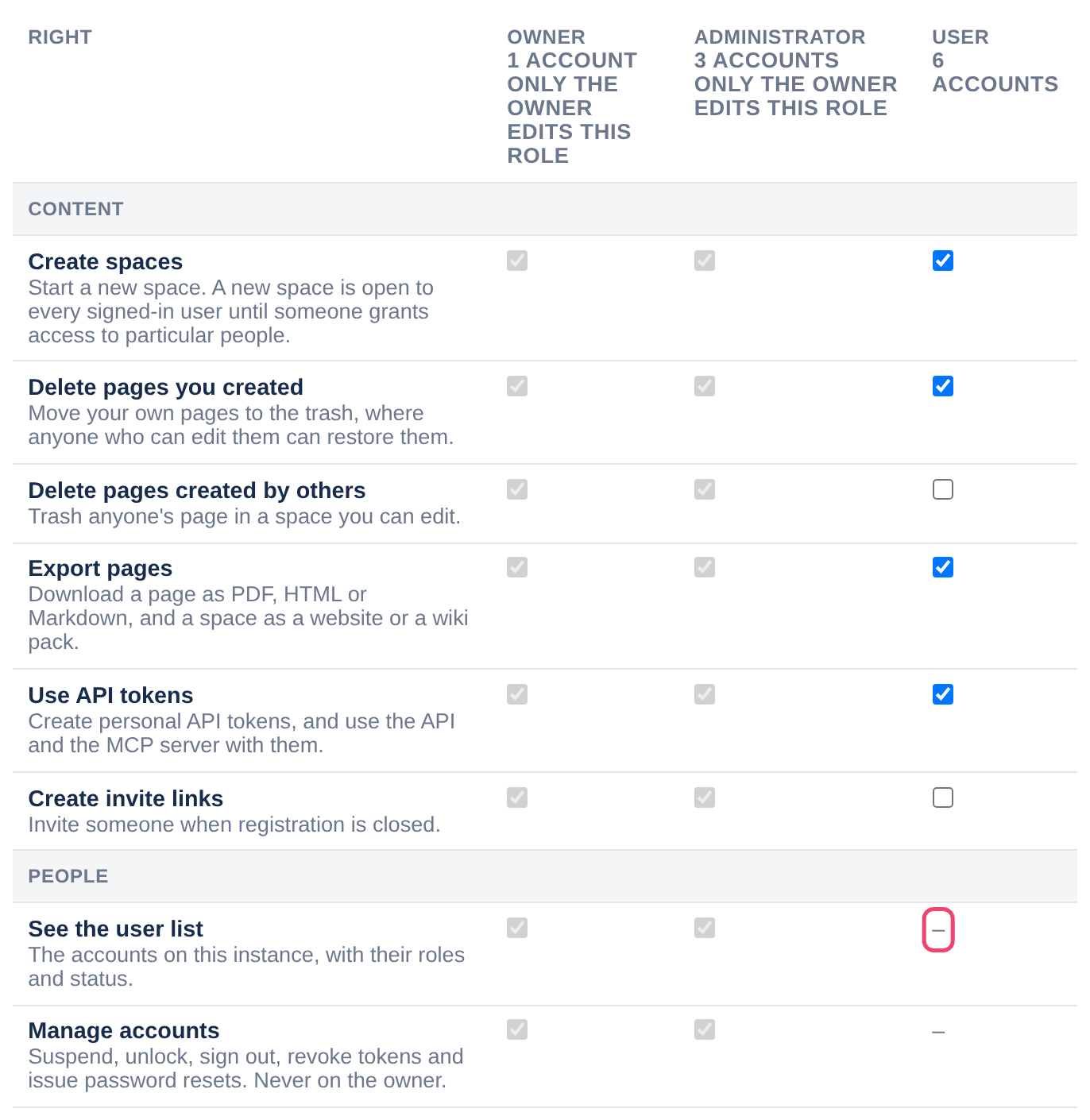
A role is a named set of rights: what someone may do on the instance at all, such as create spaces, export pages or read the audit log. Every account has exactly one role. The Roles tab shows them as a grid, with a row for each right, a column for each role, and a tick where the role holds the right.
To open it, choose Admin, Roles (Admin is in the top bar; in a narrower window it is under More, and on a phone in the ☰ menu).
You might come here to stop people exporting, to let only administrators create spaces, to let team leads send invites, or to make a narrower kind of administrator, say one who looks after accounts but not backups. Many teams never change anything.
Reading the grid
Columns are the roles: the built-in Owner, Administrator and User, then any you have made, with how many accounts hold each. Under a role you cannot change, it says “Only the owner edits this role”.
Rows are grouped by area: Content, People, Spaces, Security, Backups and Instance, then Always the owner, which no other role can hold.
A dash instead of a box, in a user role’s column, marks an administration right: everything outside Content. Those belong to administrator roles. To give someone one, make them an administrator.
Changing what a role may do
Step 1: Tick or clear boxes
Nothing is saved yet. Discard puts every box back.
Step 2: Choose Review changes
A box below the grid lists, for each role you changed, what it gains and loses, and how many accounts that affects.
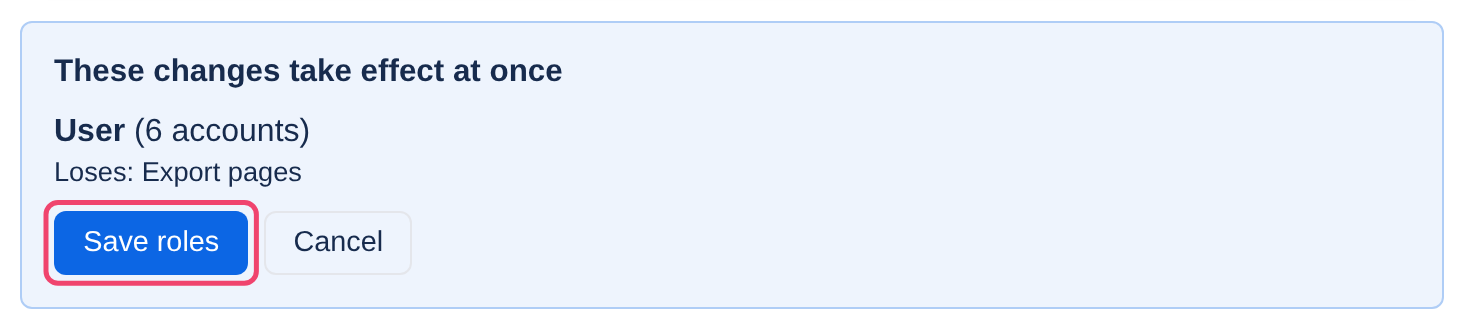
Step 3: Choose Save roles
Enter your password if asked. The change applies at once to everyone who holds the role.
Administrators can change user roles; only the owner can change administrator roles. When an administrator role gains a right, every administrator is alerted. Reset followed by a role’s name, under the grid, puts that role back to Tesria’s defaults after asking.
On a new instance, a note above the grid asks you to review the defaults. Choose Keep these defaults if they suit you, or change them and save.
Making your own role
Step 1: Choose New role
It is above the grid.
Step 2: Describe it
Give it a name and, if you like, a description. Choose its tier, User or Administrator (only the owner can make administrator roles), and which role to copy its rights from to start with.
Step 3: Choose Create role, then adjust it
A new column appears. Change its boxes and save as above.
Step 4: Move people into it
On the Users tab, with the menu in the Role column.
Your own roles have Rename and Delete in their column heading. A role can only be deleted when nobody holds it.
The rights
Content: Create spaces, Delete pages you created, Delete pages created by others, Export pages, Use API tokens, Create invite links.
People: See the user list (which is also what shows other people’s email addresses), Manage accounts, Manage administrators’ accounts, Assign roles, Promote users to administrator, Manage invite links, Manage groups.
Spaces: Manage spaces, Manage instance-wide templates, Publish spaces, Delete spaces, Control a space’s exports.
Security: Read the audit log, See security, Respond to security, Change security settings.
Backups: See backups, Run backups, Change the retention policy, Restore a backup.
Instance: See the dashboard, Change the instance name and address, Change the branding, Change registration, Change the email server, Change anonymous reading, See roles, Edit user roles.
Always the owner: Promote and demote administrators, Transfer ownership, Edit administrator roles.
Each row on the tab has a line saying what the right allows. Out of the box, users cannot delete other people’s pages or create invite links; administrators hold every right except Promote users to administrator, Manage administrators’ accounts, Restore a backup and Change the branding, which start with the owner.
Letting administrators recover each other. Out of the box, only the owner can sign out, suspend, reset the password of, or turn off two-factor for another administrator, because a password-reset link is a way into their account. If you, the owner, will not always be around, give the administrator role Manage administrators’ accounts so they can help each other. Nobody but the owner can ever do these things to the owner’s account.
People reading a public space without an account get exactly what the User role holds. Take Export pages away from User, and they lose export too.
Rights decide what someone may do at all; each space still decides where. The right to delete other people’s pages does not reach a space you cannot edit.
Applies to | Tesria 0.5 and later |
|---|---|
Updated | September 24, 2026 |
Changes | Revised. |