Exporting a page
Exporting a page makes a copy of it as a file: to send to someone who has no account, to print, or to keep with other documents. The page in Tesria is not changed.
Exporting
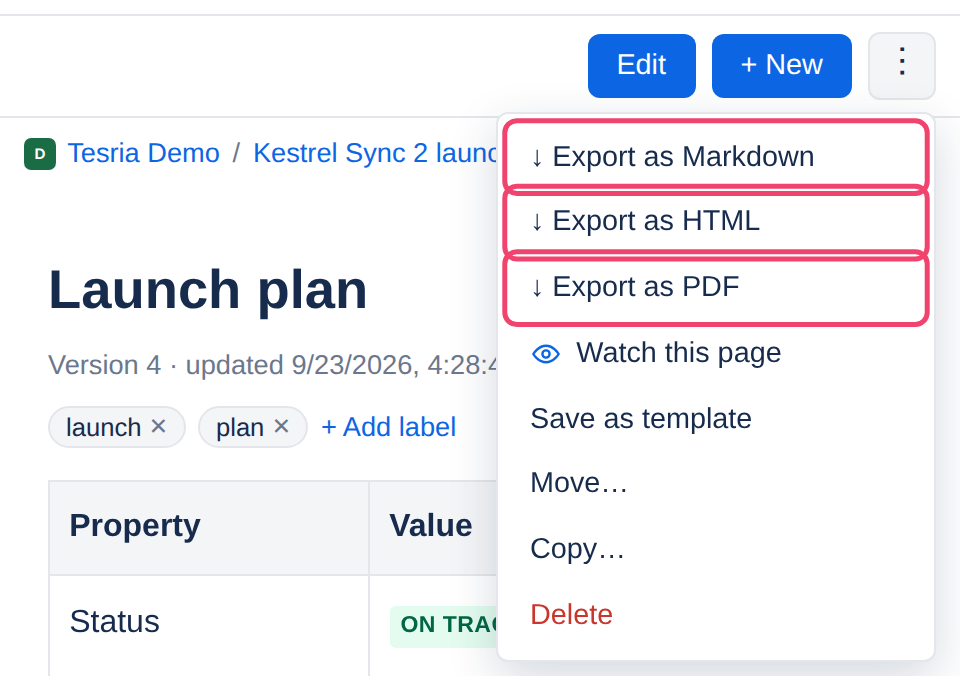
Open the page, then its ⋮ menu at the top right, and choose Export as Markdown, Export as HTML or Export as PDF. The file downloads, named after the page.
Which format
PDF for reading and printing: the page as a document, laid out as Tesria shows it, always in the light theme. The one to send when someone just needs to read it.
HTML for a single web page that looks like the page in Tesria, light and dark themes and your organization’s branding included. It opens in any browser, with nothing else needed.
Markdown for plain text: the title and content as a
.mdfile, which other tools and code repositories read. Pictures in it link back to the wiki rather than being copied in.
What goes in
The title and the content, nothing else: comments, labels, attachments and history stay in Tesria.
Live content as it was at that moment. A list of recently updated pages, for example, is frozen as it stood when you exported.
Expand blocks open, so nothing is hidden on paper, and embedded videos and sites as a card with their link.
If an export is missing or does not work
The options are not in the menu: your role does not allow exporting, or the space has turned that format off. See Turning exports off.
HTML or PDF says there is no export renderer: those two are made by a separate part of Tesria, which your administrator has not set up. Export as Markdown instead.
People reading a public page without signing in have the same exports as buttons at the top of the page, ↓ Markdown, ↓ HTML and ↓ PDF, where the space and your Tesria allow it.
Applies to | Tesria 0.5 and later |
|---|---|
Updated | September 24, 2026 |
Changes | Revised. |