Settings (administration)
Settings holds the choices that apply to the whole instance: its name and address, which sites pages may embed, who can join, and the email server. Each is its own card with its own save button, and each needs its own right, so a role can be allowed to fix the email server without being able to open registration. Every change is recorded in the audit log.
To open it, choose Admin, Settings (Admin is in the top bar; in a narrower window it is under More, and on a phone in the ☰ menu).
Instance
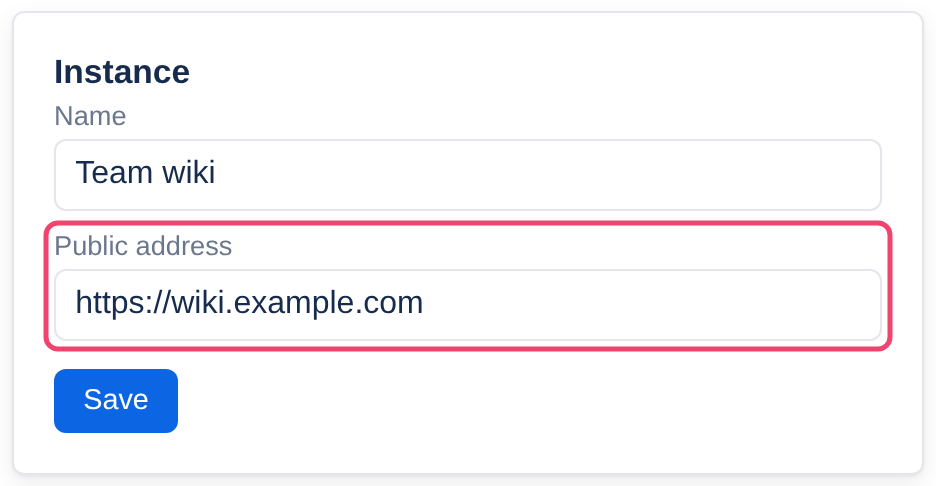
Name: shown in the browser tab and at the start of every email’s subject. It starts as Tesria. The name in the top bar is set on Branding instead.
Public address: the full address people open Tesria at, such as
https://wiki.example.com. Links in emails use it. On a home or office network, the Trust this device guide also names it for anyone who opens Tesria by a number such as 192.168.1.50, so they use the name the secure connection is made for. Left blank, Tesria uses the address it was installed with, shown under the field.
Change either and choose Save. Once you have settled on the address everyone uses, put it here; see Opening Tesria by name and Trusting the local certificate.
Embeds
Which sites a page may show inside itself, such as a YouTube video or a Figma design. One site per line; a leading dot, as in .youtube.com, also allows everything under it. An address on no line is refused when the page is saved and blocked by the browser. Leave the box empty to turn embeds off.
It starts with YouTube, Vimeo, Loom, Figma, Miro, CodePen, Google Docs and Google Drive. Choose Save after changing it. It needs the Change security settings right.
Images
A page can show a picture straight from another website. Whoever runs that website then sees each reader’s address and when they read the page. If that matters to you, turn on Only show pictures from this wiki and the listed hosts: pictures uploaded to Tesria always show, and others show only from the sites you list, one per line, written the same way as for embeds. Leave the list empty to allow uploaded pictures only.
Pictures from any other site are blocked by the browser, in Tesria and in exported sites. Someone editing a page sees a note under such a picture saying why. It is off for a new instance and needs the Change security settings right.
Access
Allow public registration: on for a new instance, so anyone who can reach it can make an account. Off, new people need an invite. The very first account on an empty instance can always register, so this cannot lock you out.
Allow public spaces: off for a new instance. On, you can publish spaces from Spaces for anyone to read. Off again, every published space is hidden at once and keeps its setting. It asks for your password and alerts every administrator. Before turning it on for an instance on the internet, work through Security hardening.
Both take effect the moment you click them, and both are also on the Security tab.
The mail server Tesria sends through: password reset links, security alerts to administrators, and notifications for people who ask for them.
Step 1: Fill in the mail server
The host, port, username, password, from address and encryption, as your mail provider gives them. The password is never shown again; leave the field empty to keep the stored one.
Step 2: Choose Save mail settings
Step 3: Turn on Send email
Until it is on, Tesria does not try to send anything.
Step 4: Choose Send test email to me
It sends a message to your own address and says straight away whether the mail server accepted it, or what went wrong.
What to put in each field is in Email (SMTP).
Applies to | Tesria 0.5 and later |
|---|---|
Updated | September 24, 2026 |
Changes | Revised. |