Signing in
Tesria keeps each person’s work under their own account: your name goes on the pages you write and the comments you leave, the spaces you can see depend on who you are, and your notifications are yours. Signing in is how Tesria knows it is you.
This page walks through the sign-in page, what each link on it is for, and what to do if it will not let you in. If you do not have an account yet, see Accounts and invites first.
Throughout this page, your-server stands for your Tesria’s address: whatever you type into the browser to open it, such as wiki.example.com. Whoever runs your Tesria can tell you what it is.
Signing in, step by step
Step 1: Open Tesria
Type https://your-server into your browser’s address bar. If you are not signed in, Tesria shows the sign-in page. If some spaces can be read without an account, it shows those instead, with a Sign in button at the top right: choose it. Bookmark the address: you will come back to it.
Step 2: Enter your email address and password
Use the email address your account was made with. The eye button at the end of the password box shows what you have typed, which helps on a phone keyboard; press it again to hide it.
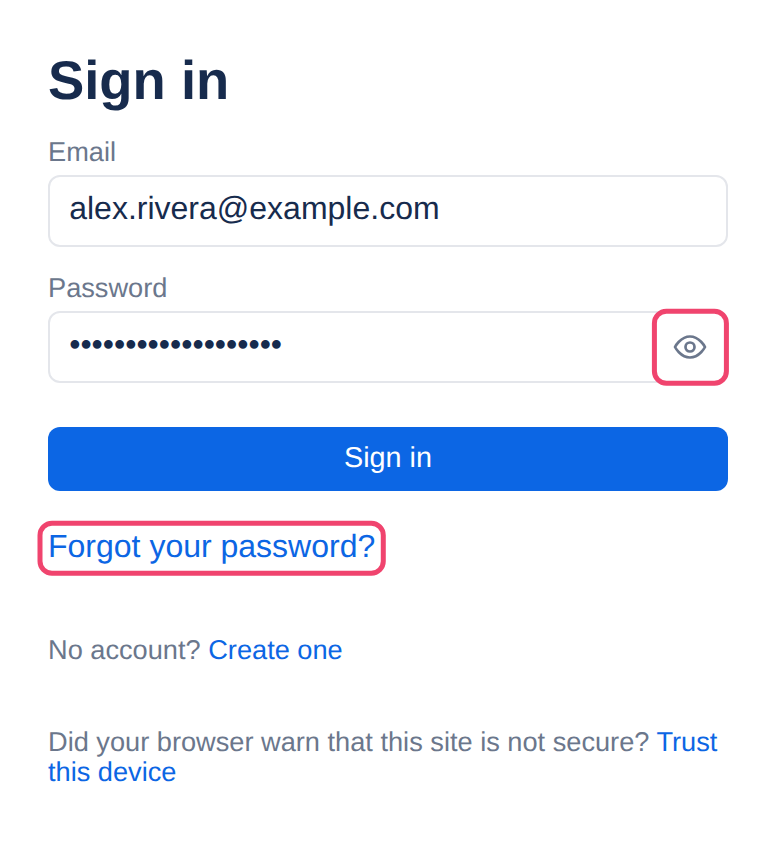
Step 3: Choose Sign in
Tesria takes you back to the page you were trying to open, or to the list of spaces if you came straight to the sign-in page.
If your account has two-factor sign-in
After your password, a second screen headed One more step asks for the six-digit code from the authenticator app on your phone. Open the app, type the code Tesria shows for this account, and choose Sign in.
The code changes every 30 seconds. If Tesria says the code is not right, wait for the next one and type that.
No phone to hand? Type one of your recovery codes instead. Each one works once.
Finish within five minutes. After that the second step expires and you start again from your password. Start over does the same at any time.
To turn two-factor on, see Two-factor and recovery codes.
Other links on the sign-in page
Which of these you see depends on how your Tesria is set up:
Sign in with …, under the form, appears when your organization uses single sign-on (for example Sign in with Company SSO). If you have it, use it instead of a password: your organization’s own sign-in page opens, and it brings you back here.
Forgot your password? starts a reset. See Resetting a password.
No account? Create one appears when anyone may join, or when you arrived from an invite link.
Browse what is public appears when some spaces can be read without signing in.
Trust this device appears on a server that makes its own security certificate, under Did your browser warn that this site is not secure?. It opens a short guide that stops the warning for good. See Trusting the local certificate.
When it will not let you in
Incorrect email or password. means one of the two is wrong. Tesria does not say which, on purpose: otherwise anyone could type addresses in to find out who has an account. Check the address first, then the password (the eye button helps).
To stop someone guessing their way in, Tesria locks an account after too many wrong tries. Unless your administrator has changed the numbers:
After 5 wrong passwords or codes in a row, the account is locked for a minute.
Each wrong try after that locks it again, for twice as long each time, up to 15 minutes.
While it is locked, even the right password is refused, with the same message. Wait, then try again.
The lock ends by itself. Signing in successfully or resetting your password clears the count, and an administrator can unlock the account straight away in Admin, Users (Admin is in the top bar; in a narrower window it is under More, and on a phone in the ☰ menu).
Separately, too many sign-in attempts from one place in a short time gets Too many attempts. Wait a minute and try again. Waiting a minute is all it takes.
How long you stay signed in
You stay signed in on a device until you sign out, with two limits: a session ends after 14 days without being used, and 90 days after you signed in, however much you use it. Then you sign in again.
Sign out, at the right of the top bar, ends this session on the server as well as in the browser, so a copy of it cannot be used later. Always sign out on a computer other people use. To see every device signed in to your account, and sign out the ones you do not recognize, see Sessions.
Asked for your password again? Some administrative actions, such as ones that cannot be undone, ask you to confirm your password in a box headed Confirm it’s you if you signed in more than a few minutes ago. A code from your authenticator app works instead. It makes sure the person at the keyboard is still you.
Applies to | Tesria 0.5 and later |
|---|---|
Updated | September 24, 2026 |
Changes | Revised. |