Two-factor and recovery codes
A password on its own is easy to lose control of. It can be guessed, reused from a site that was breached, or typed into a convincing fake page. Two-factor sign-in adds a second step: after your password, a six-digit code from an app on your phone. The code changes every 30 seconds and only your phone can make it, so someone who has your password still cannot get in.
Recovery codes are the other half. They are your spare keys: a few single-use codes you keep somewhere safe, which get you in if you lose your phone or forget your password. Every account with a password gets them when it is made, whether or not two-factor is on.
This page shows how to turn two-factor on, what recovery codes are for and where to keep them, and what to do if you lose your phone.
Sign in with single sign-on? Then your organization’s own sign-in handles two-factor, and your profile says so. You do not have recovery codes in Tesria, because you have no Tesria password to recover.
Turning on two-factor
You need a phone with an authenticator app: a free app that makes these codes. Tesria suggests Aegis, 1Password, Google Authenticator or Authy, and any app that shows six-digit codes that change every 30 seconds will do. Install one first if you do not have one.
Step 1: Open your profile
Choose your name or picture at the right of the top bar, and find the Two-factor sign-in card.
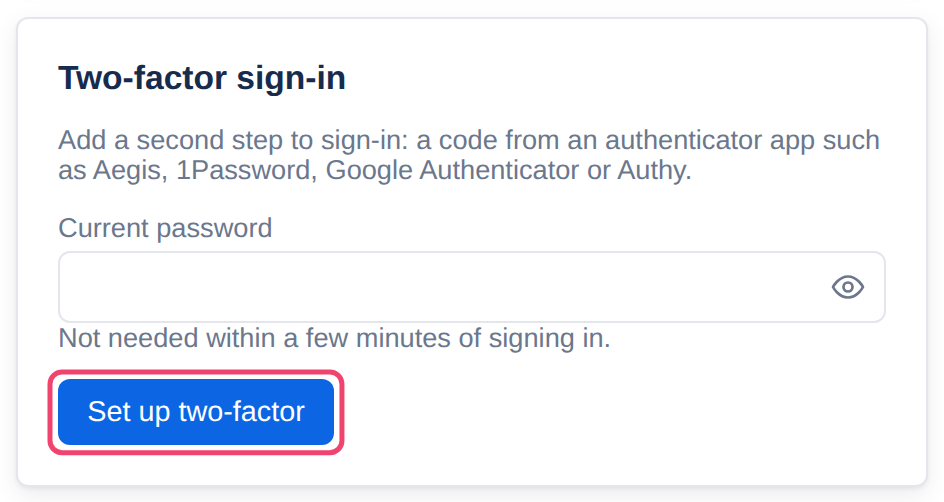
Step 2: Choose Set up two-factor
If you signed in more than a few minutes ago, type your current password first; otherwise leave it empty. Then choose Set up two-factor.
Step 3: Scan the QR code with your app
In the authenticator app, choose to add an account and point the phone’s camera at the square code. The app adds your Tesria and starts showing codes for it.
Cannot scan it, say because you are on the phone itself? Under the code, Can’t scan? Enter this key by hand shows a key you can type into the app instead.
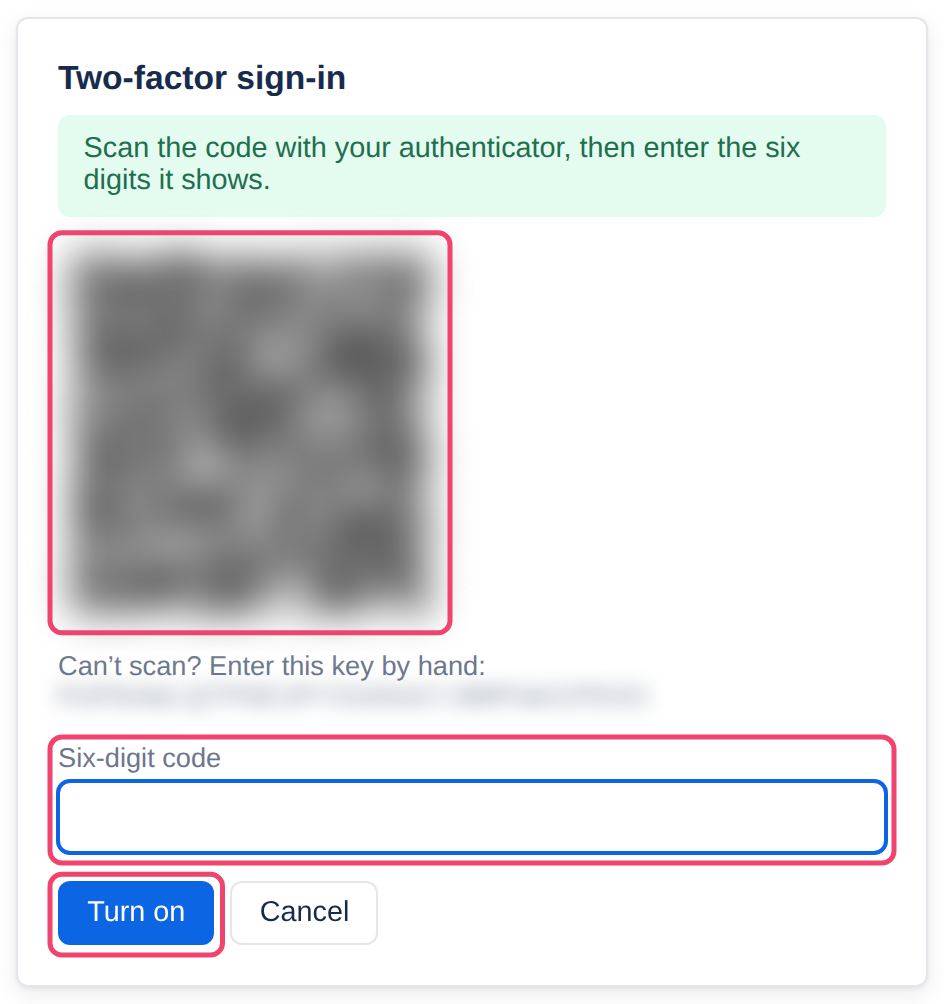
Step 4: Type the six-digit code and choose Turn on
Type the code the app shows now into Six-digit code and choose Turn on. That proves the app and Tesria agree. The card then says On.
Turning it on signs out your account on every other device. That is deliberate: anyone else holding a session on your account has to get past the new second step too.
Check your recovery codes now, while you are on this page: the Recovery codes card below should say you have some. They are what gets you in if the phone is lost.
From now on, signing in asks for a code after your password. See Signing in.
Recovery codes
You get 8 recovery codes, each looking like XXXX-XXXX-XXXX. Each works once, in two places:
At the second step of signing in, in place of the code from your phone.
On the password reset page, in place of an email link, to choose a new password. See Resetting a password.
They work even if your Tesria cannot send email, which on a self-hosted server is common. Letters that are easy to confuse, such as O and 0, are never used, and dashes and capitals do not matter when you type one.
Where to keep them
Tesria shows your codes when you create your account and whenever you make a new set, and never again: it keeps only a scrambled copy it can check against. So keep them yourself, somewhere that is not your phone (the phone is what they replace) and not in Tesria (you cannot open it when you need them). Good places:
A password manager, in the entry for your Tesria. Copy makes this easy.
Printed or written on paper, kept with other important papers. Download saves them as a text file to print.
Treat them like a password. Anyone who has one of your codes and knows your email can reset your password. Do not email them to yourself or keep them in a shared document.
Checking and renewing them
The Recovery codes card on your profile says how many unused codes you have left, and warns you in red when 2 or fewer remain.
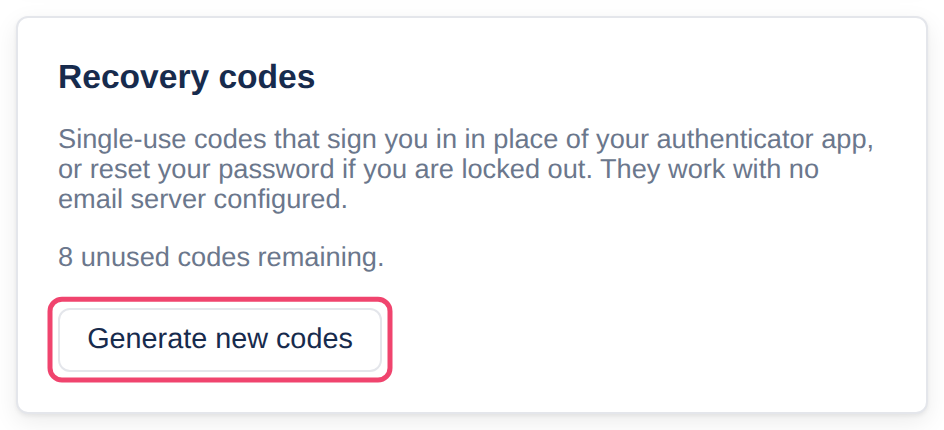
Choose Generate new codes (with your password if you signed in more than a few minutes ago) to make a fresh set of 8. The old ones stop working at once, so make a new set after using a few, or if you think someone has seen them. Save the new ones, tick I have saved these codes somewhere safe and choose Done.
If your account has no codes, or you never confirmed saving them, Tesria asks you after you sign in, in a box headed Set up account recovery or Do you have your recovery codes?. Not now puts it off until you next sign in.
If you lose your phone
A lost, broken or replaced phone takes your authenticator app with it. Here is how to get going again:
Step 1: Sign in with a recovery code
Sign in with your password as usual. At One more step, type a recovery code instead of the six digits.
Step 2: Turn two-factor off
On your profile, the Two-factor sign-in card has Current password and Or a code from the app. Type your password and choose Turn off.
Step 3: Set it up again on the new phone
Choose Set up two-factor and follow the steps above with the new phone. While you are there, make a new set of recovery codes if you have used several.
Moving to a new phone you already have in hand works the same way: turn two-factor off, then set it up again with the new phone.
Lost the phone and every recovery code?
Ask an administrator. They can choose Turn off two-factor for your account in Admin, Users (Admin is in the top bar; in a narrower window it is under More, and on a phone in the ☰ menu). You are signed out everywhere, every administrator is told, and you sign in with your password alone until you set two-factor up again. They should make sure they are really talking to you before they do it.
Nobody can do this for the owner. The owner’s two-factor can only be turned off from their own profile, and only the owner can turn off another administrator’s. If you own your Tesria, keep your recovery codes especially safe.
When two-factor is required
An administrator can require two-factor for everyone with administrator rights. If that applies to you, the administration pages ask you to set it up before they open, and your profile does not offer to turn it off: it says Administrators on this instance must keep two-factor sign-in on. To move to a new phone, sign in with a recovery code and ask the owner to turn your two-factor off in Admin, Users (Admin is in the top bar; in a narrower window it is under More, and on a phone in the ☰ menu), then set it up again straight away.
Applies to | Tesria 0.5 and later |
|---|---|
Updated | September 24, 2026 |
Changes | Revised. |