Comments
Comments are for talking about a page without changing it: a question for the author, a suggestion, a “this is out of date”. They sit below the page, so every reader sees the discussion, and when it is settled you can resolve it to fold it away.
There are two kinds. A page comment is about the page as a whole. An inline comment is attached to a few words on it, which are highlighted so readers can see exactly what it is about. Anyone who can read a page can comment on it, once signed in.
Commenting on a page
Step 1: Open the Comments tab
Below every page there is a row of tabs: Comments, Attachments, History and Restrictions. Comments is open when the page loads; scroll down past the end of the page to reach it.
Step 2: Write and post
Type in Add a comment… and choose Post. Your comment appears at once, with your name and the time.
Step 3: Reply to keep the conversation together
To answer a comment, choose Reply under it, rather than starting a new one. Replies sit indented under the comment they answer, so a discussion reads top to bottom as one thread.
Commenting on a few words
When your comment is about one sentence, such as a date that looks wrong, attach it to those words. Readers then see the words highlighted and can click them to read the discussion right there.
Step 1: Choose Edit and select the words
Inline comments are added in the editor. Choose Edit at the top of the page, then select the words you want to discuss, as you would to make them bold.
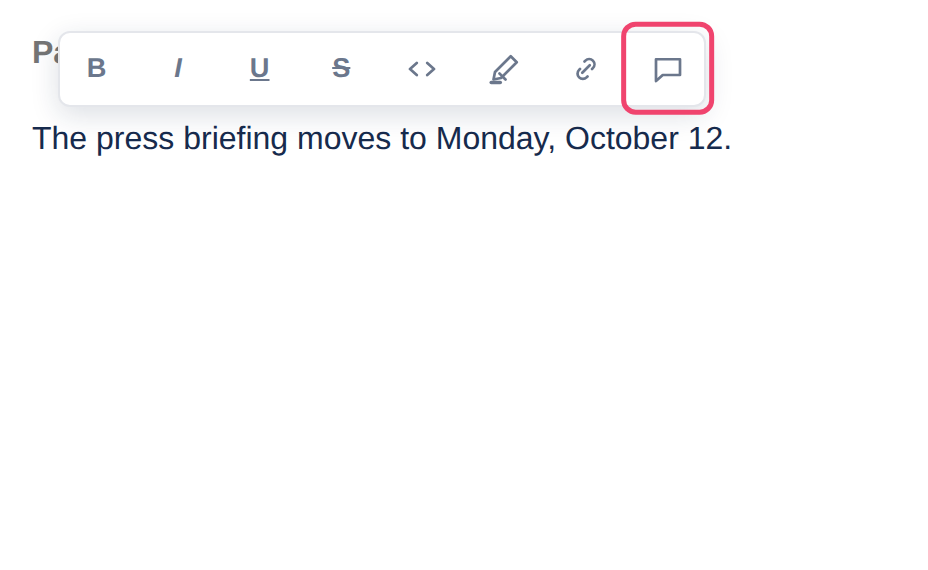
Step 2: Choose Comment on this selection
A small menu appears above the selection. Its last button, the speech bubble, is Comment on this selection.
Step 3: Write, then choose Comment
Type in Write a comment… and choose Comment. The comment is saved straight away and appears in the Comments tab, marked inline.
Step 4: Publish the page
The highlight is part of the page, so choose Update (or Publish for a new page) to keep it. Until you do, the comment exists but readers cannot see which words it belongs to.
Readers click the highlighted words to open the thread in a small box beside them, where they can reply without scrolling down to the tab.
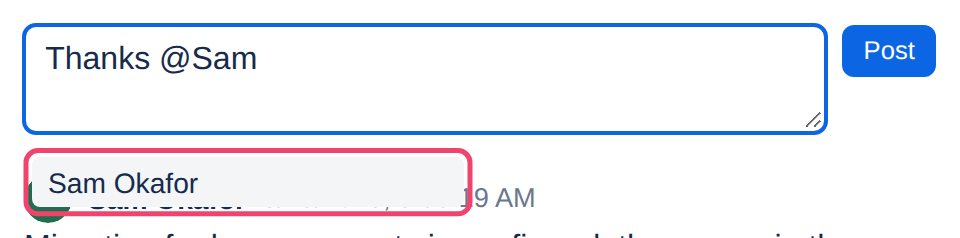
Mentioning someone in an inline comment? The box for a new inline comment does not suggest names. Post the comment, then reply to it: replies offer names when you type @, as below.
Pictures work the same way: in the editor, select a picture and choose the comment button in the menu above it. A picture has no highlight, so its comments are read in the Comments tab.
Mentioning someone
To bring someone into a discussion, type @ followed by the start of their name. Tesria lists the people who match; choose one with the mouse, or with the arrow keys and Enter. Their name appears as @Their Name in the comment.
When you post, the person is told, in their bell and, if they chose it, by email. They are only told if they can open the page: a mention never shows anyone a page they are not allowed to see. Adding a name when you edit a comment tells that person too; people already mentioned are not told twice.
Resolving a discussion
When a question has been answered or a change has been made, choose Resolve under the thread’s first comment. The whole thread, replies and all, folds away, and the highlight of an inline comment disappears from the page. Nothing is deleted.
Resolved threads are counted under the open ones, as Show resolved with their number. Choose it to see them again: each is marked resolved and says who resolved it and when. Reopen puts a thread back with the open ones, highlight included.
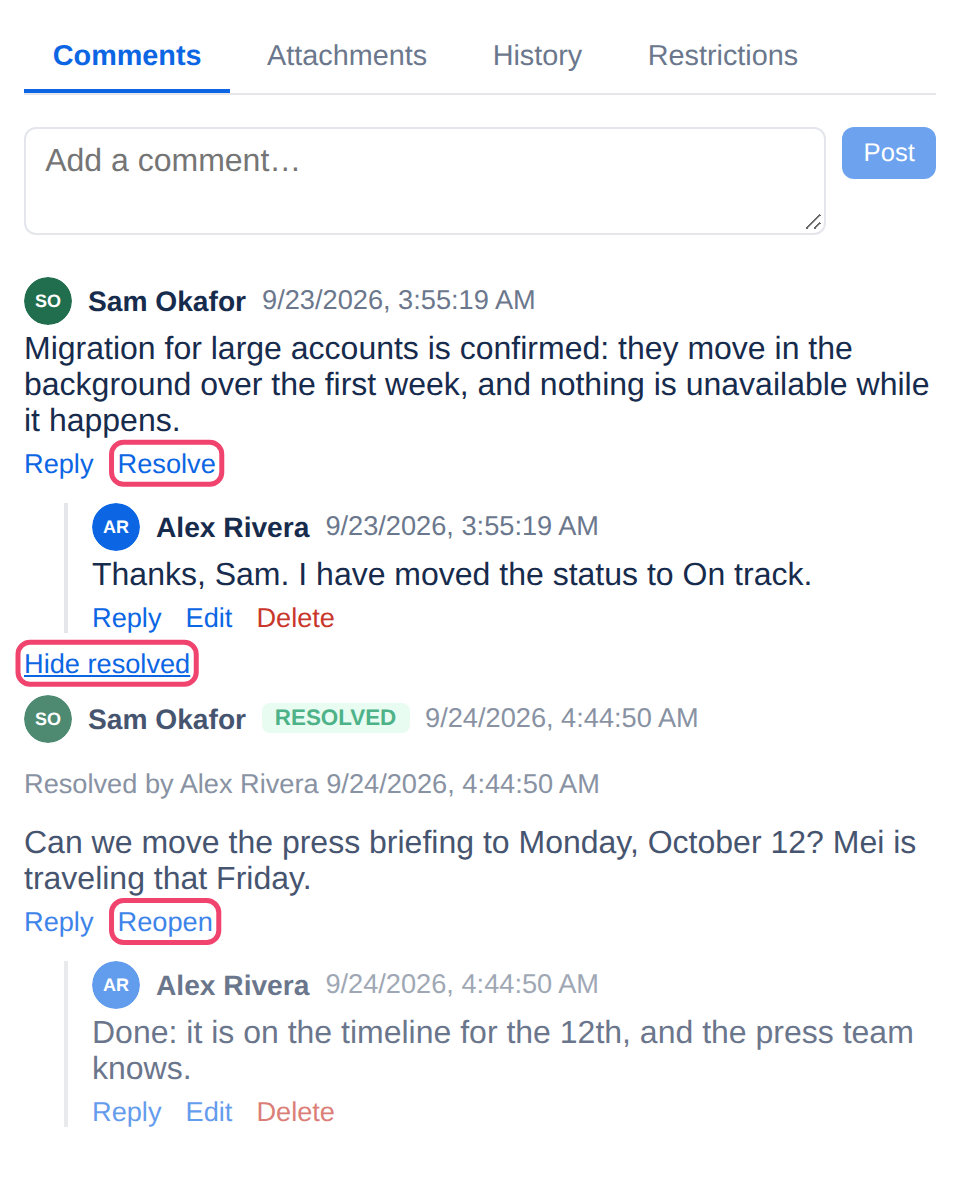
A thread can be resolved or reopened by whoever wrote its first comment, and by anyone who can edit the page.
Changing and deleting your comments
Edit under one of your own comments opens it for changes; Save keeps them.
Delete asks first, then removes it. A deleted comment shows as [deleted], and any replies to it stay where they are, so the rest of the discussion still makes sense.
You can edit and delete only your own comments.
Who hears about a comment
Everyone who watches the page, or the space it is in, is told about a new comment, along with anyone it mentions. See Watching and Mentions and notifications.
In a space that is published for public reading, readers without an account see comments only if an administrator allowed it for that space, and then they can read them but not reply. See Public reading.
Good practice
Comment on the words when you can. “The date in step 3 is wrong” attached to that date needs no explaining.
Mention whoever has to act. A question nobody is told about can wait a long time.
Resolve when it is done. A page whose old discussions are folded away shows at a glance what is still open.
Applies to | Tesria 0.5 and later |
|---|---|
Updated | September 24, 2026 |
Changes | Revised. |