Finding your way around
Every screen in Tesria is built from the same few parts: the top bar across the top, and inside a space, the sidebar on the left with the space’s pages, and the page itself with a bar of actions above it. Once you know where each is, everything else is a click away.
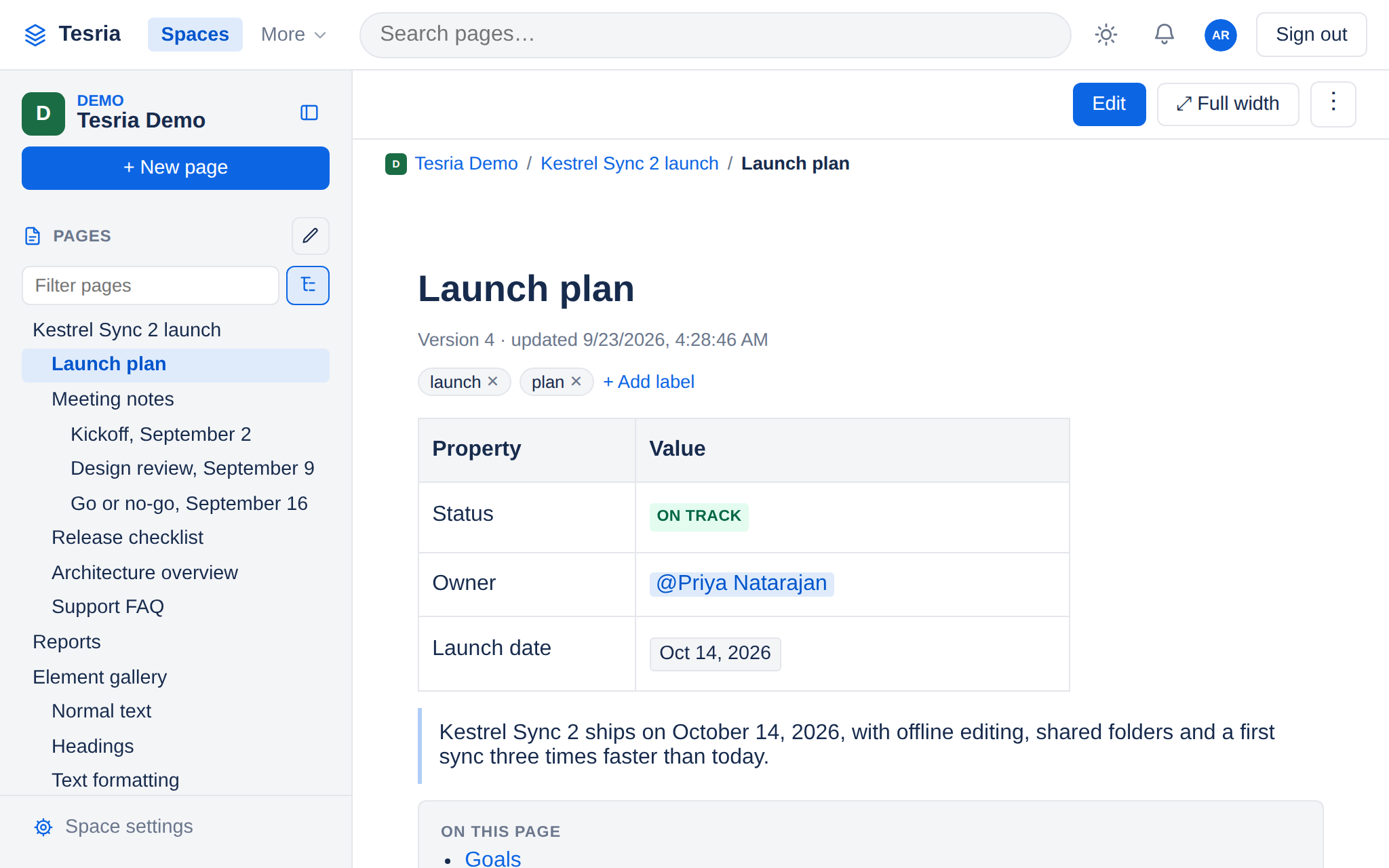
The top bar
It is on every screen. From left to right:
The logo takes you back to the list of spaces.
Spaces lists every space you can see.
Admin opens Administration, if your role gives you any administrative right. Invite people is here instead if you may invite people but not administer. In a narrower window these move into a More menu.
Search pages… searches every page you can read. See Search, below.
The sun, moon or screen button sets light or dark and the accent color. See Theme and accent.
The bell shows your notifications.
Your picture and name open your profile: your password, two-factor, email settings and more. See Your profile.
Sign out ends this session.
On a phone, the ☰ button at the left of the top bar opens these as a menu, together with the page tree of the space you are in. See The phone top bar and menu.
Search
Search finds pages by what is in them, across every space you can see. Type a word or two into Search pages… and press Enter.
Each result shows the page’s title, its space, and the passage that matched, with your words in bold. Only published pages you are allowed to read are found; nothing else is ever shown. Search explains how to search for an exact phrase or leave a word out.
Search or filter? Search looks inside the text of pages in every space. The filter at the top of the page tree (below) looks only at the titles in the space you are in, and answers as you type. When you know roughly what a page is called, the filter is quicker.
The space sidebar
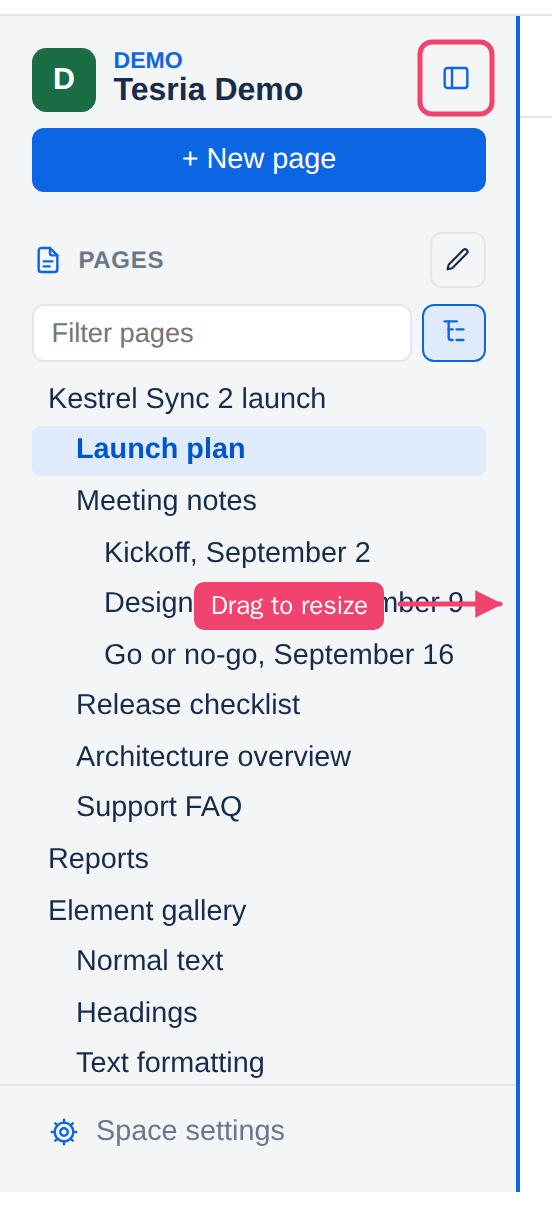
Inside a space, the sidebar holds the space’s icon and name, + New page, the tree of its pages, and Space settings at the bottom. The name and buttons stay put while the tree scrolls, so they are always to hand however long the tree is.
Hiding it
The button beside the space’s name hides the sidebar, to give the page more room. A narrow strip stays at the left with the same button, to bring it back. Tesria remembers your choice on this device.
Making it wider or narrower
Long titles, numbered trees and deeply nested pages take room. You can make the sidebar as wide as you like, within reason:
Drag its right edge. Point at the line between the sidebar and the page; it turns into a colored line and the pointer into a resize arrow. Drag it left or right.
Double-click the edge to put the sidebar back to its usual width.
From the keyboard, press Tab until the edge is selected, then the left and right arrow keys make it narrower or wider a step at a time. Home puts it back.
It can be between 200 and 560 pixels wide, and never more than half the window, so the page always keeps the larger share. Tesria remembers the width on this device.
Filtering the page tree
A space soon has more pages than fit on the screen. The Filter pages box at the top of the tree narrows it to the pages whose titles contain what you type, so you can find one without scrolling or opening parents one by one.
Step 1: Type part of a title
Click Filter pages and type a few letters, such as meeting. The tree shrinks as you type, and the matching words are highlighted. Capitals and accents do not matter. In a numbered tree you can type a page’s number, such as 2.3, too.
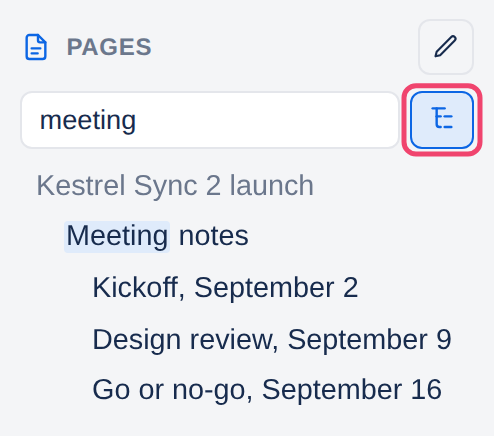
Besides the matches, the tree shows:
The pages above each match, dimmed, so you can see where it lives.
The pages under each match, while the button beside the box is on. Type the name of a section and you see the section and everything in it.
Step 2: Open a result
Click a page to open it, or press Enter to open the first match. The filter stays as it is, so the next result is one click away: open one, read it, open the next.
Step 3: Clear it
Press Escape in the box, or delete what you typed, to see the whole tree again. If nothing matches, the tree says No pages match.
The pages under each match
The button with the small tree on it, beside the box, is Show the pages under each match. It is on unless you turn it off, and shows in the accent color while it is on. Turn it off when you want the matching pages alone. Tesria remembers the setting on this device.
How long the filter lasts
The filter stays while you move from page to page, and even if you reload, until you clear it or close the browser tab. Each space keeps its own, so filtering one space does not affect another. On a phone, the filter in the ☰ menu keeps what you typed the same way.
While you are reordering pages with the pencil beside Pages, the filter is set aside and the whole tree shows, so nothing is hidden while you move things. See The page tree and reordering.
Numbered and bulleted trees
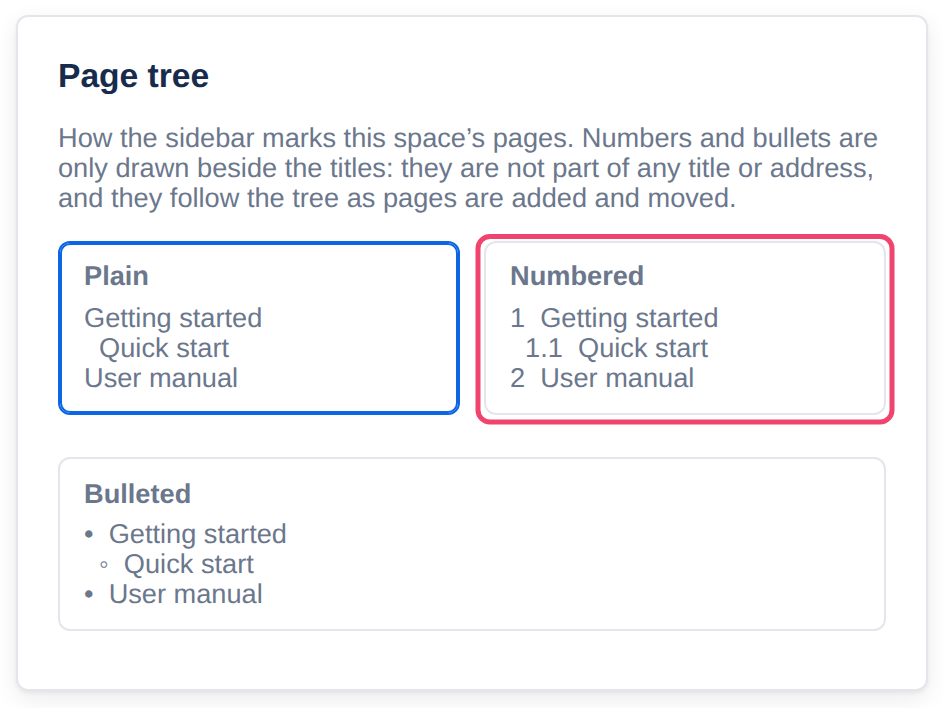
A space can show numbers beside its pages, like the contents of a book: 1, 1.1, 1.2, 2. It makes a long tree easier to scan and to talk about (“it’s in 3.2”), which is why these docs use it. Or it can show bullets, which change shape with each level, or nothing at all.
It is a setting of the space, so everyone sees the same. The numbers are only drawn beside the titles: they are not part of any title or address, and they follow the tree when pages are added or moved, so nobody ever has to renumber anything.
To change it, open Space settings at the bottom of the sidebar. On the Details tab, under Page tree, choose Plain, Numbered or Bulleted. The change is saved as soon as you choose; there is no Save button.
You need to be able to change the space’s settings. If you cannot, ask whoever looks after the space.
The page bar
Above every page is a bar with what you can do to it:
Edit, if you may edit the page.
Full width, to let the page use the whole window, for wide tables and diagrams. It changes the page for everyone who reads it. Not on phones.
⋮, for everything else.
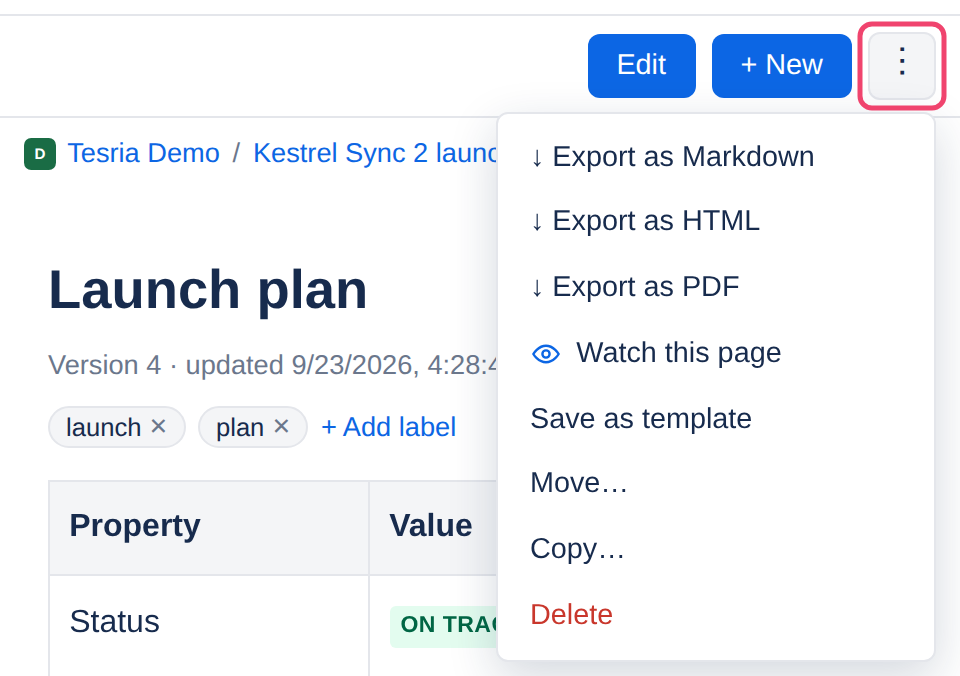
The ⋮ menu is where you export a page as Markdown, HTML or PDF, watch it to be told when it changes, save it as a template, move or copy it, and delete it. Page actions explains each.
Above the title, the breadcrumb shows where the page sits in its space: click any part of it to go up. Below the page are four tabs: Comments, Attachments, History and Restrictions.
Trust this device
If your browser says Not secure beside the address, or you had to click past a warning to open Tesria, your server makes its own security certificate and this device does not trust it yet. The connection is still encrypted, but the warning is worth fixing, once per device.
Your profile then has a Trust this device card with Set up this device, and the sign-in page has a Trust this device link. Both open a short guide that takes about three minutes. See Trusting the local certificate. If your Tesria has a certificate from the internet, neither appears, and you have nothing to do.
Applies to | Tesria 0.5 and later |
|---|---|
Updated | September 24, 2026 |
Changes | Revised. |