Sending with Outlook or Microsoft 365
Tesria sends through Microsoft by signing in with Microsoft: you sign in once, on Microsoft’s own page, and Tesria never holds a password. It works for both kinds of Microsoft account, and it is the only way that keeps working, because Microsoft no longer accepts passwords from other programs for personal accounts, and turns them off by default for Microsoft 365 at the end of December 2026.
It takes one piece of setup the first time: registering Tesria with Microsoft, about fifteen minutes. It is your own registration because every Tesria has its own address, and Microsoft only sends a sign-in back to addresses the registration names.
Which account do you have?
A personal account: an address ending in
@outlook.com,@hotmail.com,@live.comor@msn.com, which you signed up for yourself.A work or school account (Microsoft 365): an address at your organization’s own domain, such as
you@example.com, which your IT department gave you.
Both use the steps below. Tesria sends a personal account’s email through Outlook.com’s server and a Microsoft 365 account’s through Microsoft 365’s, and picks the right one when you sign in.
Before you start
Somewhere to register Tesria. Registrations live in a Microsoft Entra directory. Every Microsoft 365 organization has one; its administrator may need to do step 1, or allow you to. With only a personal account, creating a free Azure account gives you a directory of your own.
For Microsoft 365: Authenticated SMTP allowed for the mailbox. Microsoft 365 turns it off in many organizations, and signing in does not get around it. An administrator turns it on in the Microsoft 365 admin center: Users, Active users, the mailbox, Mail, Manage email apps, Authenticated SMTP. If the organization uses Microsoft’s Security defaults, those keep it off.
Use a mailbox made for the wiki. A mailbox such as wiki@example.com keeps nobody’s personal mailbox tied to the wiki. The emails people receive come from it.
Step 1: Register Tesria with Microsoft
Go to
entra.microsoft.comand sign in. Open App registrations (search for it at the top) and choose New registration.Name it
Tesria.Under Supported account types, choose the one that includes personal Microsoft accounts to send from an Outlook.com address (or from either kind). To allow only your organization’s mailboxes, choose this organizational directory only.
Under Redirect URI, choose Web and paste the address Tesria shows in its email settings, under Redirect address to register with Microsoft (step 5 shows where). Choose Register.
Microsoft only returns to https addresses. Tesria always has one, but the address in its settings must be the https address people use: see Instance in Settings.
Step 2: Copy its IDs
On the registration’s Overview, copy the Application (client) ID. If you chose this organizational directory only, copy the Directory (tenant) ID too.
Step 3: Make a client secret
Open Certificates & secrets, then Client secrets, then New client secret.
Describe it as
Tesriaand pick when it expires. The longest is 24 months; Microsoft suggests less. Put a reminder in your calendar a week before.Copy the secret’s Value now. Microsoft shows it only once, and the Secret ID beside it is not what Tesria needs.
Step 4: Allow it to send email
Open API permissions, choose Add a permission, then Microsoft Graph, then Delegated permissions. Tick SMTP.Send, and under OpenId permissions email, offline_access and openid. Choose Add permissions. In an organization, an administrator may also need to choose Grant admin consent.
Step 5: Sign in from Tesria
In Admin, Settings, Email, choose Outlook or Microsoft 365 under Provider and leave Sign in with Microsoft chosen. Paste the client ID and the secret’s value, and the directory ID if you copied one. Then choose Sign in with Microsoft.
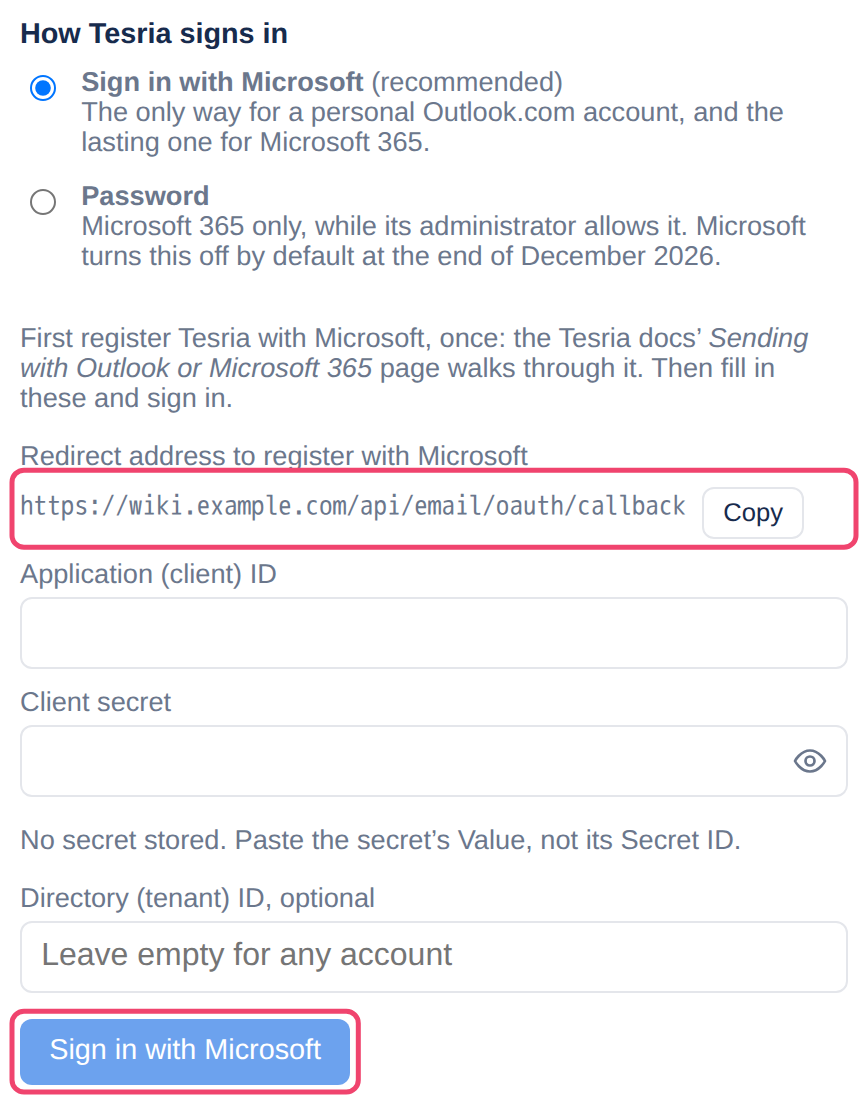
Microsoft asks which account to use and whether to allow Tesria to send email as it. Choose the mailbox the wiki will send from, and allow it. You come back to Tesria, which says Signed in. Email now goes out from and the address. Tesria has filled in the server, the username and the From address itself.
Step 6: Send a test
Turn on Send email at the top of the section if it is off, choose Send test email to me, and check that the message arrived, including in the spam folder.
If the test fails
“Authentication unsuccessful” that mentions
SmtpClientAuthenticationmeans Authenticated SMTP is off, for the mailbox or the whole organization (see Before you start). An administrator needs to turn it on.Tesria says the client secret has expired. Make a new secret (step 3), paste its value in Tesria’s email settings and choose Sign in again with Microsoft.
Administrators get the alert Email stopped: the mail sign-in was refused. Microsoft ended the sign-in, for example because the account’s password changed or someone removed Tesria’s access. The email settings show Microsoft’s reason; sign in again.
Microsoft says the redirect address does not match. The address registered in step 1 must be exactly the one Tesria shows, including
https://.
Microsoft 365 with a password, for now
A Microsoft 365 mailbox can still send with its password while its organization allows Authenticated SMTP with a password. Choose Password under How Tesria signs in and fill in:
Setting | Value |
|---|---|
Provider | Outlook or Microsoft 365 |
SMTP host |
|
Port |
|
Encryption | STARTTLS |
Username | The mailbox’s full address |
Password | The mailbox’s password |
From address | The same address |
Microsoft is phasing this out. At the end of December 2026, Microsoft turns password sign-in for sending off by default in existing organizations; the administrator can turn it back on for now. Organizations created from 2027 cannot use it, and Microsoft plans to remove it completely later. Signing in with Microsoft is the way that lasts.
A Microsoft 365 “shared mailbox” has no password of its own, so it cannot send this way. A personal Outlook.com account cannot send with a password at all.
Applies to | Tesria 0.5 and later |
|---|---|
Updated | September 24, 2026 |
Changes | Revised. |