Tables by touch
On a computer, a table’s controls appear when the pointer moves over it. A touch screen has no pointer to hover, so there the controls appear when you tap inside the table, and go when you tap outside it. This works on any touch screen, tablets included, whatever its size.
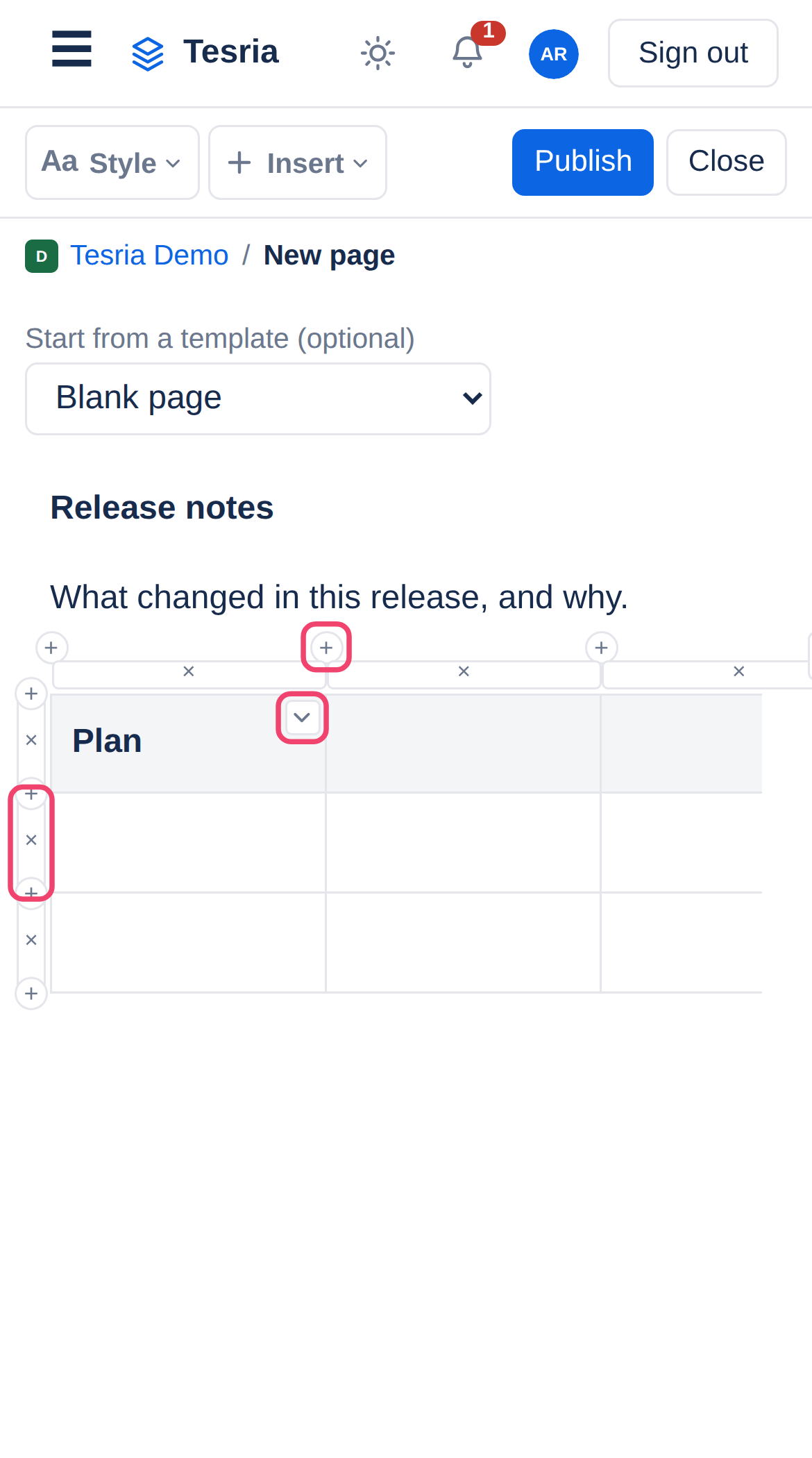
+ along the top adds a column at that point; + down the left side adds a row.
× above a column, or beside a row, deletes it.
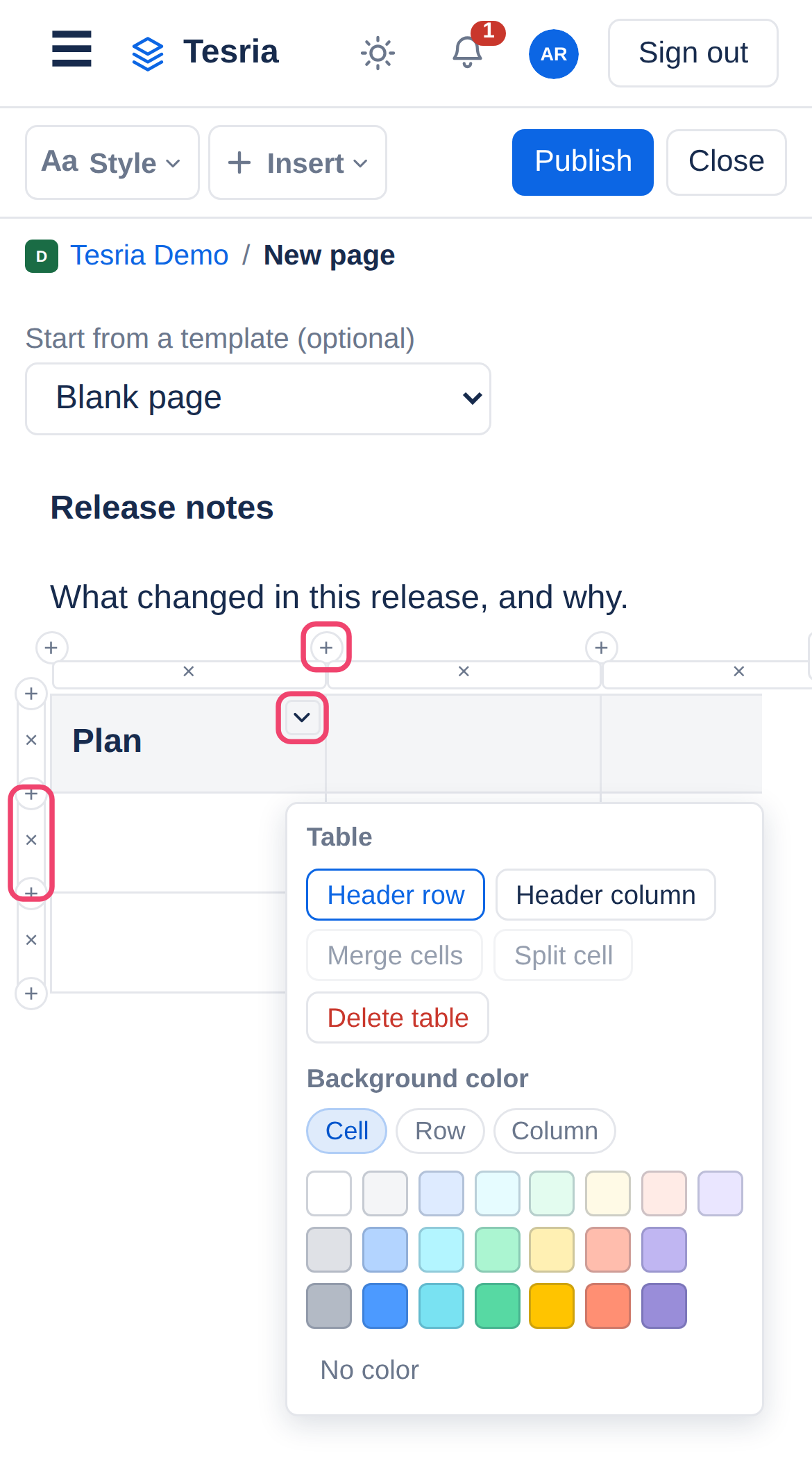
The arrow in the cell you are in opens the cell options: header row, header column, merging and splitting cells, deleting the whole table, and a background color for the cell, its row or its column.
Wide tables
A table wider than the screen scrolls sideways; swipe it left and right. Each column keeps a readable width rather than being squeezed to fit, so a table with many columns stays legible.
Resizing is for a mouse or trackpad. Dragging a column border, or a table’s edge, does not work by touch. The table’s full-width button, which widens it to the whole page on a computer, does work with a tap.
Applies to | Tesria 0.5 and later |
|---|---|
Updated | September 24, 2026 |
Changes | Written for Tesria 0.5. |