History and restoring
Tesria keeps every version of every page. Each time a page is published or updated, the version before it is kept, with who made the change, when, and the note they left. So you can see how a page came to be as it is, find out what changed and when, and put back an earlier version if a change went wrong.
Looking back
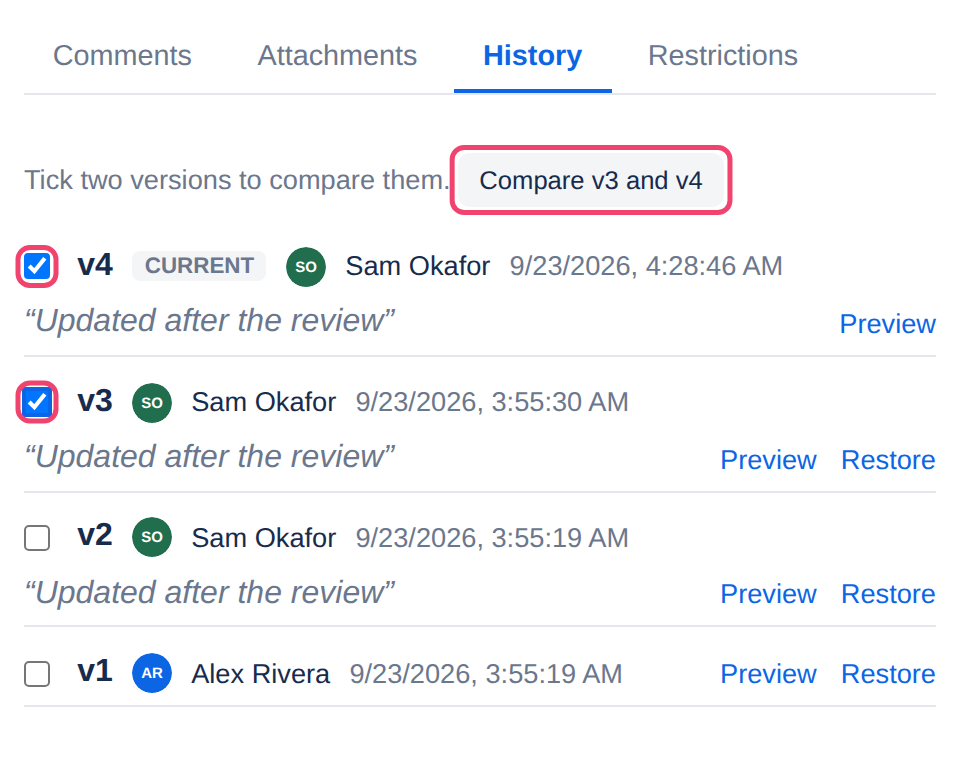
Open the History tab below the page. It lists every version, newest first: its number (the newest is marked current), who made it, when, and what they wrote in What changed?.
Preview beside a version shows the page as it was then, below the list. Close hides it again.
Comparing two versions
To see exactly what changed between two versions, compare them.
Step 1: Tick two versions
Tick the box at the start of each. If you tick a third, the first one you ticked is unticked.
Step 2: Choose Compare
The button appears once two are ticked, and names them, such as Compare v1 and v2.
The later version is shown below the list, with what it added highlighted and what it removed struck through.
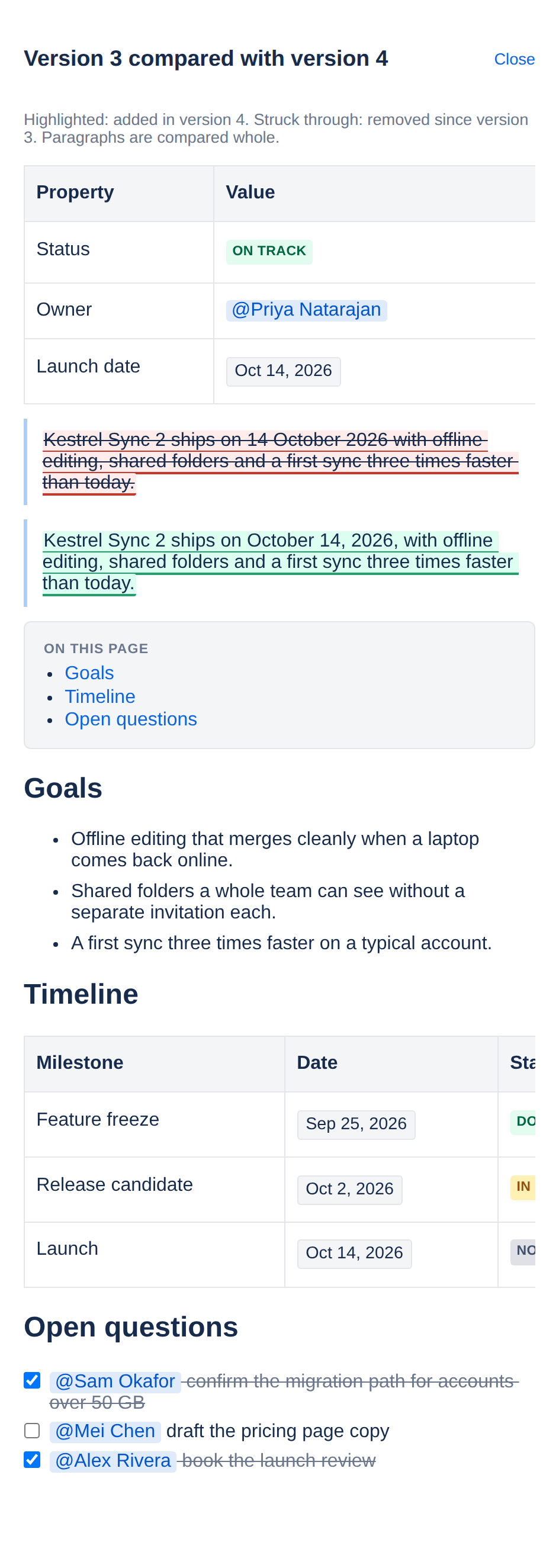
Paragraphs are compared whole: if one word in a paragraph changed, the whole paragraph is shown as changed.
Restoring an earlier version
Step 1: Choose Restore beside the version
Every version but the current one has it.
Step 2: Confirm
Tesria asks first, then puts that version’s content back.
Restoring does not remove anything from the history. It adds a new version on top, with the old content, named Restored from version and its number, so even the restore can be undone. Anyone watching the page is told, as for any update. Restoring needs edit rights on the page.
The title is not part of a version. Versions keep the page’s content, so restoring one never changes the title back.
Leave a note when you update. A few words in What changed? make the history easy to read later: “added the budget” finds the right version faster than a list of dates.
Applies to | Tesria 0.5 and later |
|---|---|
Updated | September 24, 2026 |
Changes | Written for Tesria 0.5. |