Theme and accent
You can choose how Tesria looks: light or dark, or following your computer or phone, and an accent color for buttons, links and highlights. A dark theme is easier on the eyes at night; following the system switches for you when your device does. If you use more than one Tesria, a different accent on each tells them apart at a glance.
Changing it
Step 1: Open the appearance menu
Choose the button at the right of the top bar, just left of the bell. It shows a sun, a moon or a screen, depending on the theme in use.
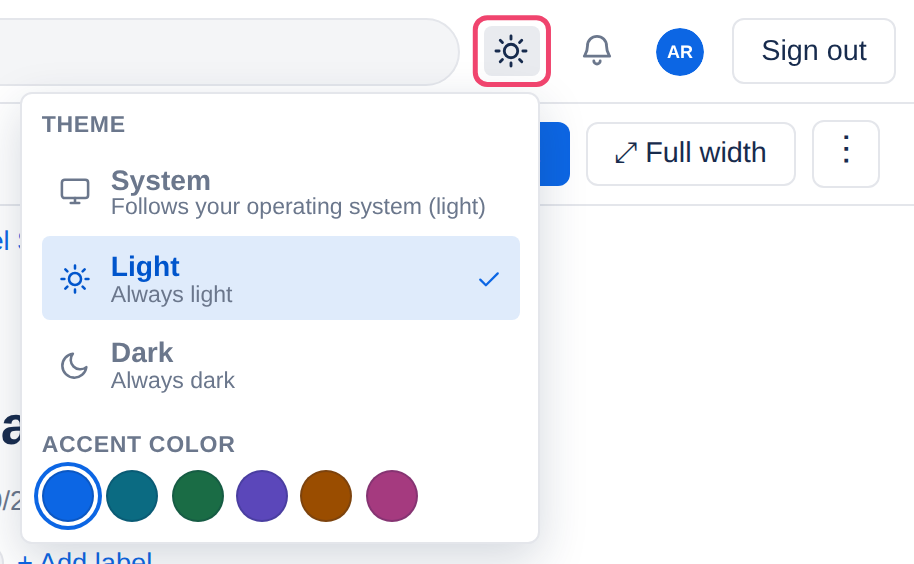
Step 2: Choose a theme
System follows your computer or phone, light by day and dark by night if your device switches. This is where everyone starts, and the menu shows which one your device is using now.
Light is always light.
Dark is always dark.
Step 3: Choose an accent color
Pick one of the round swatches: Blue, Teal, Green, Purple, Orange or Magenta. If your organization has its own brand color, it comes first, under your organization’s name.
Each choice takes effect at once; there is nothing to save. Close the menu with its ×, or click anywhere else.
Where it is kept
Your choice is kept in this browser, not in your account, so your phone and your laptop can look different, and it works even when you are not signed in. If you clear the browser’s data for your Tesria, it goes back to the start: System and your organization’s usual accent.
When the choice is made for you
An administrator can decide some of this for everyone, in Admin, Branding (Admin is in the top bar; in a narrower window it is under More, and on a phone in the ☰ menu):
The theme can be fixed to light only or dark only. Then the menu offers no theme.
The accent can be used for everyone. Then the menu offers no accent. Or the administrator can simply choose the one people start with, which you can still change.
If both are fixed, there is nothing to choose, and the button is not in the top bar at all. See Branding.
Applies to | Tesria 0.5 and later |
|---|---|
Updated | September 24, 2026 |
Changes | Revised. |