Moving and copying pages
Pages do not always stay where they started. A page written in the wrong place, or one that now belongs to another team, can be moved anywhere in the space or to another space, with everything under it. And when a new page should start as a copy of an existing one, such as last year’s event plan, you can copy it, on its own or with its sub-pages.
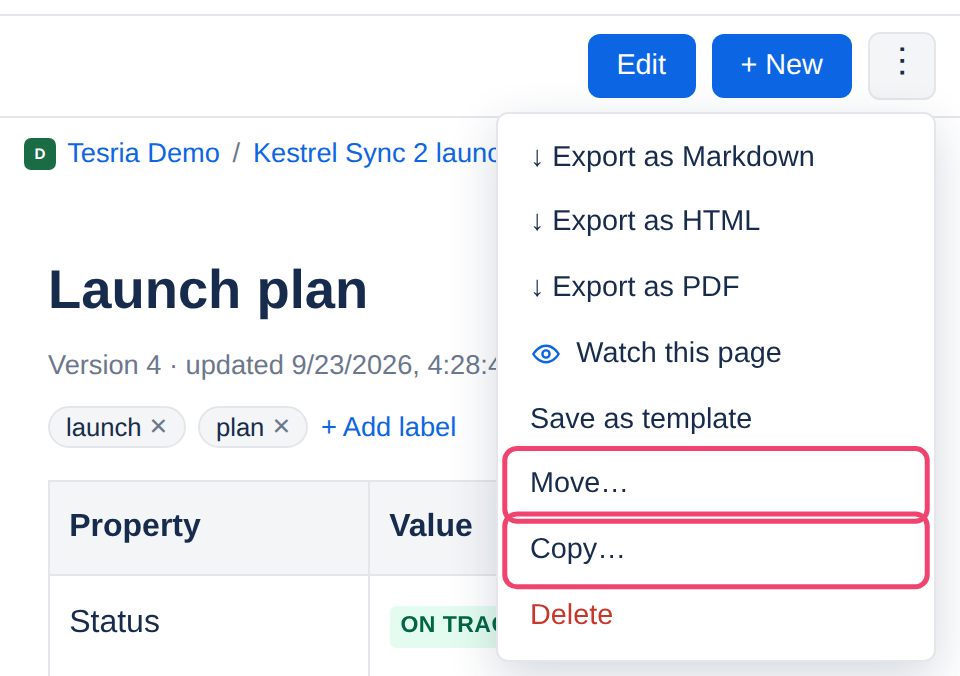
Both are in the page’s ⋮ menu, at the top right.
Moving a page
Step 1: Choose ⋮, then Move…
Open the page you want to move first. Move… is only in the menu if you can edit the page.
Step 2: Choose where it goes
Choose the Space, then the page to Put it under, or The top of the space. The page itself and its sub-pages are not offered, since a page cannot go under itself.
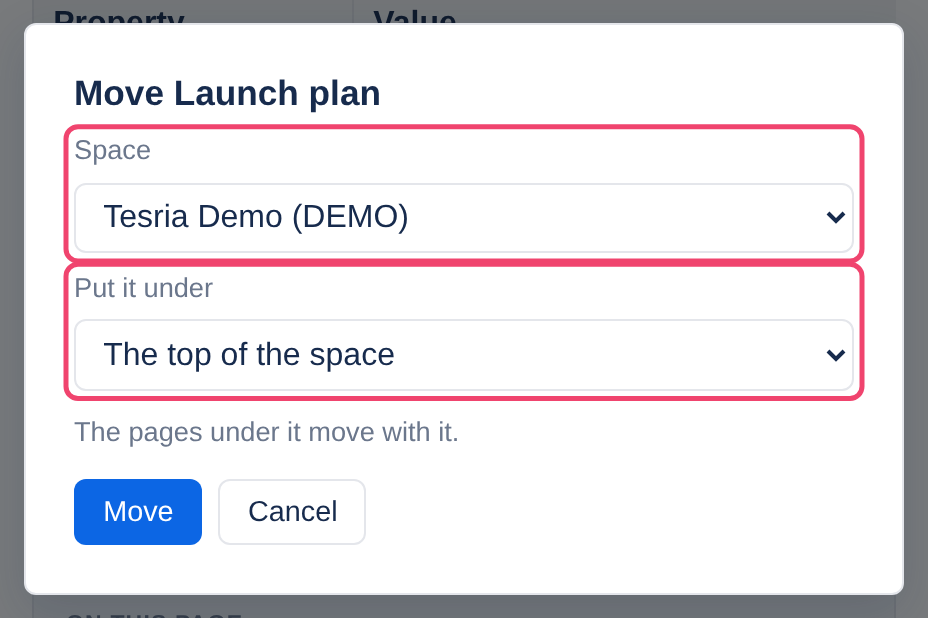
Step 3: Choose Move
The page and everything under it move together, and Tesria opens the page in its new place. It goes after the pages already there; drag it in the tree if it should be higher up.
A moved page is the same page: its history, comments, labels and files go with it, and no new version is made. Moving needs edit rights on the page and on wherever it goes.
Moving to another space changes who can see it. A page follows the permissions of the space it is in, so people who could not see it before may be able to now, and some who could may not. Restrictions set on the page itself go with it; any it had from the pages above it in its old place do not. See Who can see a space and Restrictions.
Moving within the same space? Dragging it in the page tree is quicker, and lets you choose its exact place. See The page tree and reordering.
Copying a page
Step 1: Choose ⋮, then Copy…
Open the page you want to copy first.
Step 2: Choose where the copy goes
Choose the Space and the page to Put it under, as for moving. It can go anywhere you can edit, even beside the original.
Step 3: Choose whether to copy the pages under it
Copy the pages under it too is ticked to begin with, which copies the whole branch. Untick it to copy just this one page.
Step 4: Choose Copy
Tesria opens the copy. It is titled Copy of and the original’s title, so the two cannot be mixed up; rename it by editing it. Its sub-pages keep their own titles.
What a copy brings, and what it does not:
Comes with it: the content, the labels, the emoji, and the attachments. The copy gets its own copies of the files, so its pictures keep working even if the original is deleted.
Stays behind: the history (the copy starts at version 1), the comments, and any restrictions.
Left out: pages under it that you cannot read, with everything under them.
Copying needs read access to the page and edit rights where the copy goes. Anyone watching that space is told about the new pages, as for any new page.
Copy or template? Copy a page when you want this one page, once. When pages of the same kind are made again and again, a template is better: it is offered every time someone creates a page. See Templates.
Applies to | Tesria 0.5 and later |
|---|---|
Updated | September 24, 2026 |
Changes | Revised. |