Connecting an assistant
Connecting an assistant takes two things: a token, which is how the assistant signs in as you, and your Tesria’s MCP address, which is https://your-server/mcp. This page walks through both, with Claude Code as the example, and then shows how to check it worked.
Throughout this page, your-server stands for your server’s address: whatever you type into the browser to open Tesria, without https://. For example, if you open Tesria at https://wiki-server.local, then https://your-server/api/spaces means https://wiki-server.local/api/spaces.
Step 1: Make a token for the assistant
Open your profile (your picture or initials at the top right of any page) and scroll to its API tokens card.
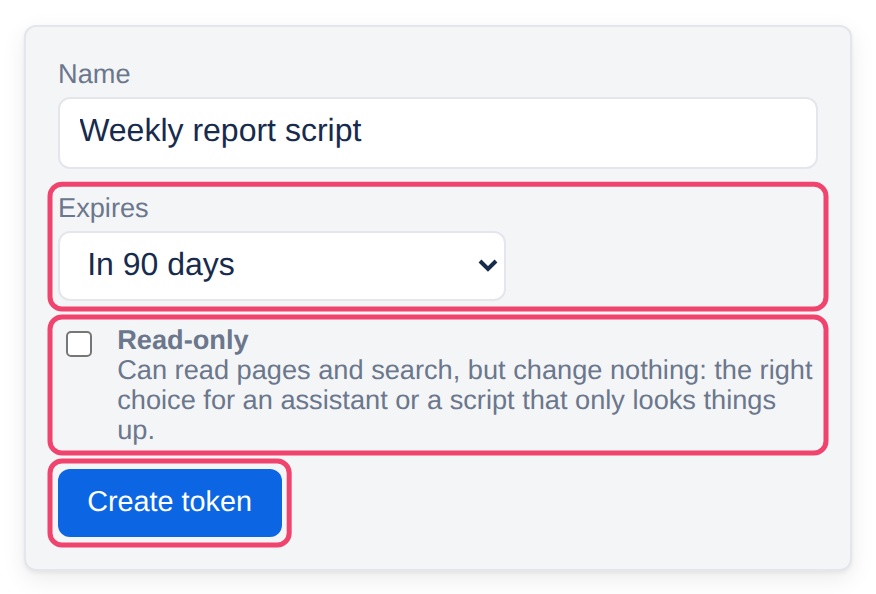
Name the token after the assistant, such as Claude Code on my laptop, so you know which one to revoke later.
Decide whether it may write (see Read-only or not below). Tick Read-only if it only needs to look things up.
Choose Create token, copy the token (it starts with
cct_and is shown only once), and choose Done.
Step 2: Add Tesria to the assistant
In Claude Code, run this in a terminal, with your address and the token you copied:
claude mcp add --transport http tesria https://your-server/mcp --header "Authorization: Bearer cct_paste-your-token-here"That makes Tesria available when you use Claude Code in the folder you ran it in. To have it everywhere, add --scope user after add.
In another assistant, look for a setting to add a remote MCP server, sometimes called a connector or an MCP server by URL. Tesria needs a client that can do two things:
Connect over HTTP (the transport called Streamable HTTP) to
https://your-server/mcp.Send a header with every request:
Authorizationset toBearer, a space, and your token.
Tesria’s MCP server accepts API tokens only. Signing in with a browser, or a client that only offers to sign you in through a web page, will not work.
Step 3: Check that it works
In Claude Code, run claude mcp list: Tesria should be listed as connected. Then ask the assistant something only your wiki knows, such as Which spaces are in our wiki? It should answer with your spaces’ names, having asked Tesria for them.
A certificate error? If your Tesria uses its own certificate (you open it at a local name such as wiki-server.local), Claude Code does not trust it until told to. Download the certificate from http://your-server/ca.crt, and start Claude Code with the variable NODE_EXTRA_CA_CERTS set to where you saved it, for example NODE_EXTRA_CA_CERTS="$HOME/Downloads/tesria-ca.crt" claude. See Trusting the local certificate for what that certificate is.
Read-only or not
The token decides what the assistant may do, so choose it for the job:
Read-only for answering questions, summarizing and finding things. It can use every tool that reads, and every tool that writes is refused with a message saying the token is read-only. This is the right choice most of the time.
Not read-only when you want it to write: drafting pages, tidying labels, filling in a template. It can then change any page you can change, so give it to an assistant you are watching.
The assistant can do whatever its token can. Make a separate token for each assistant, and when you stop using one, choose Revoke next to its token on your profile. It is cut off at once.
When an assistant writes
A page an assistant creates or changes is published straight away, as a new version credited to you, the token’s owner, with the assistant’s note on what it changed in the page’s history. Watchers are told, and webhooks fire, exactly as if you had done it.
If someone has that page open in the editor at the time, they see the assistant’s change highlighted as tracked changes, marked as coming from MCP, with Accept all and Reject all above the page. Rejecting takes it out of their draft, so their Update publishes the page without it; the assistant’s version stays in the history either way. See Changes from assistants and the API.
Next: What an assistant can do lists its ten tools.
Applies to | Tesria 0.5 and later |
|---|---|
Updated | September 24, 2026 |
Changes | Revised. |