Security (administration)
Tesria keeps an eye out for signs of trouble: many wrong passwords from one address, a flood of requests, an administrator signing in from somewhere new, lots of pages removed at once. The Security tab shows what it has noticed, lets you act on it, and holds the switches and limits that protect the instance.
To open it, choose Admin, Security (Admin is in the top bar; in a narrower window it is under More, and on a phone in the ☰ menu).
Four figures sit at the top: open alerts (and how many are critical), events in the last 24 hours, blocked networks (and how many requests they have refused), and Exposure, which says whether public spaces are allowed and whether registration is open or by invite.
Alerts
An event is anything Tesria noticed; most are routine and are only listed under Recent events. An alert is an event that needs a person to look at it, such as twenty-five wrong passwords from one address in five minutes. Alerts wait on this tab until someone deals with them.
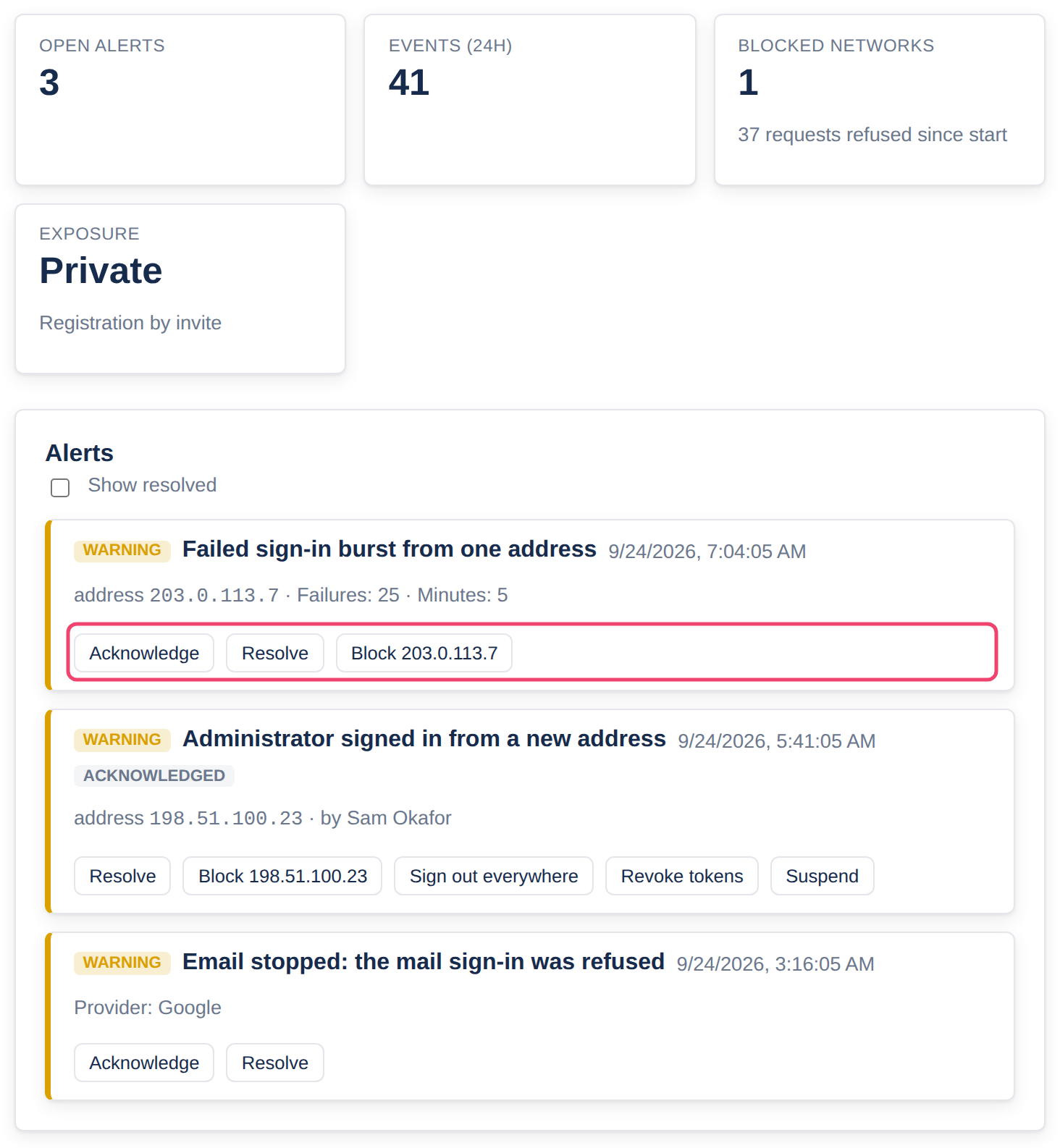
Each alert shows what happened and when, the address it came from or the account it is about, and the details Tesria recorded. Its color says how serious it is: yellow for a warning, red for critical. An alert someone has already picked up says acknowledged.
Among the things that raise one:
a burst of failed sign-ins from one address, or many different accounts tried from one address;
an account locked repeatedly, or an administrator signing in from a new address;
many pages removed quickly, or many API tokens made quickly;
someone promoted to administrator, a role given more rights, or ownership transferred;
a space published, withdrawn or deleted, or the public spaces switch changed;
a backup failing or overdue, a restore test failing, or the backup disk nearly full;
the audit log’s chain broken (see Audit log integrity below);
email stopping because Microsoft or Google refused Tesria’s mail sign-in.
How administrators hear about an alert
Every administrator is told, straight away, in two places:
The notification bell, at the top of every page. The alert shows as Security warning or Security critical with what happened; choosing it opens this tab.
Email, when email is set up (see Email (SMTP)). Security alerts are always emailed at once, whatever someone chose for their other notifications, with the subject Security alert. Several at once arrive together in one email.
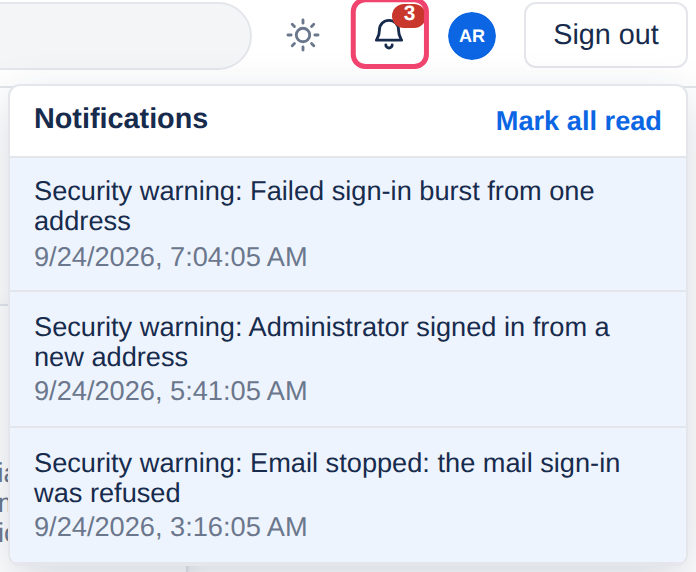
Only administrators get them. People without administration rights never see security alerts, in the bell or by email.
Dealing with an alert
Most alerts are harmless once you look: someone forgot a password, or signed in from a new café. The steps make sure one person looks, and that what they found is written down.
Step 1: Acknowledge it
Acknowledge tells the other administrators that someone is looking, so two people do not chase the same thing. The alert then says acknowledged and by whom.
Step 2: Find out what happened
The alert’s details, and Recent events lower on the tab, say what was seen and from where. For an account, ask its owner: was it them? For an address, is it one of yours, such as the office?
Step 3: Act on it, if it needs it
An alert about an address has a Block button that blocks it for 24 hours. An alert about an account offers Sign out everywhere, Revoke tokens and Suspend. Each asks before it does anything.
Step 4: Resolve it
Resolve closes the alert, with an optional note of what you found, such as “Sam mistyped a new password; nothing to do.” Resolved alerts are hidden unless you tick Show resolved, and the note stays with them for the next person who wonders.
A good habit: resolve alerts once you know they are harmless. An empty list means anything new stands out.
Kill switches
Three switches that change the whole instance at once. They are here so that in a hurry you do not have to go looking for them; the same switches are in Settings.
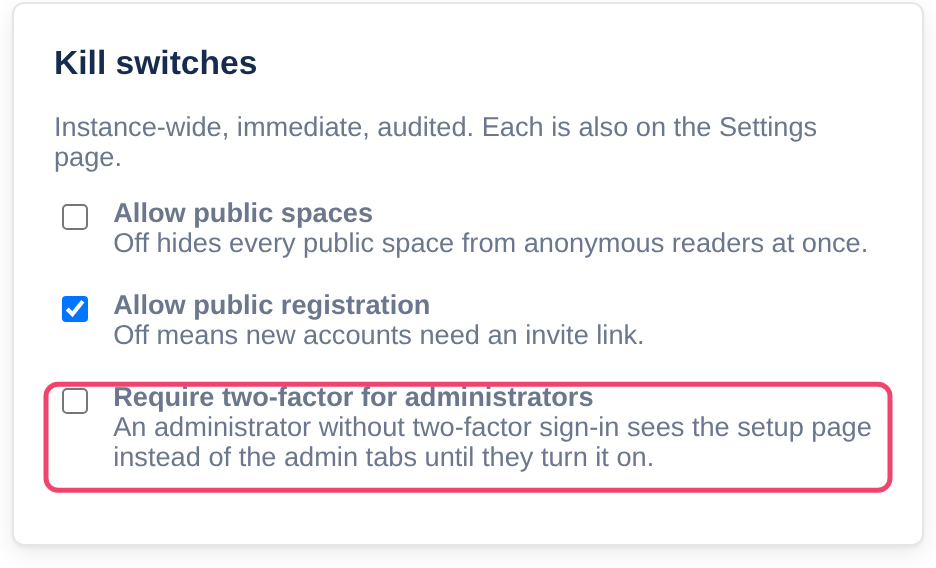
Allow public spaces: off hides every published space from people who are not signed in, straight away. Each space keeps its setting, so turning it back on publishes them again. Asks for your password, and alerts every administrator.
Allow public registration: off means new accounts need an invite.
Require two-factor for administrators: an administrator, the owner included, who has not set up two-factor sees a page asking them to, instead of the Administration tabs, until they do.
Set up your own two-factor first. Otherwise, the moment you turn the requirement on, Administration sends you to your profile to set it up too.
Blocking an address
When an alert shows attacks coming from one address, block it. Every request from a blocked address is refused before Tesria does anything else with it.
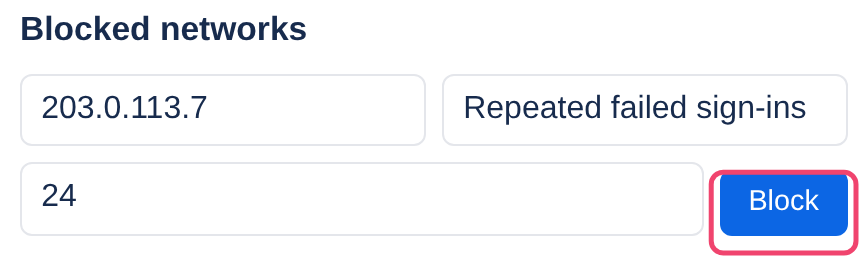
Step 1: Enter the address
A single address such as 203.0.113.7, or a range such as 203.0.113.0/24, which means every address from 203.0.113.0 to 203.0.113.255.
Step 2: Add a reason and a time, if you like
The reason is a note for the other administrators. The hours can be from 1 to a year; leave it empty to block until someone removes it.
Step 3: Choose Block
The address appears in the list below the form. Tesria will not let you block a range that includes your own address. Blocks that run out are cleared away, and Remove ends one early, after asking for your password.
Recent events
The last 100 things Tesria noticed, with how serious each was, the address and the account. Most need nothing from you: a single wrong password is an event, and an alert is raised when events add up.
Brute-force protection
The limits that make guessing passwords slow and pointless. The defaults suit most instances.
Setting | Default |
|---|---|
Credential attempts per address per minute | 10 |
Anonymous requests per address per minute | 300 |
API tokens per account per hour | 20 |
Failed sign-ins before lockout | 5 |
First lockout (seconds) | 60 |
Maximum lockout (seconds) | 900 |
Credential attempts are shared by signing in, registering and account recovery. If your whole office reaches Tesria through one internet connection, everyone shares one address, and you may need to raise it.
Anonymous requests limits visitors who are not signed in. People who are signed in are not limited this way.
Lockouts double with each further failure, up to the maximum, and are never permanent.
Change a number and choose Save limits. Below, Active lockouts lists accounts locked right now, each with Unlock.
Audit log integrity
Every entry in the audit log is linked to the one before it, so an entry that is changed or removed breaks the chain. Verify now checks the whole chain and names the first entry that does not fit. Tesria also checks once a day by itself, and raises a critical alert if the chain is broken.
Applies to | Tesria 0.5 and later |
|---|---|
Updated | September 24, 2026 |
Changes | Revised. |