Wiki packs
A wiki pack is a whole space in one file, history and all, in a form Tesria can read back. Use one to move a space to another Tesria, for example from a trial server to the real one, or to keep a copy of a space outside the wiki.
A pack is not a website: it is for Tesria, and what comes out of it is still editable. To publish pages for readers, export a site instead (see A space as a website).
A pack can live in Git. The files inside are readable text, and the same space always packs to exactly the same file, so committing a pack after each change shows what actually changed.
Exporting a pack
In the space, choose Space settings, scroll down the Details tab to Export as a pack, and choose the button of the same name. A bar shows how far along it is, with a Cancel button, and then it downloads as a zip named after the space’s key, such as team-pack.zip.
What goes in:
Every page you can read, with every version of it, its comments, labels and attachments.
The space’s name, description and icon, and its own templates.
The authors’ display names, as a record of who wrote what.
What stays behind:
Who may read what: space permissions and page restrictions. Only how many there were is noted.
Accounts and email addresses.
Watches, webhooks, drafts and the trash.
Whether the space was public, and which exports it allowed.
Treat the file as you would the space. It holds everything you can read, restricted pages included.
Importing a pack
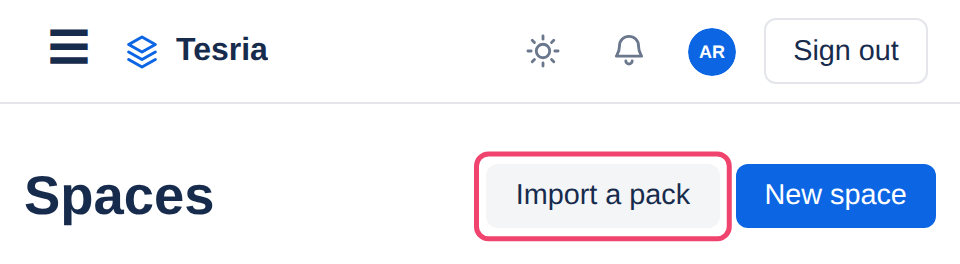
Step 1: Choose Import a pack
On the Spaces page, choose Import a pack, beside New space.
Step 2: Choose the file and a key
Choose the pack file, and give the new space a Key that no other space uses, such as HANDBOOK. The Name is optional; leave it empty to keep the one in the pack. Then choose Import.
Step 3: Read what came in
Tesria says how many pages, versions, attachments, comments and templates were imported. Two things are worth reading here:
Everything is credited to you. The original authors’ names are kept in the audit log, because a name in a pack is not an account on this Tesria.
Restrictions did not come across. If the original had any, Tesria says how many, so you can set page restrictions again from each page’s Restrictions tab.
Step 4: Choose who should have access
An imported space starts private: only you can see it. Right below the result, Who should have access? lets you add people and groups straight away. The Users group is everyone with an account, which is the choice for a space the whole team shares. You can change this later in Space settings, Permissions. Then choose Open and the space’s name to go to it.
Good to know
An import always makes a new space. Importing the same pack twice gives two spaces; it never merges into an existing one.
A pack can be up to 500 MB, and each person can import 10 packs an hour.
Importing needs the right to create spaces, which everyone has unless an administrator has turned it off for their role.
Applies to | Tesria 0.5 and later |
|---|---|
Updated | September 24, 2026 |
Changes | 0.6: a progress bar and Cancel while it packs. |