Restrictions
A restriction keeps one page, and everything under it, to particular people or groups, inside a space that others can use. It suits a page that should not be seen by everyone who can see the space, such as the salary table in a team’s space, or an announcement still being drafted. To limit a whole space instead, see Who can see a space.
The two kinds
View: only the people listed can see the page. For everyone else it disappears: from the tree, search, label lists and the trash, and they are not told when it changes.
Edit: everyone who can see the space can still read the page, but only the people listed can change it. Use it for a page that should stay as it is, such as a signed-off policy.
Restricting a page
Step 1: Open the Restrictions tab
It is below the page, beside History.
Step 2: Choose who, and View or Edit
Choose User or Group, then the person or group, then View or Edit.
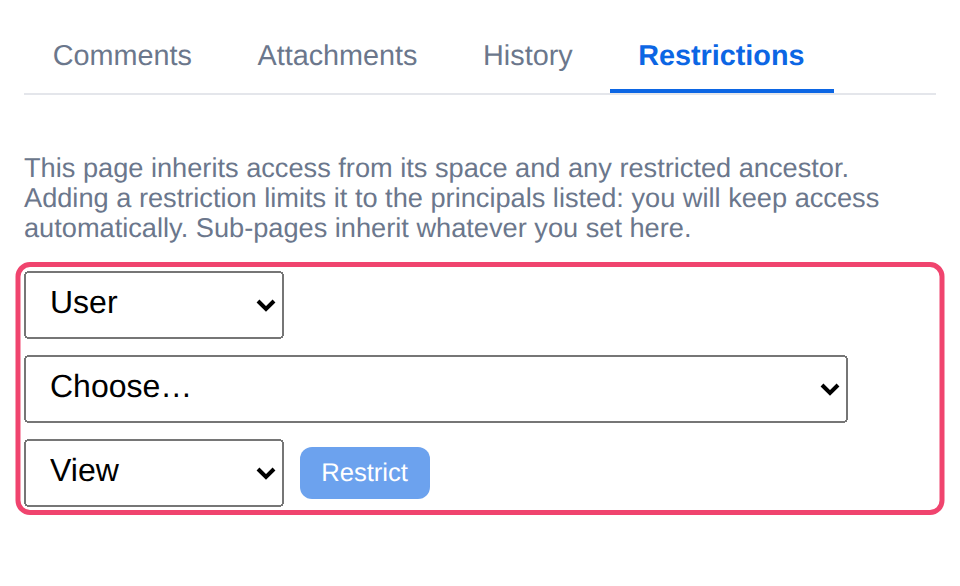
Step 3: Choose Restrict
The first time, Tesria adds you as well, at the same level, so you do not lock yourself out. Add everyone else who needs the page the same way.
Anyone who can edit the page can restrict it, and Remove takes a restriction away again.
What a restriction reaches
Sub-pages: a restriction covers every page under the restricted one, including pages added later.
Pages above: the tab lists only the restrictions set on this page. One set on a page above it still applies, and is changed on that page.
Administrators of a private space can always see and edit its restricted pages. In an open space nobody is exempt, so a restriction really does keep everyone else out.
Restricted pages are never public. In a space published for public reading, any restriction, View or Edit, hides the page and everything under it from people who are not signed in.
A restriction stays with the page if it moves to another space, but a copy of the page does not bring it. See Moving and copying pages.
Applies to | Tesria 0.5 and later |
|---|---|
Updated | September 24, 2026 |
Changes | Revised. |