Page actions
Everything you can do to a page is in the bar above it, with the things used less often tucked into its ⋮ menu. What you see depends on what you may do: a button you have no right to use is not shown at all.
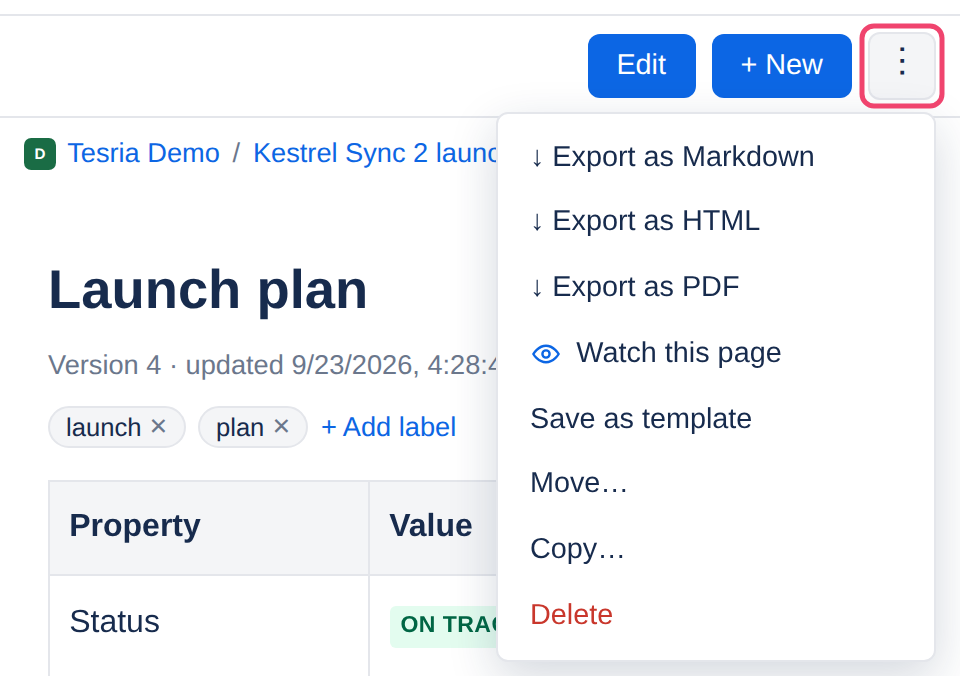
On the bar
Edit opens the page in the editor. See Drafts, Publish and Update.
Full width (or Normal width) widens the page to fill the window, for wide tables and diagrams. It changes the page for everyone who reads it. Phones do not show it, since a phone’s screen is already filled.
+ New, on a phone, starts a new page under this one. On a computer, use + New page in the sidebar.
In the ⋮ menu
Export as Markdown, HTML or PDF downloads the page as a file. Only the formats the space allows are offered. See Exporting a page.
Watch this page tells you when it changes or gets a comment. See Watching.
Save as template lets new pages start from this one. See Templates.
Move… and Copy… put the page, or a copy of it, somewhere else. See Moving and copying pages.
Delete moves the page and its sub-pages to the space’s trash. See Trash.
Around the title
Add emoji, which appears above the title as you point at it, gives the page an emoji. See Page emoji.
+ Add label, under the title, tags the page. See Labels.
Below the page
Four tabs under every page:
Comments: the discussion about the page. See Comments.
Attachments: its files. See Attachments.
History: every version. See History and restoring.
Restrictions: who else may see or change it. See Restrictions.
Who may delete a page
Deleting needs edit rights on the page, and a right from your role as well:
Delete pages you created: everyone has it by default.
Delete pages created by others: administrators have it by default.
See Roles for how an administrator changes these.
Applies to | Tesria 0.5 and later |
|---|---|
Updated | September 24, 2026 |
Changes | Revised. |