The page tree and reordering
The page tree, in the space’s sidebar, is the space’s table of contents. Pages can sit under other pages, as sections sit inside chapters, and the tree shows them that way, indented under the page they belong to. It lists every page in the space that you can see; a page you have no access to is left out, with everything under it.
Choose any page in the tree to open it. On a phone, the tree is on the space’s home page.
Finding a page in a long tree
Type in Filter pages, just above the tree, and the tree shows only the pages whose titles match, with the pages above them (faded) so you can see where they sit.
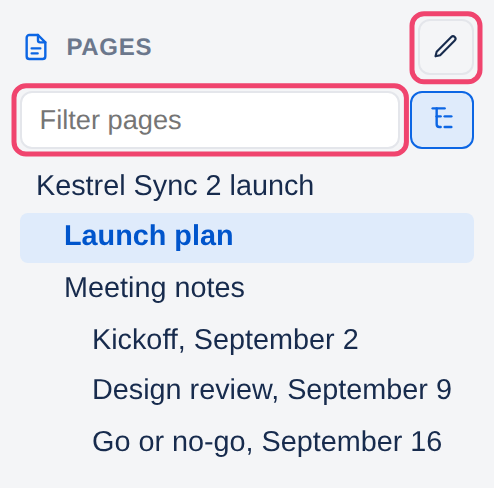
Enter opens the first match, and Esc clears the filter.
The button beside the box also shows the pages under each match. It starts on; choose it to see only the matches themselves.
The filter stays while you move from page to page, so the next result is one click away.
Rearranging pages
As a space grows, pages end up in the wrong order, or belong under a different page. Reorder mode lets you drag them where they should be and save the result in one go.
Step 1: Choose the pencil beside Pages
It is at the top of the tree, boxed in the picture above. The pages stop being links while you reorder, so a stray click cannot take you away from unsaved changes.
Step 2: Drag pages where they belong
Up or down changes a page’s place among its neighbors.
To the right puts it under the page above it, as a sub-page.
To the left moves it out a level.
A line shows where the page will land. Its sub-pages always go with it. You can make as many moves as you like before saving.
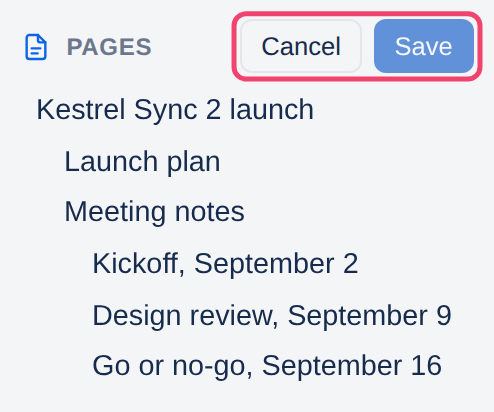
Step 3: Choose Save, or Cancel
Save keeps every move; it shows how many you have made. Cancel puts everything back as it was.
Moving a page needs edit rights on it and on the page it goes under. A page cannot go under one of its own sub-pages. Moving does not add a version to the page’s history, and nobody is notified.
To move a page to another space, or to copy one, see Moving and copying pages.
Numbers or bullets beside each page
A space whose pages are read in order, such as a manual or a course, is easier to follow when its tree is numbered: 1, 1.1, 1.2, 2, like the contents of a book. The tree of these docs is numbered that way. A space can have numbers, bullets, or neither.
Step 1: Open Space settings
Choose Space settings at the bottom of the space’s sidebar, and scroll to Page tree on the Details tab.
Step 2: Choose a style
Each choice shows a small preview, and is saved as soon as you choose it.
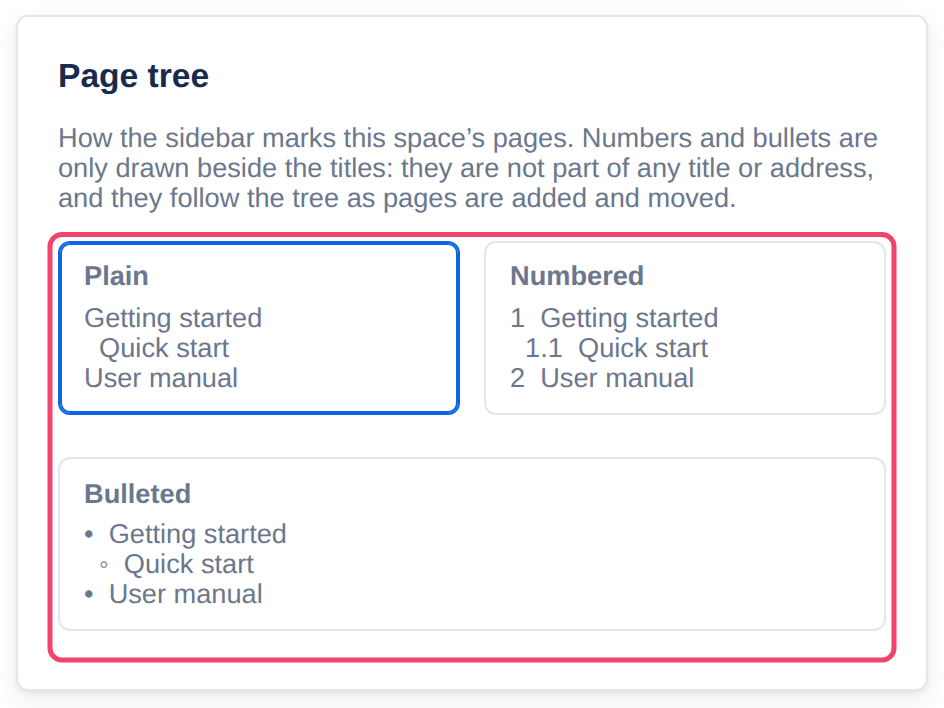
Plain: titles only. Every space starts this way.
Numbered: outline numbers, such as 1, 1.1, 1.2 and 2.
Bulleted: a bullet that changes with the level: •, then ◦, then ▪.
The numbers and bullets are drawn beside the titles, never written into them. They are not part of any title or address, so links and search are unaffected, and they follow the tree by themselves: add, move or reorder a page and every number after it adjusts. While you reorder, they follow each drag before you save. A space exported as a website is numbered the same way.
Changing the style needs administrator access to the space.
Numbers that never move? To mark a few pages with a fixed number instead, give each one a number emoji. See Page emoji.
Applies to | Tesria 0.5 and later |
|---|---|
Updated | September 24, 2026 |
Changes | Revised. |