Floating menus
Some controls stay out of the way until you need them, then appear right where you are working: over the words you have selected, around the table you are in, above the picture you clicked. This page lists them all, so you know what to look for. Each one disappears again when you click elsewhere.
Over selected text
Select some words and a small menu appears above them: Bold, Italic, Underline, Strikethrough, Inline code, Highlight, Add link and Comment.
Selecting a sentence brings up the menu. Here the sentence is made bold, then highlighted.
Comment starts a comment attached to exactly those words, which is the clearest way to ask about one sentence rather than the whole page. See Comments.
The menu does not appear inside a code block, a link or a picture, which have menus of their own.
In a link
Click into a link and its address appears below it, with Edit and Remove. Links do not open when clicked in the editor, so clicking one to change it never takes you away from your page; click the address to open it in a new tab. See Link.
In a panel, expand, decision, excerpt or page properties
A bar appears above the box the cursor is in. For a panel, five buttons change its type. For all of them, a remove button (Remove panel, Remove expand and so on) takes the box away and keeps everything that was in it, as ordinary text.
In a layout
Click into a column and a bar appears above the columns: the five arrangements (two or three columns, with or without sidebars), Centered, Wide and Full width, and Remove layout. See Layout.
It shows only while the cursor is in the column’s own text. Click into a panel, a table or a picture inside a column and that thing’s menu shows instead, so two menus never sit on top of each other. Click back into the text and the layout’s bar returns.
On a picture
Click a picture and a bar appears above it:
Border and Shadow, each on or off.
Left, Center, Right and Full, to place it. Original size appears once you have resized it.
Caption, a line under the picture, and Alt text, what it shows, for people who cannot see it.
Comment, about the picture.
Drag the small square at its bottom right corner to make it bigger or smaller. See Image.
In a table
Point at a table and its controls appear around it:
+ between the rows and columns adds one there.
× beside a row or above a column deletes it.
⤢ above the right corner makes the table full width; the right edge drags it wider or narrower.
On a touch screen, tap inside the table to show them.
The cell the cursor is in also has a small arrow at its top right, Cell options, which opens:
Header row and Header column, on or off.
Merge cells, once you have selected two or more cells by dragging across them, and Split cell to undo a merge.
Delete table.
Background color: choose Cell, Row or Column, then a color, to color that cell, its whole row or its whole column. No color takes it off.
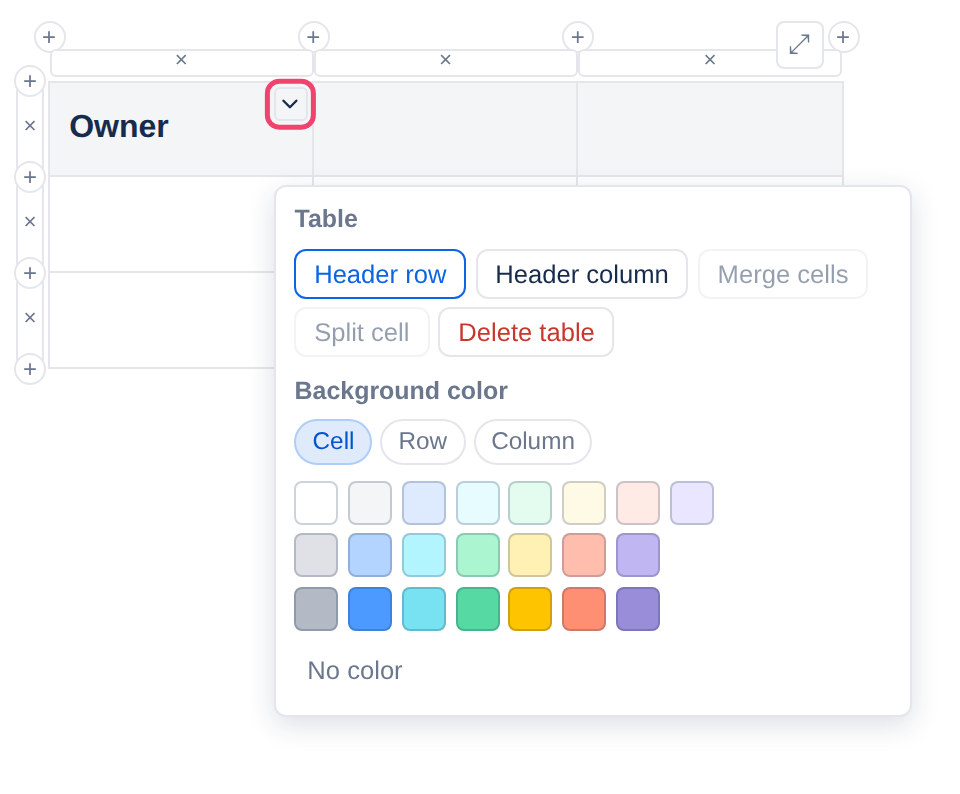
See Table for everything else a table can do.
Everything else
Click a Status, a Date, a Table of contents or a live content block and its settings appear. Each element’s page describes its own.
Applies to | Tesria 0.5 and later |
|---|---|
Updated | September 24, 2026 |
Changes | Revised. |