Image
An image puts a picture on the page: a photo, a diagram, a screenshot. You choose how big it is, where it sits, a caption under it, and a description for people who cannot see it. Pictures are uploaded to the page and kept with it, so they never go missing when a website somewhere else changes.
Insert it
Type this | To get |
|---|---|
/image | Your computer’s file picker, to choose a picture |
Type the command at the start of a line, or after a space, and press Enter. Or choose + on the toolbar, then Image. If you had text selected, the picture takes its place.
Two quicker ways: paste a picture you have copied, or drag one or more picture files onto the page. Each is uploaded and appears where the cursor is. And typing  shows a picture from a web address without uploading it. Your administrator may allow pictures only from certain sites; if so, a note under a picture from anywhere else says it will not show.
Sizes
Its own size
A picture starts at its own size, as wide as the page at most. Keep small pictures, such as an icon or a close-up of one button, at their own size: stretched, they turn blurry.

A share of the page
Drag the handle at the picture’s bottom-right corner and it takes a share of the page’s width, from 10% to 100%. It keeps that share on every screen, so a picture set to half the page is half the page wherever it is read.

On a phone, a resized picture fills the screen’s width. A phone’s screen is already narrow, and a picture shrunk twice would be too small to make out. So these three look the same on a phone.
Where it sits
A picture narrower than the page can sit at the left, in the center or at the right. Text does not flow around it: a picture beside text belongs in a Layout.

Caption
A caption is a line in small italics under the picture. Use it to say what the picture shows, or where it came from. Every picture above has one.
Alt text
Alt text describes the picture for people who cannot see it: screen readers read it aloud, and browsers show it if the picture cannot load. Nobody else sees it. It starts as the file’s name, which rarely helps, so replace it with what the picture shows.
For example, the full-width picture above has the alt text Mountains by day, across the full width. A screenshot’s alt text says what the screen shows, such as The Share dialog, with Anyone with the link selected.
Border and shadow
A picture with white edges, such as a screenshot, runs into a white page, and readers cannot tell where it ends. Here is one as it starts:
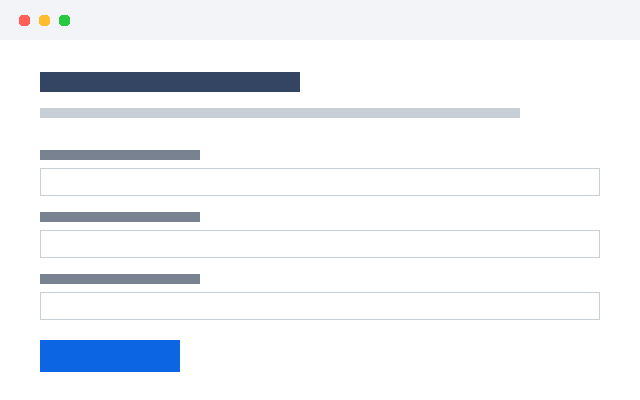
A border draws a thin line around it. Use it for screenshots and diagrams in plain documents:
A shadow lifts it off the page. Use it for screenshots that should look like a window; every picture in these docs has one:
Changing and removing it
Click a picture while you are editing and a bar of options appears above it:
Border and Shadow turn each on or off.
Left, Center, Right and Full place it. Original size appears once you have resized it, and puts it back to its own size.
Caption and Alt text each open a box to type in; Save keeps it. Leave the box empty to remove it.
Comment starts a comment about the picture.
To resize it, drag the small square at its bottom-right corner. To remove it, click it and press Delete; the file stays among the page’s attachments.
Good practice
Write alt text for every picture that carries meaning. Only a picture that is pure decoration can do without.
Crop before you upload. A picture of the part that matters is clearer than a whole screen with an arrow on it.
Mind the file size. A photo straight from a phone camera can be several megabytes, and every reader downloads it.
Related elements
Gallery tiles several pictures in a grid.
Layout puts a picture beside text.
File or video shows a video, a PDF or any other file on the page.
Applies to | Tesria 0.5 and later |
|---|---|
Updated | September 24, 2026 |
Changes | Revised. |