Resetting a password
Forgotten your password? You can choose a new one without anyone else seeing it. Tesria offers up to three ways, because not every Tesria can send email: a server run on your own network often has no email set up at all.
An email link, if your Tesria sends email. The easiest, if it is offered.
A recovery code, one of the codes you saved when you created your account. Works everywhere.
A link from an administrator, if you have neither.
All three start from Forgot your password? on the sign-in page.
Sign in with single sign-on? Then you have no Tesria password, and your password is reset through your organization, not here.
By email
Where email is set up, the reset page offers it first.
Step 1: Ask for a link
Enter your email address and choose Email me a reset link. The page answers the same whether or not the address has an account, so nobody can use it to find out who does.
Step 2: Open the email
The message is headed Reset your password. Its link works once and expires an hour after it was sent, so use it soon. No email after a few minutes? Check your spam folder, then ask again.
Step 3: Choose a new password
The link opens Choose a new password. Type it twice, at least 8 characters, and choose Reset password.
With a recovery code
If the page offers email, choose Use a recovery code instead under the form; otherwise the page opens here.
Step 1: Enter your email address and one recovery code
Any one of your unused codes will do. Dashes and capitals do not matter.
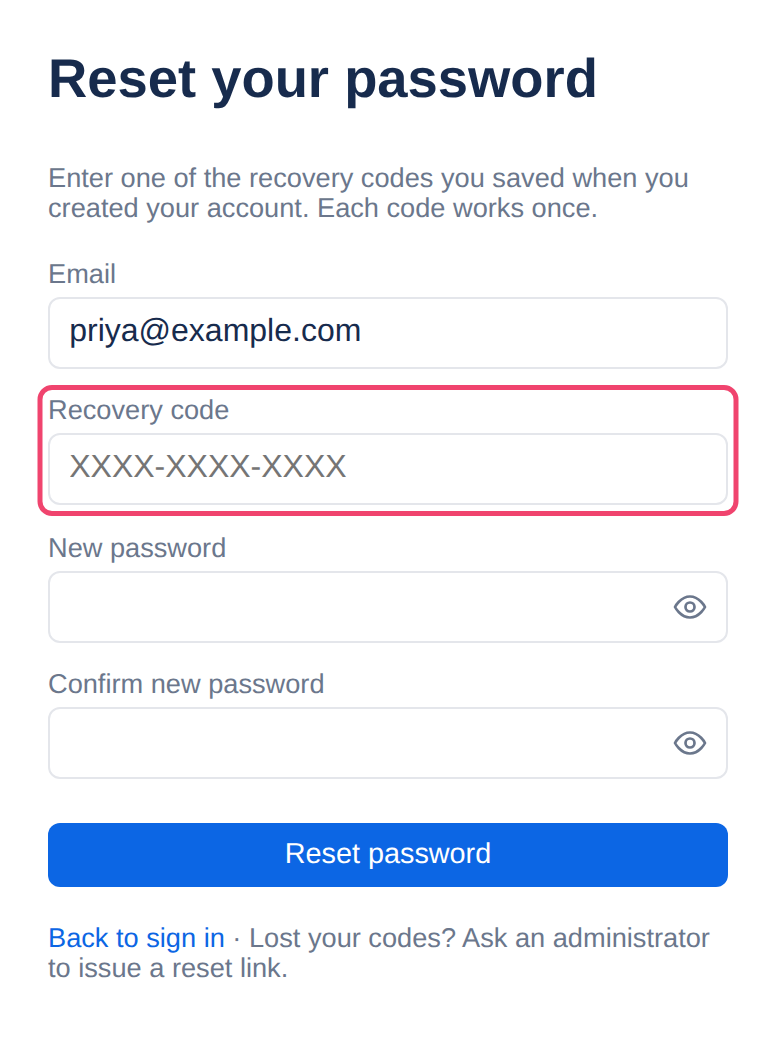
Step 2: Choose a new password
Type it in New password and again in Confirm new password, then choose Reset password. That code is now used up, so cross it off your list.
Your profile shows how many codes you have left. If you are running low, make a new set: see Two-factor and recovery codes.
From an administrator
No email and no recovery codes? The page says Lost your codes? Ask an administrator to issue a reset link.
An administrator chooses Reset password beside your name in Admin, Users (Admin is in the top bar; in a narrower window it is under More, and on a phone in the ☰ menu) and gets a one-time link. It works once, for an hour, and opens straight on Choose a new password.
The link is as good as a password for that hour. Administrators: hand it over in person, or by a message you know only that person can read. Everyone else: if someone you do not know sends you a reset link, do not use it; ask your administrator.
Afterwards
Tesria shows Password reset with a Sign in button. You are not signed in automatically; sign in with your new password.
Every other device is signed out. If someone else was using your account, they are out.
Any lock is cleared, if too many wrong tries had locked your account.
Two-factor stays on, if you had it. You still need your phone, or another recovery code, at the second step.
Too many reset attempts for one address in a short time (10 in a quarter of an hour) are refused with Too many attempts. Try again later. Wait a little and try again.
To change a password you still know, use your profile instead: see Password.
Applies to | Tesria 0.5 and later |
|---|---|
Updated | September 24, 2026 |
Changes | Revised. |