Archiving and deleting a space
When a project ends or a team moves on, its space can go one of two ways. Archiving puts it out of the way and keeps everything, and can be undone at any time. Deleting destroys it and everything in it, for good. If you are not sure, archive.
Both are at the end of Space settings, on the Details tab.
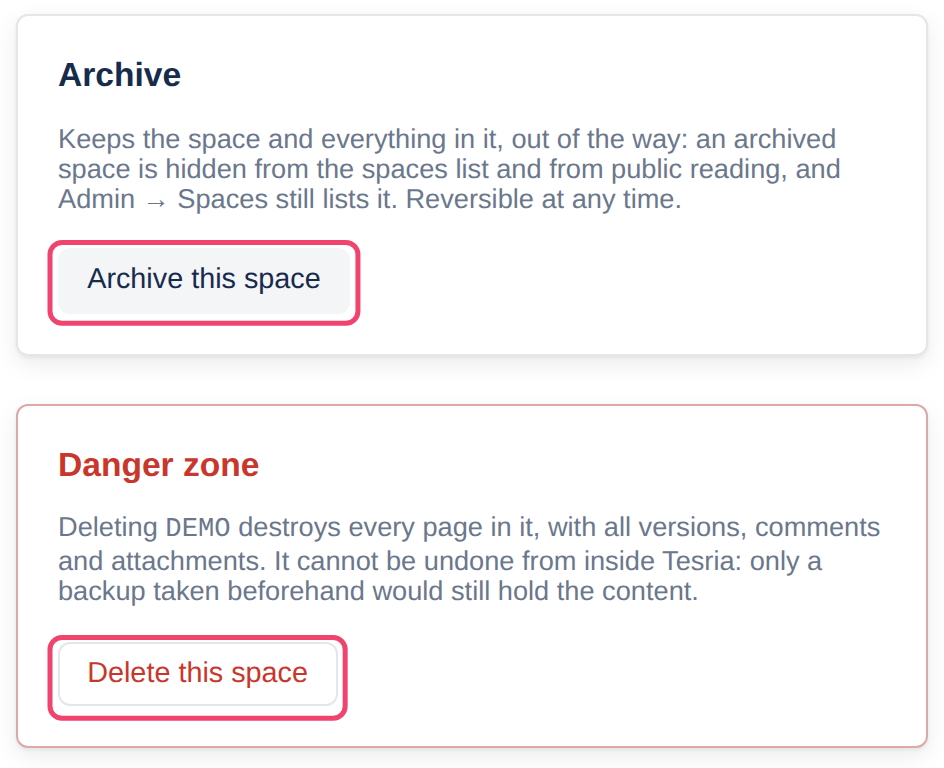
Archiving a space
An archived space is hidden from the Spaces page, and from public reading if it was published. Nothing in it is changed or removed: people with access can still open it at its address or from a bookmark, and Admin, Spaces (Admin is in the top bar; in a narrower window it is under More, and on a phone in the ☰ menu) lists it with an archived badge.
Step 1: Open Space settings
Choose Space settings at the bottom of the space’s sidebar, and scroll to Archive.
Step 2: Choose Archive this space
It happens at once, with no questions: it is easy to undo. To bring the space back, open its settings the same way and choose Unarchive this space.
Any administrator of the space can archive it or bring it back.
Deleting a space
Deleting a space cannot be undone from inside Tesria. Every page in it goes, with every version, comment, attachment and restriction, and so does everything in its trash. Only a backup taken beforehand still holds any of it.
Deleting is only offered to people whose role may delete spaces, which is Tesria’s administrators unless your roles were changed. For everyone else there is no Danger zone.
Step 1: Choose Delete this space
It is in the Danger zone, the last section of the Details tab.
Step 2: Read what will go
The dialog counts the pages and attachments that will be destroyed, including the ones already in the trash. If the space is published for public reading, it warns that its public pages stop working at once.
Step 3: Type the key and your password
Type the space’s key exactly as shown, in capitals, to show you have the right space. Then enter your password. If you sign in through your organization’s single sign-on and have no Tesria password, enter a code from your authenticator app instead. A wrong password counts toward locking your account, as it does at sign-in.
Step 4: Choose Delete
The button names the key, such as Delete TEAM. Tesria takes you to the Spaces page and confirms the space was deleted.
Keep a copy first. Before deleting a space you might ever want again, export it as a wiki pack, which holds its pages, history and files and can be imported into any Tesria. See Wiki packs.
Applies to | Tesria 0.5 and later |
|---|---|
Updated | September 24, 2026 |
Changes | Revised. |