Page emoji
A page can have an emoji to go with its title, such as 🚀 on a launch plan or 📘 on a handbook. It is shown large above the title, and small before the page’s name in the page tree, which makes pages easy to spot in a long tree. It is also shown in a space exported as a website, and copies of the page keep it.
Anyone who can edit the page can give it an emoji. Readers just see it.
Adding an emoji
Step 1: Point at the title
Add emoji appears just above the title while the pointer is over it. On a phone or tablet it is always shown.

Step 2: Choose an emoji
Choose Add emoji and a picker opens.
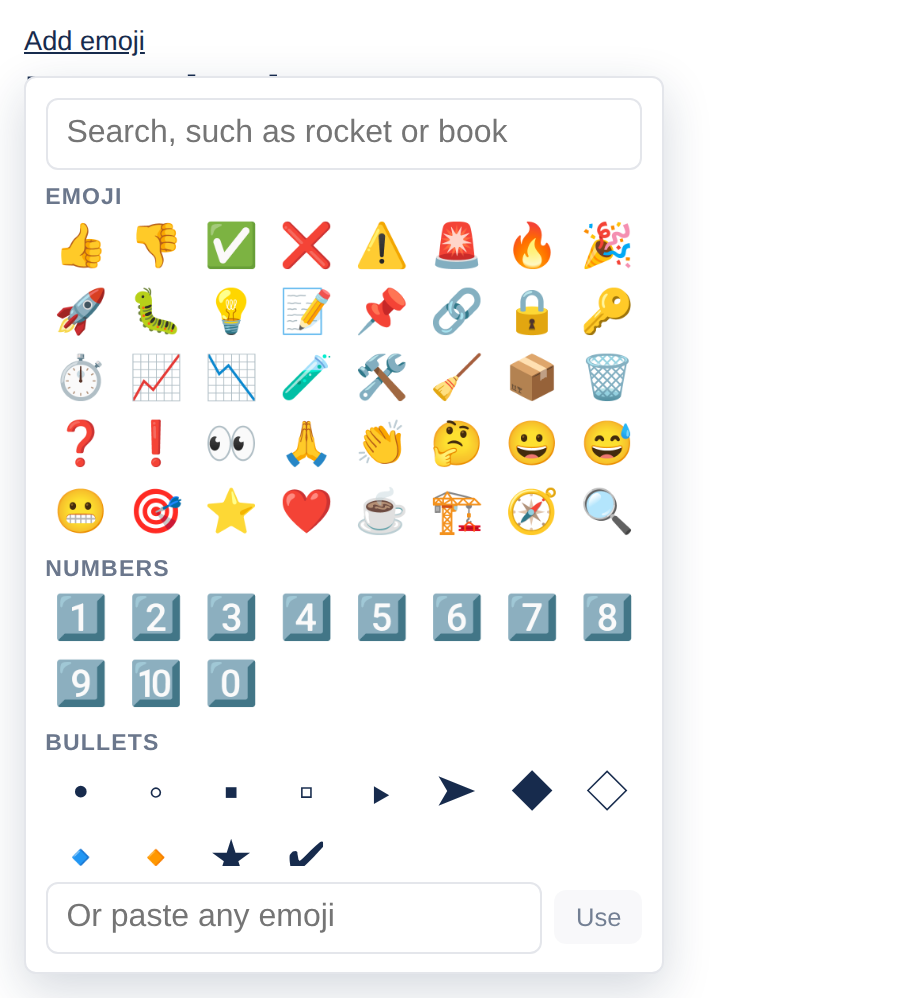
Search by name, such as rocket or book.
Emoji, Numbers and Bullets are the three groups; scroll down the picker for the numbers and bullets.
Or paste any emoji takes one the picker does not have: paste it and choose Use.
The emoji is saved as soon as you choose it. It is not part of the page’s content, so it adds no version to the history and nobody is notified.
Changing or removing it
Choose the emoji itself, above the title, to open the picker again. Choose another to replace it, or Remove the emoji at the bottom of the picker to take it away.
Numbers and bullets
The Numbers group (1️⃣ 2️⃣ 3️⃣ and so on) and the Bullets group (• ◦ ▪ ➤ ★ ✔ and others) are for pages that are read in order, or that are listed rather than illustrated, where a picture would only get in the way.
A number emoji stays exactly where you put it. To number every page in a space instead, and have the numbers follow along when pages are added or moved, use the space’s Numbered page tree; see The page tree and reordering.
One emoji, not words. A page’s emoji has to be a single emoji. Letters and words are refused.
Applies to | Tesria 0.5 and later |
|---|---|
Updated | September 24, 2026 |
Changes | Revised. |