API tokens
An API token is a key that lets a script, another program or an AI assistant use Tesria as you, without a browser: a nightly job that updates a status page, say, or an assistant that looks up answers in your wiki.
You make and revoke your tokens yourself, on your profile. Nobody else sees them there, although administrators can see that a token exists, how much it is used, and revoke it (see API tokens (administration)).
Where to find them
Step 1: Open your profile
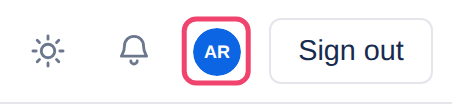
At the top right of every page, beside the bell and Sign out, is your picture, or your initials in a colored circle if you have not added a picture. In a wide window your name is beside it. Choose it.
Step 2: Scroll to API tokens
Your profile is a column of cards. API tokens is near the bottom, below Sessions. It has the form for a new token at the top and your tokens listed under it.
Making a token
Step 1: Name it after what will use it
In the API tokens card, type a name such as Nightly report or CI pipeline. You will be glad of it when you come to revoke one.
Step 2: Make it read-only if it only reads
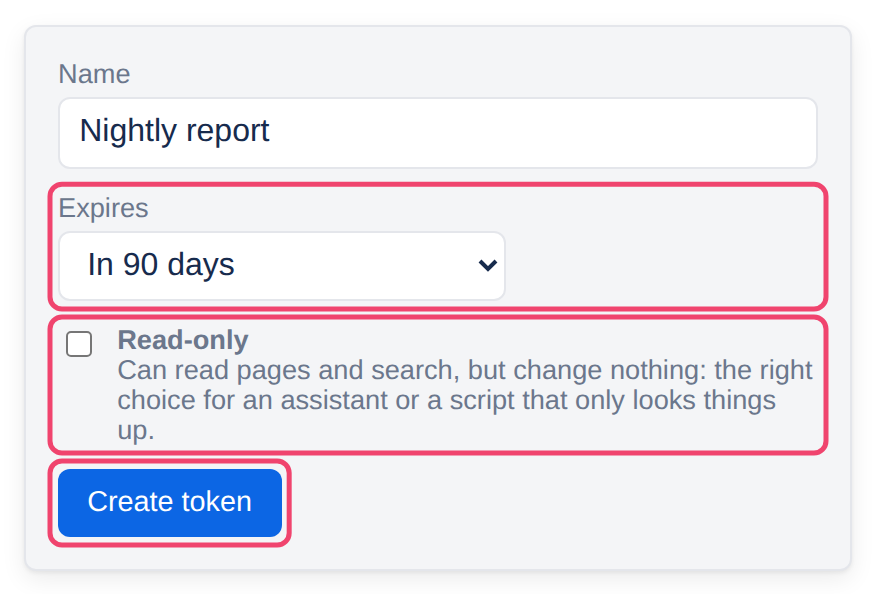
Tick Read-only for anything that only looks things up. A read-only token can read pages and search, and cannot change anything.
Step 3: Choose how long it lasts
Under Expires, choose 30 days, 90 days (the usual choice), a year, or Never. A token that expires on its own is one fewer thing to remember to clean up, and one that leaked stops working without anyone noticing it had. Choose Never only for something long-lived that you look after, such as a kiosk screen.
Step 4: Choose Create token, and copy it
The token is shown once, right there. It is never shown again, so copy it into the program that will use it before you choose Done. The list below keeps only its first few characters, to tell tokens apart.
Revoking a token
Revoke a token when whatever used it is retired, when you are not sure where it has been, or when you simply do not recognize it any more.
Step 1: Find it in the list
Under the form, each of your tokens shows its name, its first few characters, when it was last used, how many requests it has made, and when it expires.
Step 2: Choose Revoke

Step 3: Confirm
Tesria asks first. Choose Revoke the token. Anything using it stops working at once, and a revoked token cannot be brought back: make a new one if you need it again.
Good to know
The program sends the token with each request, as
Authorization: Bearer <token>. See Getting started with the API.A token can do almost anything you can, unless it is read-only. It cannot manage your account: making or revoking tokens, your sessions, your password, two-factor and your profile all need you signed in to a browser, so a token that leaks cannot lock you out or make more of itself. It stops working if your role loses the right to use tokens.
Expiring tokens warn you first. A week before a token expires, the bell (and your email, if you get notifications by email) says so, with its name. Make a new one, put it in the program, and let the old one lapse. The list shows each token’s expiry date, in bold in its last week.
If an administrator revokes one of your tokens, the bell tells you which, and your email too if you get notifications by email.
If the card says your role does not allow API tokens, an administrator can grant it in Admin, Roles (Admin is in the top bar; in a narrower window it is under More, and on a phone in the ☰ menu).
Applies to | Tesria 0.5 and later |
|---|---|
Updated | September 24, 2026 |
Changes | 0.6: where to find them, revoking one step by step, and how many requests each has made. |