Templates
A template is a page that new pages start from. Instead of a blank page, whoever creates one gets your headings, your tables and your hints already in place, and only has to fill them in. Templates keep pages that should look alike looking alike, and save everyone from copying the last one and deleting its contents.
Good candidates are pages your team writes again and again:
Meeting notes: attendees, agenda, decisions, action items.
Project brief: goal, people, timeline, open questions.
Incident report: what happened, impact, cause, what changes now.
How-to guide: what you will need, the steps, and what to do if it goes wrong.
Making a template
A template is made from a page, so start by writing one.
Step 1: Write the page new ones should start as
Put in the headings, tables and lists every page of this kind needs, and write hints where the details go, such as “Owner: who?” or “What was agreed, and by whom?”. An Info panel at the top is a good place for instructions the writer should delete once they have filled the page in. You can save the page as usual, or keep it as a draft.
Step 2: Choose Save as template
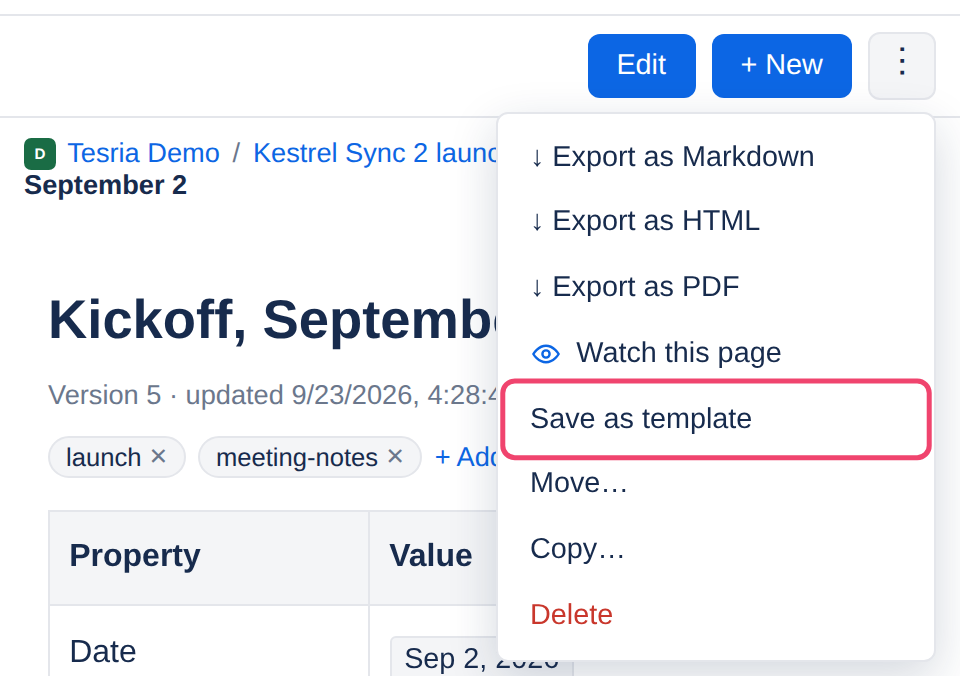
On that page, open the ⋮ menu at the top right and choose Save as template.
Step 3: Name it and choose where it is offered
Give the template a name people will recognize when they create a page, such as Meeting notes. Then choose where it is offered, and choose Save.
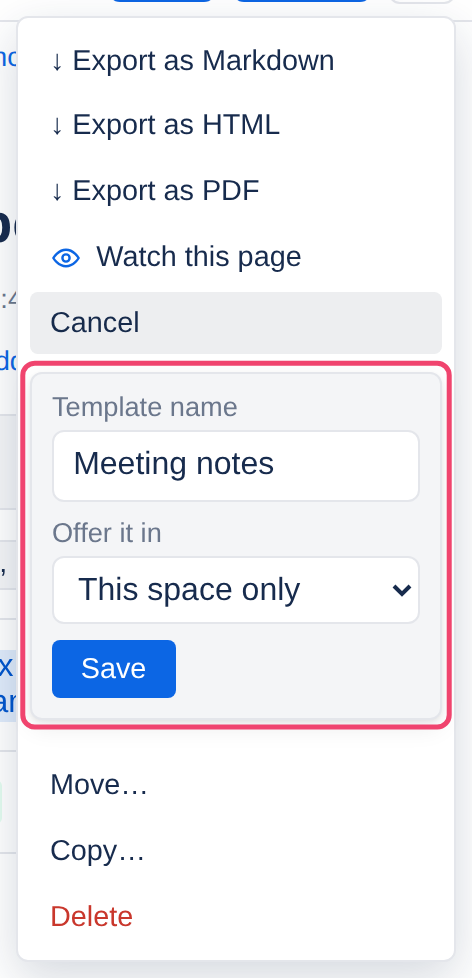
This space only offers it when someone creates a page in this space. Most templates belong here.
Instance-wide offers it in every space. Use it for something the whole organization shares, such as an incident report. This choice appears only for people with the right Manage instance-wide templates, which administrators have; everyone else saves templates for their space.
The template is a copy of the page as it is now. Changing the page later does not change the template; save it as a template again if you want the new version.
Starting a page from a template
Create a page as usual, with + New page. Above the title, Start from a template (optional) lists the space’s templates and the instance-wide ones. Choose one and the page fills in with it; then give it a title and write.

This menu only appears when there is at least one template to offer. If you have already written something, Tesria asks first, because the template replaces everything on the page so far.
Renaming and deleting templates
Every template offered in a space is listed in Space settings, Templates, the space’s own first, then the instance-wide ones. Rename changes its name and description; Delete stops it being offered. Pages already made from it are not changed either way.
Who may rename or delete one:
A space’s template: anyone who can edit that space.
An instance-wide template: anyone with Manage instance-wide templates, which administrators have.
Applies to | Tesria 0.5 and later |
|---|---|
Updated | September 24, 2026 |
Changes | Written for Tesria 0.5. |