Accounts and invites
Everyone who uses Tesria has their own account: an email address, a password and a display name. Having your own, rather than sharing one, is what lets Tesria put your name on what you write, show you only the spaces meant for you, and tell you when something you care about changes.
There are two ways to get an account, and your Tesria’s administrator decides which apply:
An invite link. Someone sends you a link that lets you create an account. This always works, whatever else is set.
Signing up yourself. If the administrator has turned on Allow public registration, anyone who can reach your Tesria can create an account from the sign-in page.
Joining with an invite
Step 1: Open the link
An invite is a link that starts with your Tesria’s address and ends in /register?invite= and a long code. Open it and the sign-up form appears, with the note You were invited to this instance.
Step 2: Fill in the form
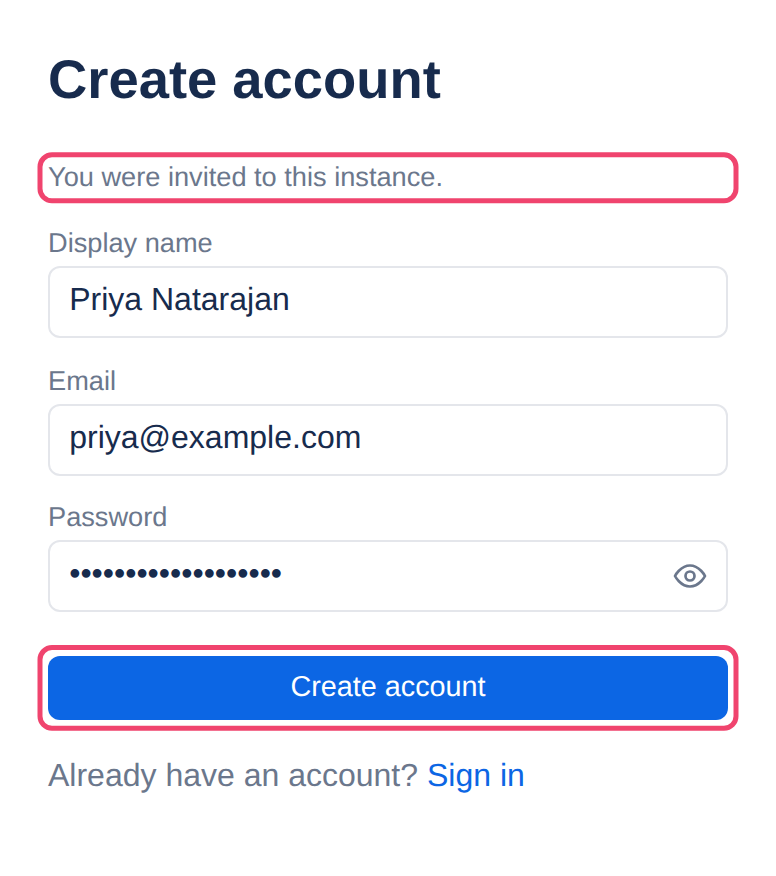
Display name: how you appear to everyone else, on pages, comments and history. Your full name is usual. You can change it later.
Email: the address you will sign in with. If the invite was made for one address, it has to be that one.
Password: at least 8 characters. A few unrelated words make a password that is long, hard to guess and easy to remember.
Step 3: Choose Create account
You are signed in straight away.
Step 4: Save your recovery codes
Before anything else, Tesria shows you eight recovery codes. They are your way back in if you forget your password or lose your phone, and this is the only time they are shown, so save them now: Download saves them as a text file, and Copy copies them to paste into a password manager. Then tick I have saved these codes somewhere safe and choose Continue to Tesria. Two-factor and recovery codes explains what they are for and where to keep them.
An invite works once, and not forever. It expires after the number of days its sender chose (7 unless they changed it). If yours no longer works, ask for a new one.
Signing up without an invite
If your Tesria is open to everyone, the sign-in page shows No account? Create one. It leads to the same form and the same recovery codes. If it is not open, the link is not there, and trying anyway gets Registration is by invitation on this instance. Ask your administrator for an invite.
Each email address can have only one account. An account with this email already exists. means you, or someone, already signed up with it: sign in instead, or reset the password.
Inviting other people
Administrators make invites in Admin, Invites (Admin is in the top bar; in a narrower window it is under More, and on a phone in the ☰ menu). Other people whose role allows it have an Invite people link in the top bar, with the same form. It is how you add someone when your Tesria is not open to everyone.
Step 1: Say who it is for, if you like
Type their address in Email (optional) and the invite works for that address only, so it is no use to anyone it is forwarded to. Leave it empty and whoever has the link can use it.
Step 2: Choose how long it lasts
Expires in (days) is 7 to start with, and can be anything from 1 to 90. A short time is safer; a longer one suits someone who will not join for a while.
Step 3: Create it and send it yourself
Choose Create invite. The link appears once, with a Copy button: copy it and send it to the person yourself, by email or chat. Tesria does not send it for you, and cannot show it again.
Each invite is listed as Unused, used (with who used it and when) or expired. Revoke stops an unused one from working, for example if it went to the wrong person. Someone who may create invites but not manage them does not see the list, so they should copy each link when it is shown. More in Invites.
Applies to | Tesria 0.5 and later |
|---|---|
Updated | September 24, 2026 |
Changes | Revised. |