Who can see a space
Most spaces are for everyone in your organization, and a new space starts that way. Some should be seen by only a few people: salaries, a confidential project, a team’s private planning. This page explains how a space decides who gets in, and how to give or take away access.
Everything here is done in Space settings, on the Permissions tab, and needs administrator access to the space.
Open and private spaces
Open is how every space starts. Nobody is listed, and everyone signed in can read it, edit it and change its settings.
Private is a space with anyone at all listed on its Permissions tab. From then on, only the people and groups listed can get in.
Adding the first person makes the space private. The moment you grant anyone access, everyone who is not listed loses it. Tesria adds you as an administrator at the same time, so you cannot lock yourself out. If you want to keep everyone reading while you limit who edits, grant View to the Users group as well (see below).
Whether a space is open or private, people who are not signed in never see it, unless an administrator publishes it for public reading. See Public reading.
The three levels of access
Each level includes everything the ones before it allow.
View: read the pages and their files, and join in the comments.
Edit: also create, change, move and delete pages, add labels and files, and manage the space’s templates.
Admin: also change the space’s settings (its name, icon and page tree), its permissions and its webhooks, archive it, and delete pages from its trash for good.
Giving someone access
Step 1: Open the Permissions tab
Choose Space settings at the bottom of the space’s sidebar, then the Permissions tab.
Step 2: Choose who
In the box, choose User or Group, then the person or group from the list next to it.
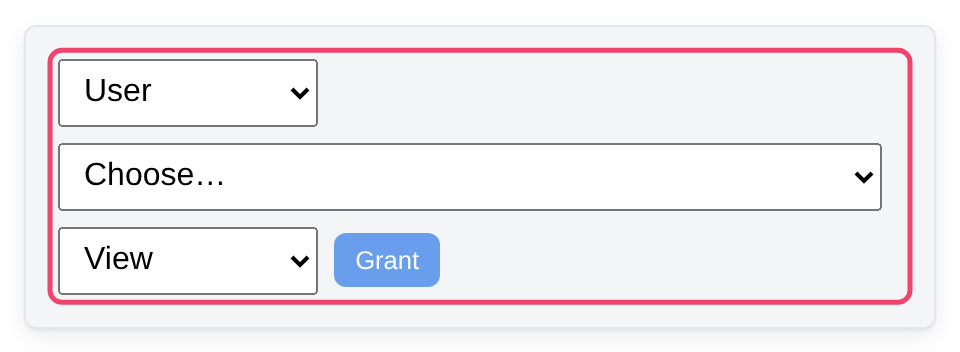
Step 3: Choose the level, then Grant
Choose View, Edit or Admin, and then Grant. They appear in the list below the box, and have access straight away.
Sharing with everyone, or with a team
Rather than adding people one at a time, grant access to a group. Three groups exist on every Tesria and keep themselves up to date as people join, leave and change roles:
Users: everyone with an account. Granting View to Users lets everyone signed in read a private space.
Admins: Tesria’s administrators, and its owner.
Owner: the person who owns this Tesria.
An administrator can also make groups of their own, such as Finance or Launch team. See Groups.
Taking access away
Choose Revoke beside anyone in the list. The last administrator of a space cannot be removed, because nobody would be left to manage it.
Making a private space open again
Because the last administrator always stays, a private space cannot be emptied one person at a time. To go back to open, use the link made for it:
On the Permissions tab, choose Make this space open again. It is in the line above the box, and only there while the space is private.
Read what will happen and choose Make it open. If you have not entered your password in the last few minutes, Tesria asks for it again.
Every grant is removed at once, and everyone signed in can view, edit and administer the space again. Restrictions on single pages stay as they are. Because this opens everything in the space to everyone, Tesria’s administrators are alerted each time it is done.
Administrators and private spaces
Being an administrator of Tesria does not let you into every private space. If a private space has lost all its administrators, a Tesria administrator can give themselves access with Get access in Admin, Spaces (Admin is in the top bar; in a narrower window it is under More, and on a phone in the ☰ menu), and that is recorded in the audit log. See Spaces (administration).
To keep one page, rather than a whole space, to a few people, see Restrictions.
Applies to | Tesria 0.5 and later |
|---|---|
Updated | September 24, 2026 |
Changes | Revised. |