Users
The Users tab lists every account on the instance, the owner first, then administrators, then everyone else. It is where you help people: the colleague who forgot their password, the one who lost the phone with their authenticator app, the one who is locked out, and the one who is leaving.
To open it, choose Admin, Users (Admin is in the top bar; in a narrower window it is under More, and on a phone in the ☰ menu).
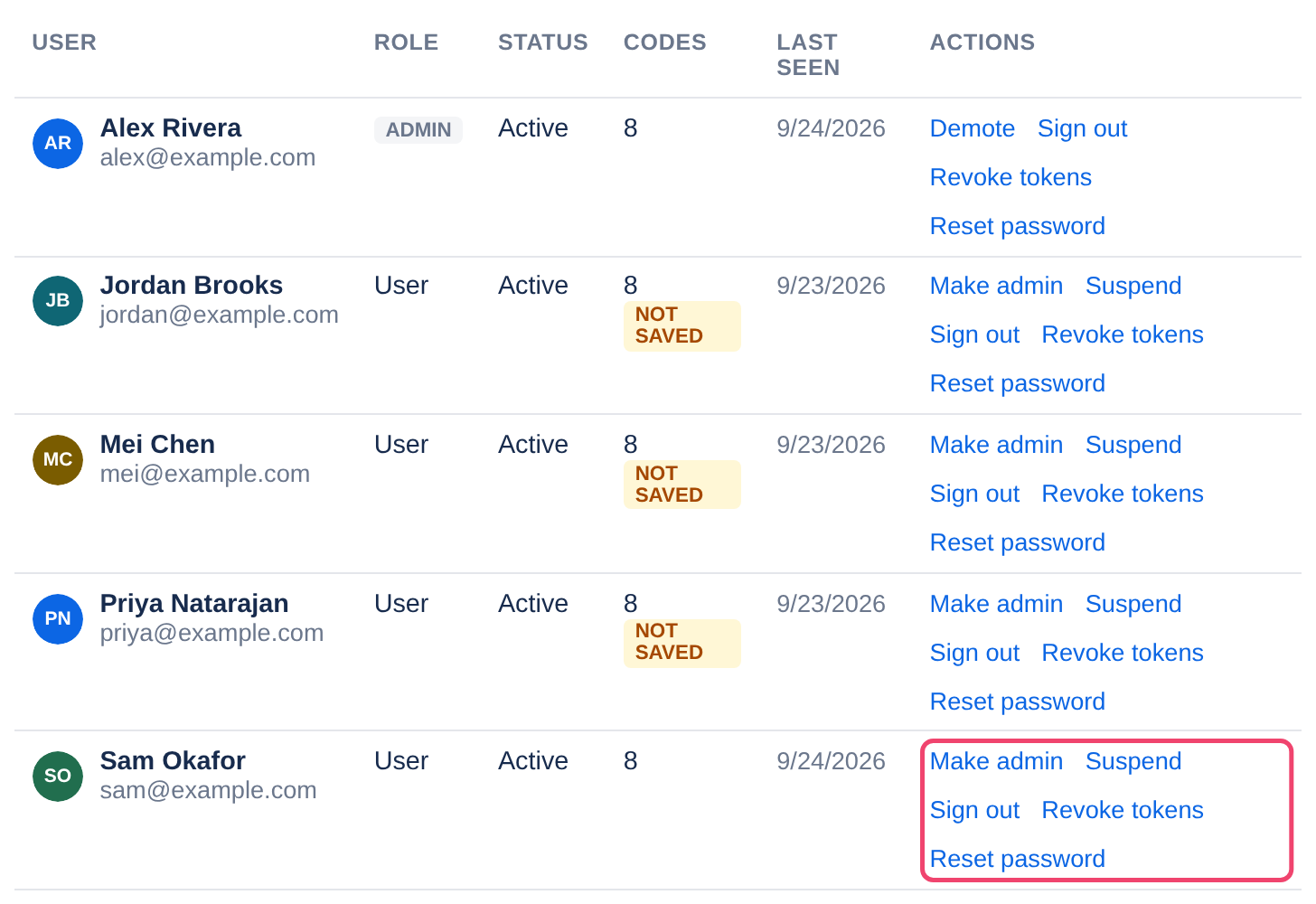
Reading the list
User: the person’s name and email address.
Role: owner or admin for those tiers, otherwise User. sso marks someone who signs in through single sign-on. Once you have made roles of your own, a menu here moves someone between the roles of their tier.
Status: Active or suspended, and locked while the account is locked after wrong passwords.
Codes: how many recovery codes the person has left. none and not saved mark people who could not get back in on their own if they lost their password or phone: worth a friendly word.
Last seen: the day they last used Tesria.
Actions: what you can do to the account. Only the actions that apply are shown. The owner’s row has none, and another administrator’s has none unless you are the owner or hold Manage administrators’ accounts (see Roles).
Someone forgot their password
People can usually help themselves with Forgot your password? on the sign-in page, by email or with a recovery code (see Resetting a password). When neither works:
Step 1: Choose Reset password
In their row. A box appears above the list with a one-time link. It works once, for one hour, and is shown only this once.
Step 2: Copy the link and hand it over
Choose Copy and give it to them yourself, in person or through a channel you trust. They open it and choose a new password.
If your Tesria is also on a tailnet, the box shows two links, At this address and Through Tailscale: give them the one they can reach. The same goes for the email Forgot your password? sends.
The link starts with the address you are using. If you opened Tesria as localhost on the server, the link will too, and it will not work on anyone else’s computer. Open Tesria by the address everyone uses first.
Accounts that sign in through single sign-on have no password in Tesria, so they have no Reset password. A new password does not turn off two-factor; that is the next job.
Someone lost the phone with their authenticator app
If they still have a recovery code, they type it at the two-factor step instead of a code from the app. If they have lost those too:
Step 1: Make sure it is really them
Talk to them in person or on a video call. Someone claiming to have lost their phone is exactly how an attacker would try to get in.
Step 2: Choose Turn off two-factor
In their row. It only appears when the account has two-factor on.
Step 3: Confirm
Read the box and choose Turn off two-factor, then enter your password if asked. They are signed out everywhere, and can sign in with their password alone. Ask them to set two-factor up again straight away and save their new recovery codes. Every administrator is alerted.
Nobody can turn off the owner’s two-factor from here; the owner does it from their own profile. Another administrator’s can be turned off by the owner, or by someone the owner has given Manage administrators’ accounts; your own, from your profile.
Someone is locked out after too many wrong passwords
After 5 wrong passwords in a row (the default) an account is locked for a minute, then for twice as long after each further failure, up to 15 minutes. It shows as locked and unlocks by itself. To let the person in now, choose Unlock in their row. The same list is on the Security tab, under Active lockouts.
Someone is leaving, or an account may be misused
Step 1: Choose Suspend
In their row, then Suspend in the box. They are signed out everywhere, cannot sign in, and their API tokens stop working. Nothing they wrote is removed, and their name stays on their pages.
Step 2: Revoke their tokens, if they had any
Suspending already stops the tokens. If the account might be reactivated later, choose Revoke tokens too, so old tokens do not come back with it. Revoked tokens are deleted for good; any script using them stops working.
Reactivate brings a suspended account back. Accounts are never deleted in Tesria. You cannot suspend yourself, the owner, or the only active administrator.
Signing someone out everywhere
Sign out ends every session of that account: each browser signed in to it is signed out on its next click. Use it when someone left themselves signed in on a shared or lost computer. They can sign straight back in.
Making someone an administrator
Make admin moves a user into the Administrator role. By default only the owner can do it: an administrator sees it grayed out unless the owner has given their role Promote users to administrator. It may ask for your password, and every administrator is alerted. Demote moves an administrator back to User, and only the owner can do that.
Moving someone to another role
Once you have made roles of your own (see Roles), the Role column shows a menu. Choose the new role there; it may ask for your password. Administrators can move users between user roles; only the owner can move administrators between administrator roles.
Applies to | Tesria 0.5 and later |
|---|---|
Updated | September 24, 2026 |
Changes | 0.6: a Tailscale reset link, when Tesria is on a tailnet. |