What a space is
Every page in Tesria lives in exactly one space. If Tesria is a library, a space is one of its sections: the pages in it belong together, the same people read and write them, and they are looked after as a whole. Who can see a space, which templates it offers and what is in its trash are all set for the space, so you decide them once rather than page by page.
What every space has
A key: a short code such as
DEMOorTEAM. It is part of the address of every page in the space, as in/spaces/TEAM/…, so it never changes.A name and a description: what everyone sees in lists, such as Team handbook, and a line on what the space is for. Both can be changed at any time.
An icon, so people recognize the space at a glance. See Space icons.
A page tree: the pages, arranged under one another like the chapters and sections of a book. See The page tree and reordering.
A home page: what you see when you open the space without choosing a page. See The space home and watching.
Its own settings: who can see it, its templates, its webhooks and its trash, all under Space settings.
Finding your way around a space
Open a space from Spaces at the top of any page. On a computer, the space’s sidebar runs down the left of every page in it. From the top:
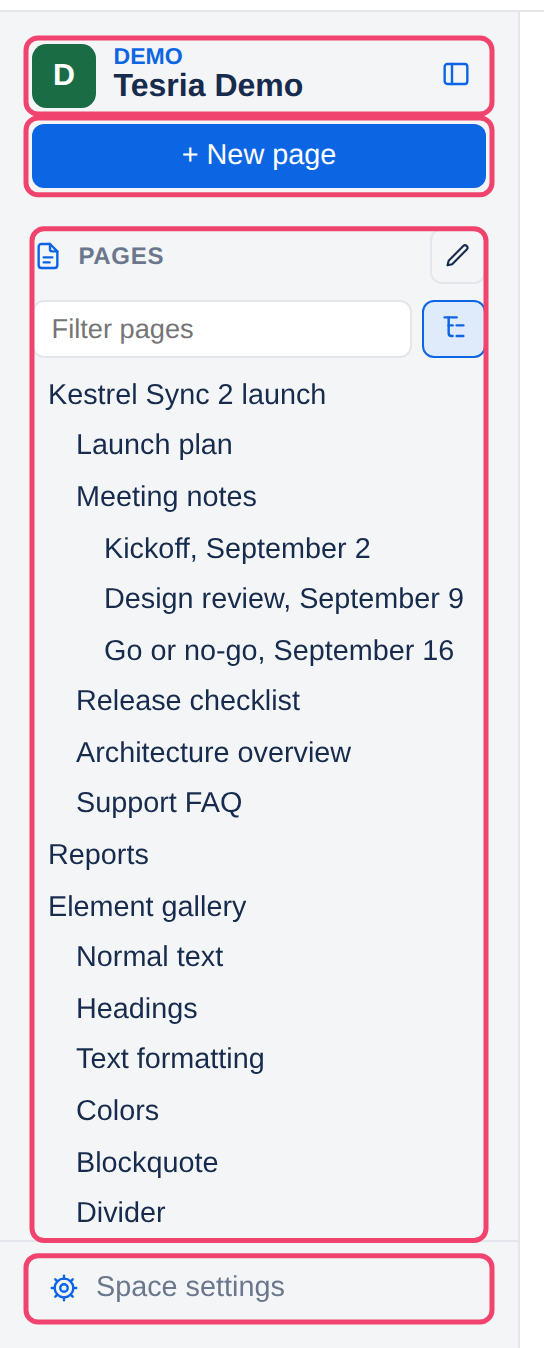
The space itself: its icon, key and name. A public badge beside the key means anyone on the internet can read it; see Public reading.
+ New page, which starts a new page. See Creating a page.
The page tree, under Pages, with every page you can see.
Space settings, at the bottom: details, icon, permissions, templates, webhooks and trash.
The button beside the space’s name hides the sidebar when you want the whole window for reading; the button left in the narrow strip down the side brings it back. Drag the sidebar’s right edge to make it wider or narrower, and double-click the edge to return it to its usual width.
On a phone there is no sidebar. The space’s home page lists its pages instead, and the bar at the top of the home page has + New and a menu with Space settings.
The Spaces page
Spaces at the top of every page lists every space you can see, in alphabetical order, each with its icon, key, name and description. Spaces you have no access to are not listed at all, and neither are archived ones; see Archiving and deleting a space. To make a new space, see Creating a space.
Applies to | Tesria 0.5 and later |
|---|---|
Updated | September 24, 2026 |
Changes | Revised. |