A space as a website
A whole space can be exported as a website: a folder of ordinary web pages, with the space’s page tree down the side, that any web host can serve and anyone can read. There is no server to run and nothing to sign in to. Use it to put a handbook, a product manual or a set of guides on the internet, or to keep a copy you can read with no Tesria at all.
Tesria’s docs at tesria.com/docs, which you may be reading now, are one, exported from Tesria’s own wiki.
Step 1: Open the space’s settings
In the space, choose Space settings at the bottom of the sidebar. The Details tab opens; scroll down to Export as a site.
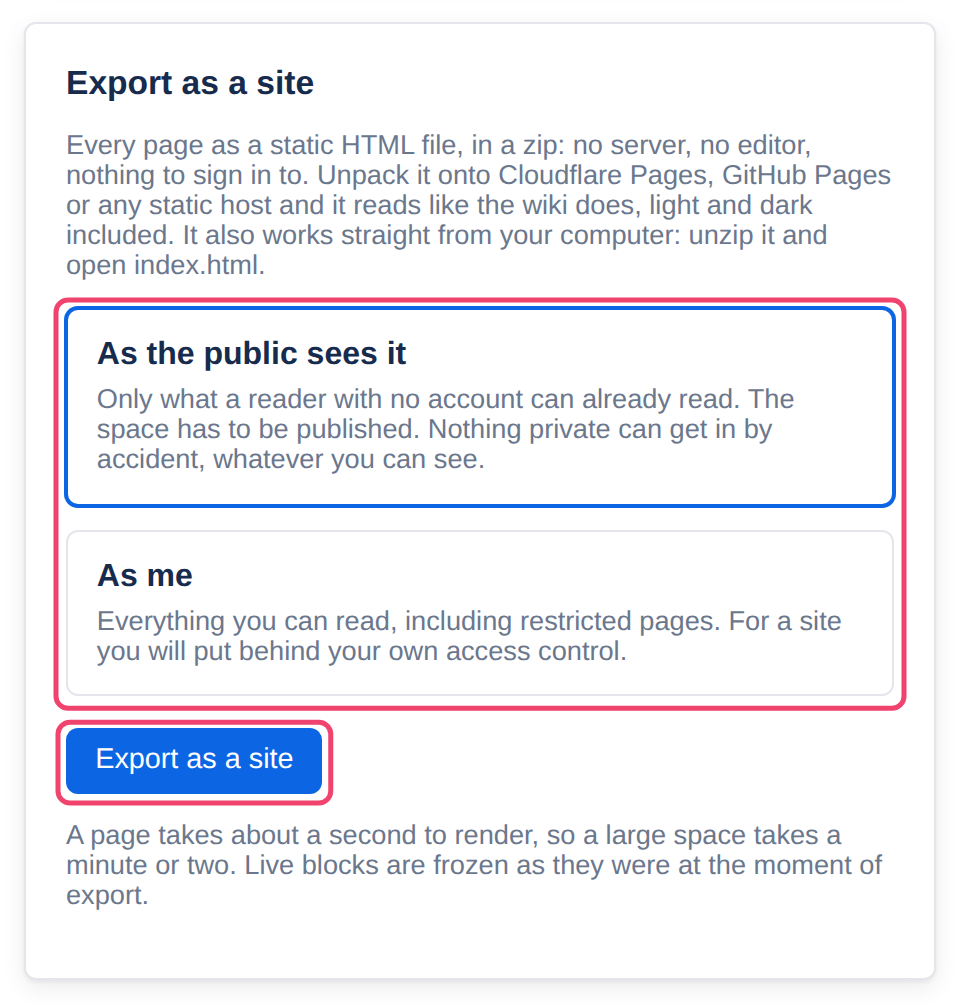
Step 2: Choose who it is for
As the public sees it: only what someone with no account can already read. The space has to be published for public reading first (see Public reading). Nothing private can get in, whatever you yourself can see. Choose this for anything going on the internet.
As me: everything you can read, restricted pages included. Choose this for a copy you keep yourself, or a site behind your own sign-in. Treat it as private.
Step 3: Choose Export as a site
Each page takes about a second to build, so a large space takes a minute or two. A bar under the button shows how far along it is: the pages done out of the total, the page being built, and the time so far. Then the site downloads as a zip named after the space’s key, such as team-site.zip.
Cancel, beside the bar, stops the export; so does leaving the page before it finishes.
What the site looks like
Like the space in Tesria, with the same page tree in a sidebar, the same look, and a menu to switch between light and dark and pick an accent color. If the space numbers its pages (Space settings, Page tree), the site’s tree is numbered the same way.
Each page is a folder named after its title, with an
index.htmlinside, so addresses read likegetting-started/quick-start/.Pictures and attached files are copied in, and links between pages point at each other’s files. A link to a page that was left out, such as a restricted one, is grayed out, and hovering over it says the page is not part of the export.
Expand blocks open and close, and code blocks keep their Copy button. Live content is frozen as it was when you exported.
Every page ends with a line saying which Tesria it was exported from, and when.
Finding a page in the site
Above the page tree there is a Filter pages box, the same as the one in Tesria’s sidebar. Type part of a title, or a page’s number, and the tree narrows to the pages that match, with the matching words highlighted and the pages above them shown dimmed, so you can see where each one is.
Enter opens the first match. Escape clears the filter.
The filter stays as you move from page to page, so you can open one match, come back to the tree and open the next without typing again.
The button beside the box shows the pages under each match as well, so filtering for a chapter shows the whole chapter. It is on at first; click it to see only the pages whose titles match. The site remembers your choice in that browser.
Limits
Up to 300 pages in one site.
An export renderer has to be set up on your Tesria, the same one PDF exports use.
Embedded videos and sites still load from where they live, so readers need an internet connection for those.
Next: Hosting an exported site.
Applies to | Tesria 0.5 and later |
|---|---|
Updated | September 24, 2026 |
Changes | 0.6: a progress bar and Cancel while it builds. |