Backups (administration)
Tesria backs itself up from the moment it starts, with nothing to set up. The Backups tab is where you check that it is working: whether each backup service is healthy, when the last backup was, and whether a backup has ever been restored to prove it works. How backups work in depth is in Backups and recovery; this page is a tour of the tab.
To open it, choose Admin, Backups (Admin is in the top bar; in a narrower window it is under More, and on a phone in the ☰ menu).
Look at it once after installing, and now and then after that. A backup that fails raises an alert, so you will usually hear about trouble. But only a test restore proves a backup comes back.
The service cards
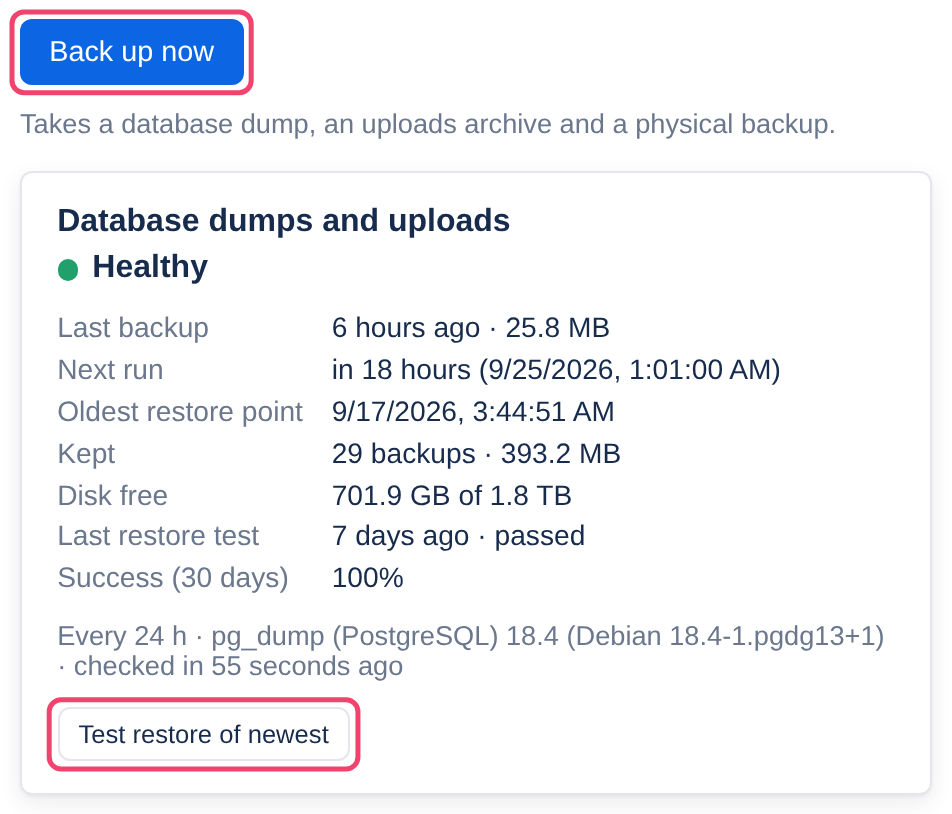
One card for each of the two backup services, Database dumps and uploads and Physical backups and point-in-time recovery. Each says in a word how it is (Healthy, No backup yet, Last run failed, Overdue, Agent offline, Disk nearly full), then when the last backup was and how big, when the next one runs, how far back you can restore, how many backups are kept, the free disk space, the last restore test, and how many runs succeeded in the last 30 days.
Backing up now
Backups run on their own schedule, but it is worth taking one before an upgrade or a big change. Choose Back up now: it asks for a database dump, an archive of the uploads and a physical backup. Each service picks its job up within a minute, and the page updates when they finish.
Testing a restore
Test restore of newest on a card, or Test restore in a backup’s row, restores that backup somewhere temporary and checks it, without touching the wiki. The result appears on the card and under Recent runs. Do it once after installing, and again from time to time.
The rest of the tab
Disk space: a chart for each disk of what the wiki, its backups and everything else take, and what is free. It warns when there is less room than two more backups need.
Storage targets: the copies kept somewhere other than this machine, in the cloud, on a network drive or on a removable drive. They are set up on the server, not here; each card shows its health, its last copy and restore drill, with Test connection and, for a removable drive, Copy now. See Offsite copies.
Retention policy: keep every backup forever, or keep the newest few and everything from the last so many days. Review change shows what a new policy would remove before you save it. See Retention.
Backups: every backup kept, with its kind, when it was taken, its size and its last test. Tick Show backups removed in the last 30 days to see what retention has cleared away.
Recent runs: every backup, test and copy, who asked for it, how long it took and what it did, with Log for the full output.
Restoring a backup
Restoring replaces the whole wiki with an older copy, so by default only the owner can do it, and this part is described in words. With the right, a Restore button appears in each backup’s row. You type the backup’s name and your password to confirm; a backup of the wiki as it is now is taken first, and the wiki is read-only until the restore finishes. Afterwards, The copy kept before the last restore offers Undo the restore (type UNDO) and Remove the copy (type REMOVE), both with your password. The whole story is in Restoring and undo.
A deleted page does not need a restore. A restore takes back everyone’s work since the backup. For one page, use its History, or the space’s Trash.
Who may do what
Right | Allows | By default |
|---|---|---|
See backups | This tab | Administrators |
Run backups | Back up now, Test restore, Test connection, Copy now | Administrators |
Change the retention policy | Retention policy | Administrators |
Restore a backup | Restore, Undo the restore, Remove the copy | The owner |
Applies to | Tesria 0.5 and later |
|---|---|
Updated | September 24, 2026 |
Changes | Revised. |