Space icons
A space’s icon appears wherever the space does: on the Spaces page, at the top of its sidebar and in the breadcrumb above its pages. A good icon lets people tell spaces apart at a glance, which matters more as their number grows. Every space starts with the first letter of its key on a colored tile; you can change it to an emoji or a picture of your own.
Changing the icon needs administrator access to the space. In an open space that is everyone signed in.
Step 1: Open Space settings
Choose Space settings at the bottom of the space’s sidebar. The Icon section is the first thing on the Details tab, with the current icon beside it.
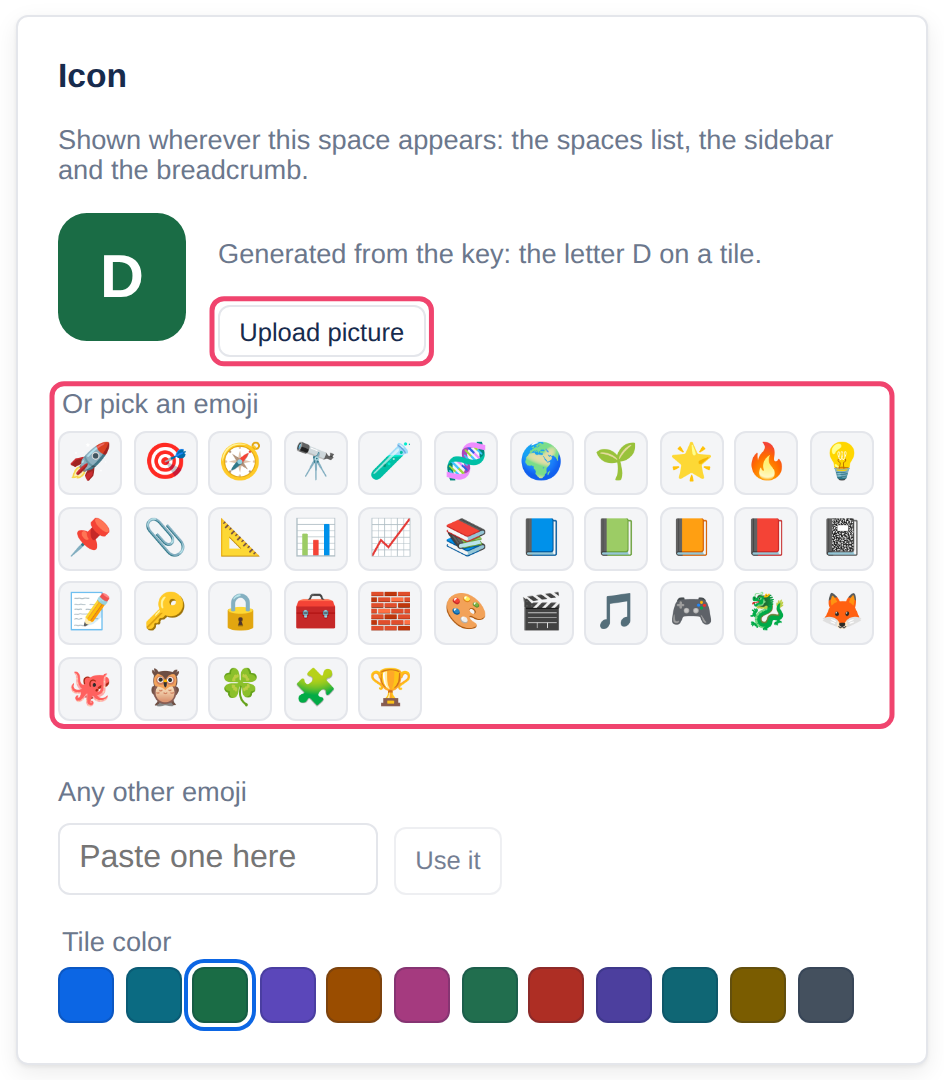
Step 2: Choose the new icon
Whatever you choose is saved straight away; there is no Save button. You have three kinds to choose from:
A picture of your own: choose Upload picture and pick a PNG, JPEG or WebP file. Tesria trims it to a square from the middle, so a logo with space around it works best. Once there is one, the button reads Replace picture.
An emoji: choose one under Or pick an emoji. For one that is not offered, paste it into Any other emoji and choose Use it. It has to be a single emoji, not letters.
A different tile color: choose a color under Tile color. It changes the tile behind the letter or the emoji. A picture has no tile, so remove the picture first to choose one.
Going back to the letter
Use the default, beside the upload button, takes away the emoji or the picture and puts the letter tile back.
Applies to | Tesria 0.5 and later |
|---|---|
Updated | September 24, 2026 |
Changes | Written for Tesria 0.5. |