Email (SMTP)
Tesria sends a few kinds of email: password reset links, invitations, security alerts to administrators, and notifications to people who ask for them. To send them it needs an SMTP server, the kind of mail server programs send through. The email account you already have usually has one: Gmail, Outlook, iCloud Mail and others. So does your organization’s mail server, and so do sending services made for programs.
Email is optional. Without it, an administrator resets a forgotten password by giving the person a one-time link (see Resetting a password), and alerts wait in the bell for an administrator to see.
Pick the way that suits you
An email account you already have, for a small team. Each has its own page, because each wants something different instead of your everyday password: Gmail, Outlook or Microsoft 365, iCloud Mail, Zoho Mail, Fastmail and Proton Mail.
A sending service, for a larger team, or email from your own domain without running a mail server: see Sending services.
Your organization’s mail server, if it has one. Ask its administrators for the details below.
For Gmail and Microsoft, Tesria can also sign in on the provider’s own page instead of using any password. Their pages explain both ways.
Step 1: Open the email settings
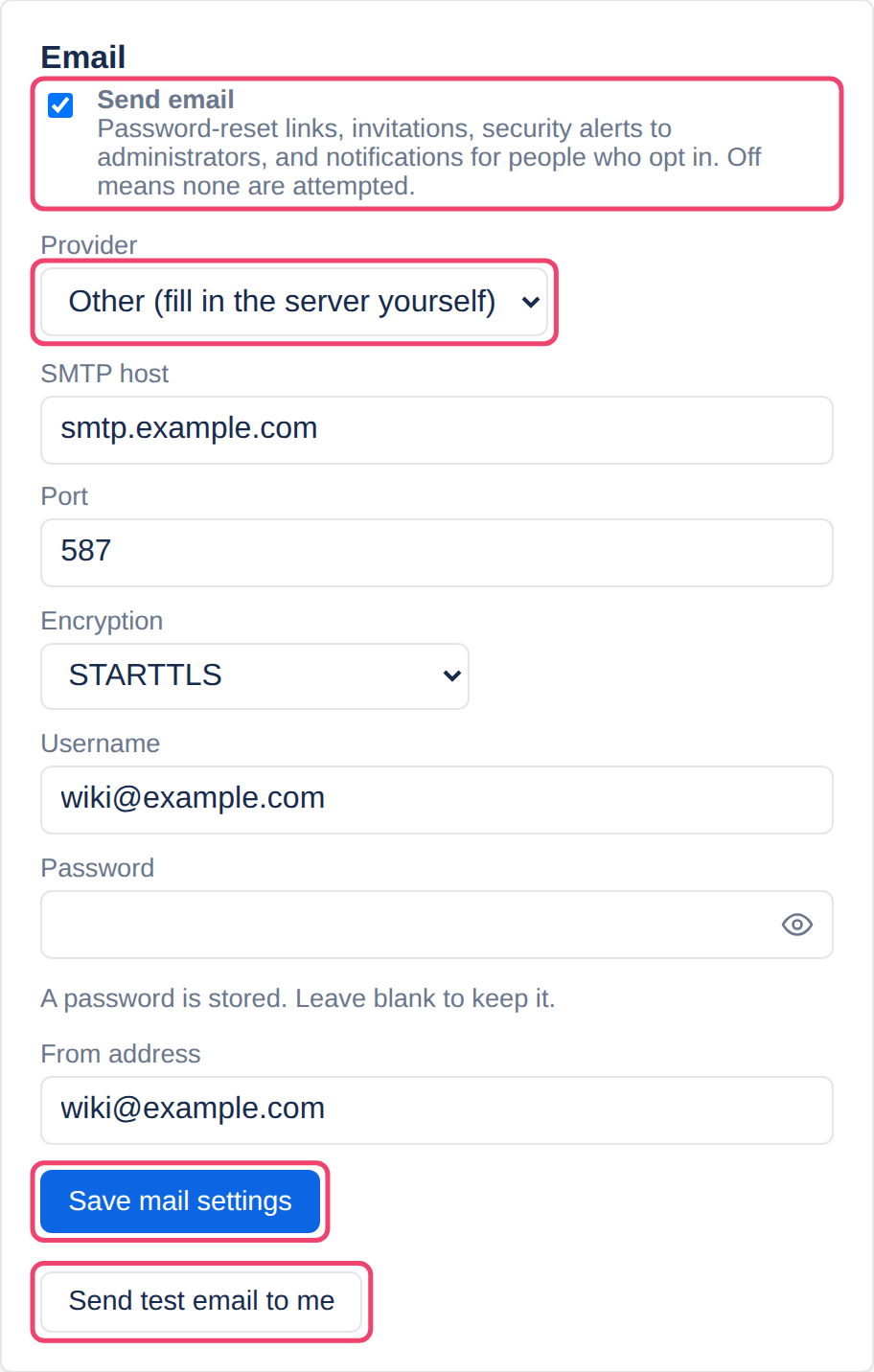
Choose Admin at the top of any page, then the Settings tab. The Email section has everything, and the steps below use the boxed controls in order.
Step 2: Choose your provider
The Provider list names the common email accounts and sending services. Choosing one fills in the server, the port and the encryption, and says in a line what goes in the username and password, which is often not the password you sign in with. For anything else, leave it on Other and fill the server in yourself.
Step 3: Fill in the rest
SMTP host and Port: the mail server. Port 587 with STARTTLS is the usual choice; port 465 goes with SSL on connect.
Encryption: STARTTLS, SSL on connect, or None. Use None only for a mail server on the same private network.
Username and Password: the account Tesria signs in to the mail server with. The password is stored encrypted and never shown again; to keep it when you change something else, leave the field empty.
From address: who the email appears to come from. Most providers only send from the account that signs in, and sending services only from a domain you have verified with them.
Step 4: Choose Save mail settings
Step 5: Turn on Send email
The switch at the top of the section. It takes effect straight away. While it is off, Tesria does not try to send anything.
Step 6: Send yourself a test
Choose Send test email to me. Tesria answers straight away: Sent: check your inbox, or Not sent with the mail server’s reason. Then check that the message arrived, including in your spam folder.
If the test fails
Check the port and encryption together. 587 goes with STARTTLS and 465 with SSL on connect; a mismatch usually fails without a clear reason.
Check the username and password. Many providers want a password made for apps rather than your everyday one. The provider’s page says which.
Check the from address. A sending service refuses an address on a domain you have not verified with it.
The setup wizard’s Email step fills in the same settings, with the same provider list. Changing them needs the Change the email server right, which administrators have unless the owner takes it away (see Roles).
Applies to | Tesria 0.5 and later |
|---|---|
Updated | September 24, 2026 |
Changes | Revised. |