Features
Tesria is a wiki for teams: a shared place to write things down, keep them organized, and find them again. You run it on your own computer or server, so your pages stay with you. This page is a tour of what it can do, grouped by what you are trying to get done, with a link to the page that explains each part in full.
Writing pages
Pages are written in an editor that works like a word processor: type, and format as you go. There is no special syntax to learn, and nothing to save by hand while you work.
A rich editor
Headings, lists, tables, links, quotes, text colors and highlights, all from a toolbar or by typing / to open a menu of everything you can insert. People who like keyboard shortcuts get Markdown-style ones too, such as # for a heading. See Editor tour.
More than text
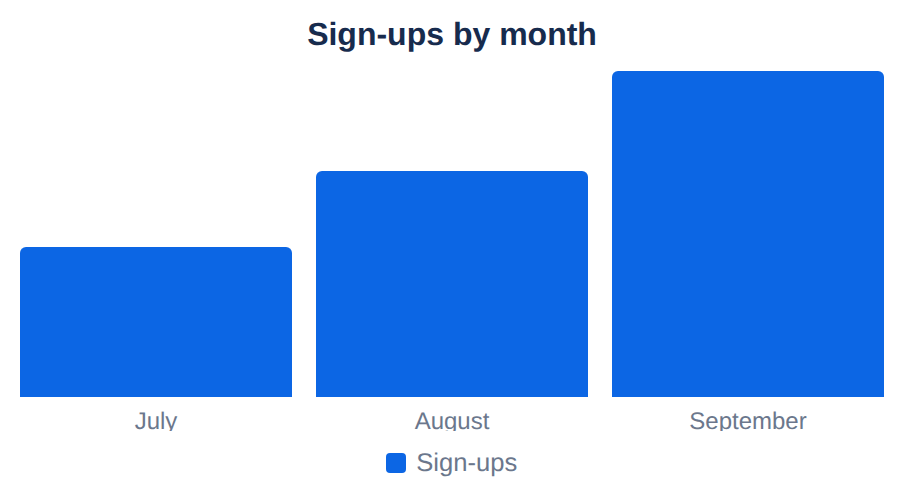
Colored panels for notes and warnings, expandable sections, decisions, task lists with the people doing each task, status labels, dates, mentions, code with highlighting, math, diagrams drawn from text, and charts: bar, column, line and pie, drawn from a table on the page. See Elements.
Pictures, files and video
Drop in pictures and resize, align and caption them, lay several out as a gallery, attach any file, or play a short video as a silent looping animation that shows a process without anyone pressing play. See Image.

Embeds and smart links
Paste a link to a video or a design and it plays or shows right on the page; any other link can show as a card with the site’s title, so readers see where it goes. See Embed.

Layouts
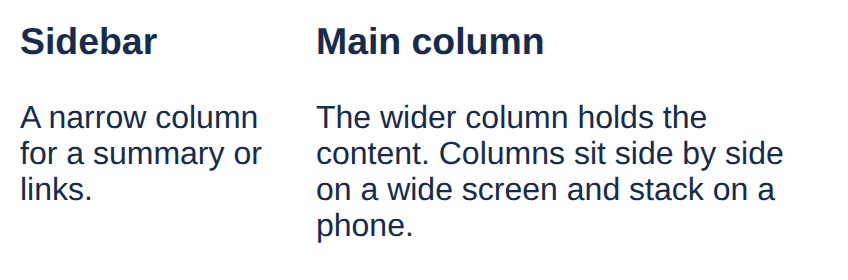
Put content side by side in two or three columns, and let a page use the full width of the screen when a wide table needs it. See Layout.
Live content
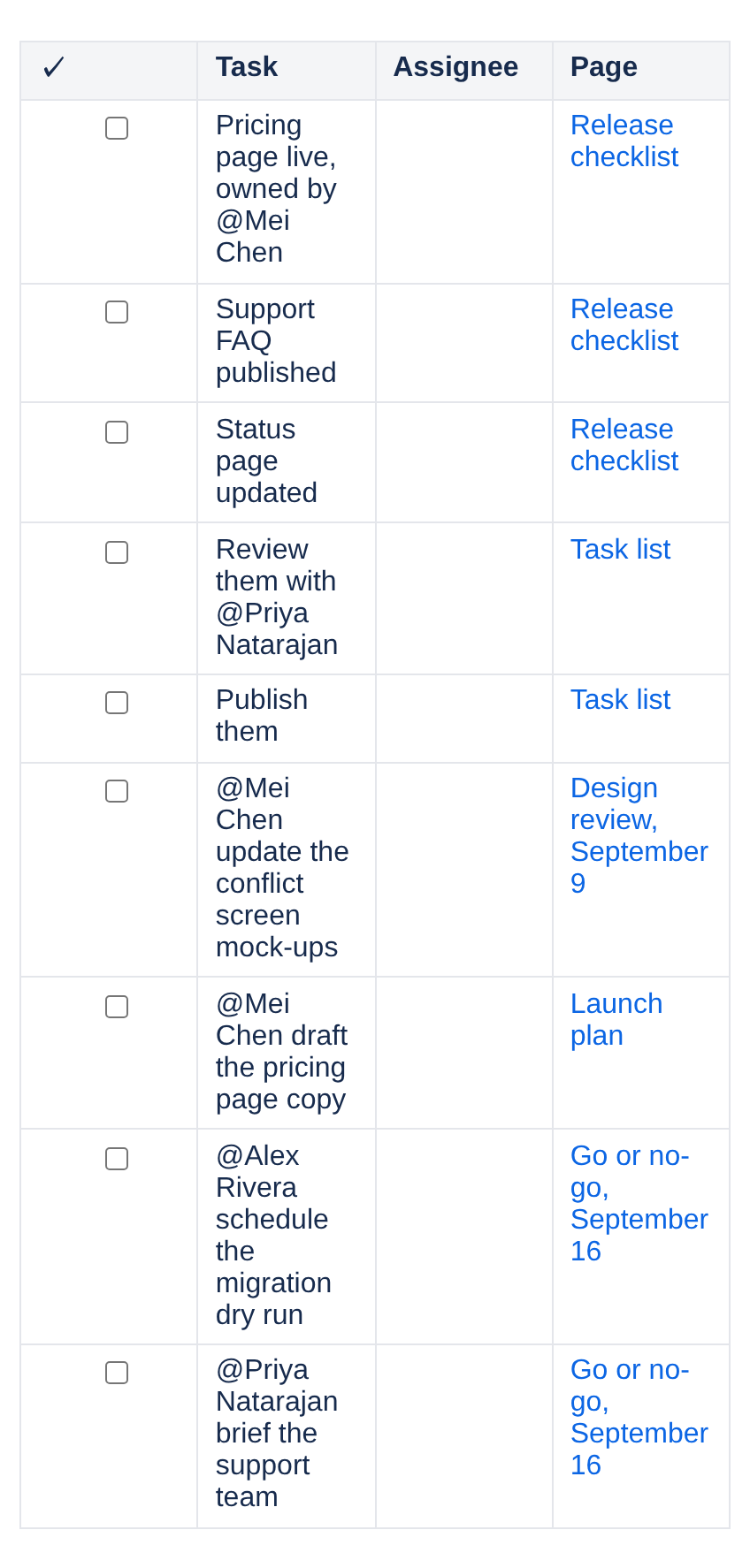
Blocks that fill themselves in and stay current: the pages under this one, recently updated pages, pages with a label, open tasks across a space, attachments, contributors, a page’s history, and a section reused from another page so it is written once and kept in step everywhere. See Live content.
Drafts, then publish
A new page is a private draft until you publish it, so half-finished work never shows up in anyone’s search or tree. See Drafts, Publish and Update.

Templates
Save a page as a starting point, such as meeting notes or an incident report, and start new pages from it so pages that should look alike do. See Templates.

Keeping it organized
Spaces
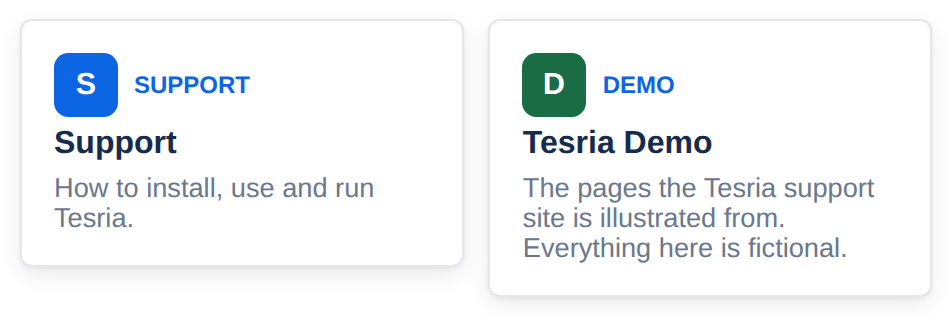
A space holds the pages for one team, project or audience, with its own home page, page tree, icon and permissions. See Creating a space.
A page tree you arrange yourself
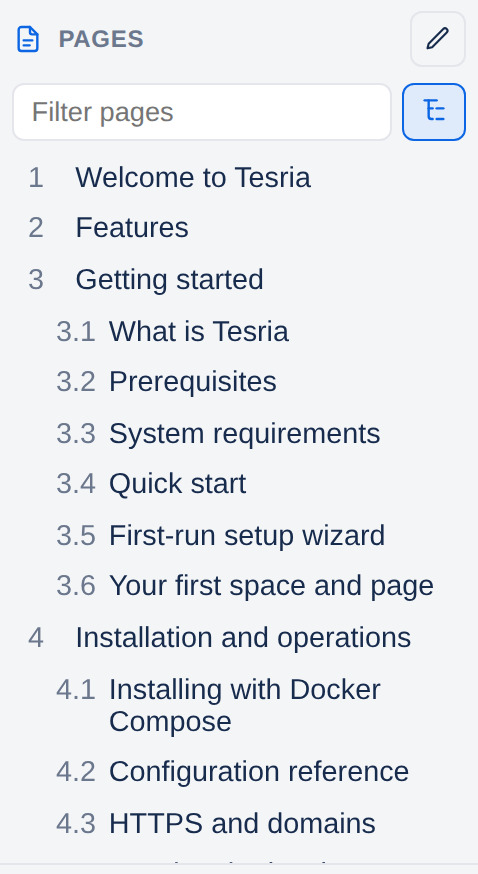
Pages nest under other pages. Drag them into order, move them to another space with everything under them, or copy them. The tree can number its pages automatically (1, 1.1, 1.2) or mark them with bullets, and renumbers itself as pages move. See The page tree and reordering.
Filter the tree as you type
Type a few letters at the top of the tree to see just the pages that match, with their parents and everything under them. See Finding your way around.
Labels
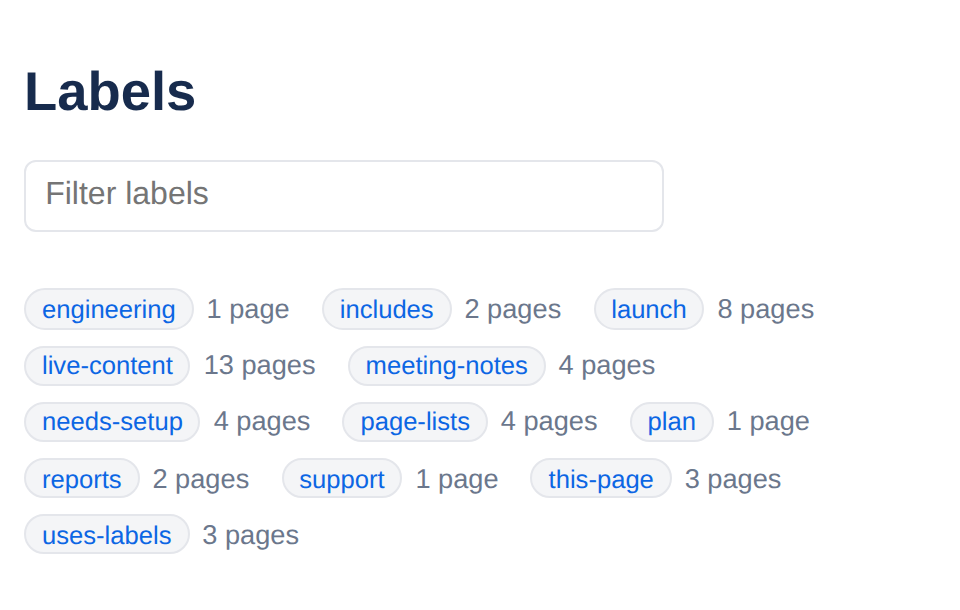
Tag pages with labels, such as meeting-notes, and see every page with a label in one list, across spaces. See Labels.
Search
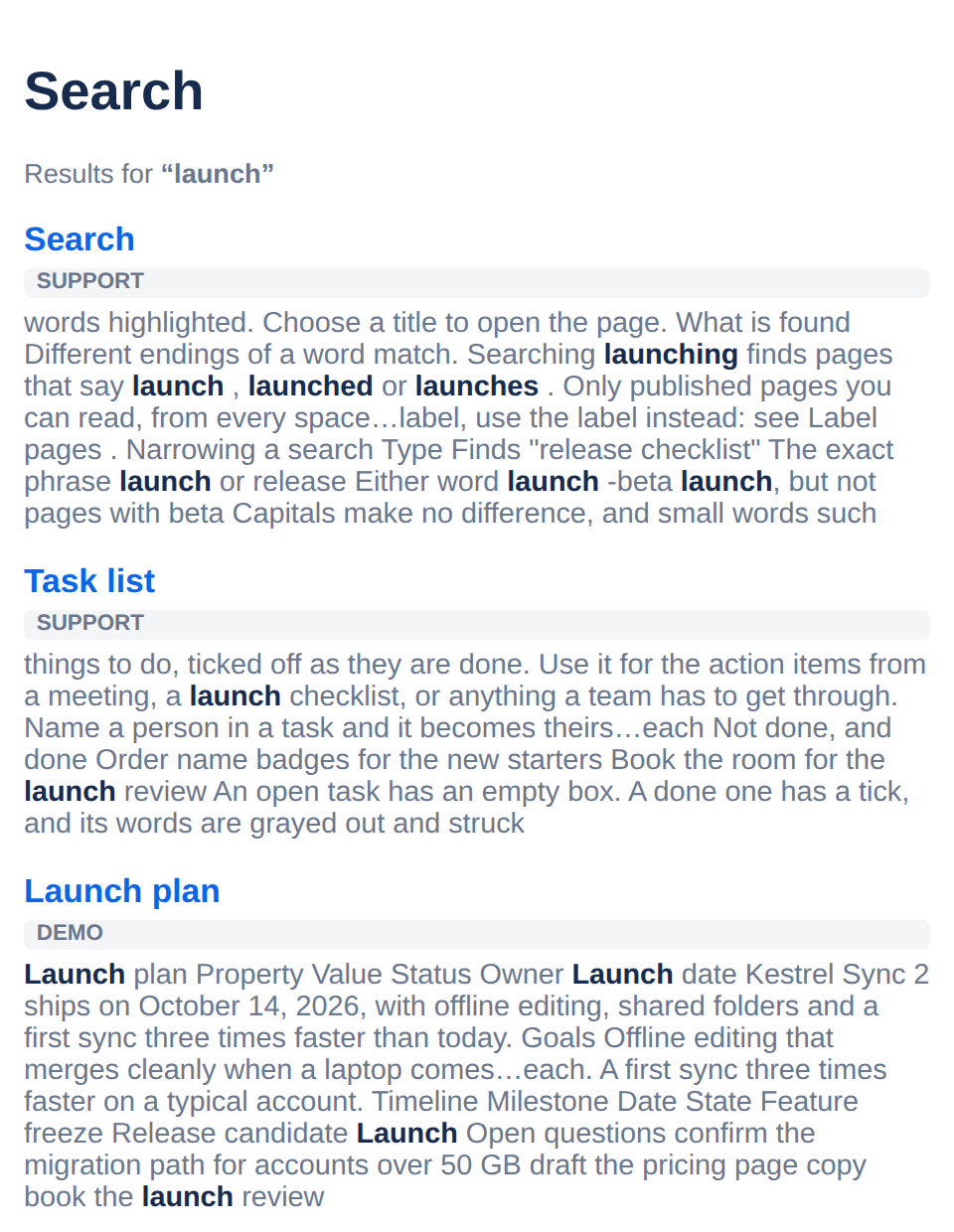
Search every page you can see, with the matching words shown in context and the space each result is in. See Search.
History and the trash
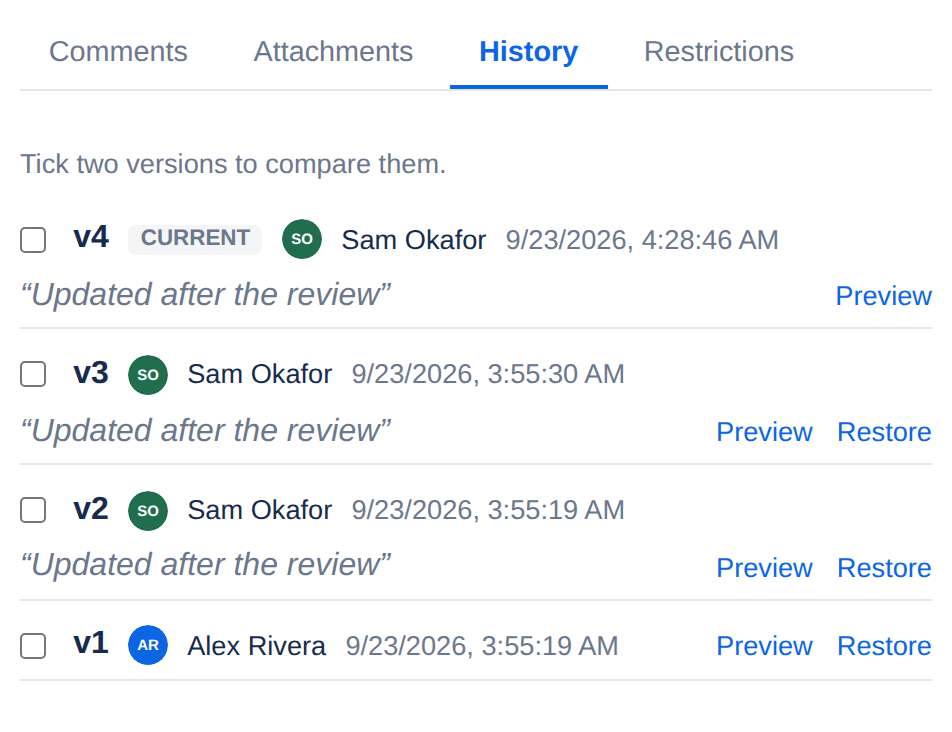
Every change is kept. See who changed what, compare any two versions, and put an old version back. Deleted pages go to the trash and can be restored. See History and restoring.
Working together
Editing at the same time
Several people can edit the same page at once and see each other’s changes as they are typed, without overwriting anyone. See Editor tour.
Comments
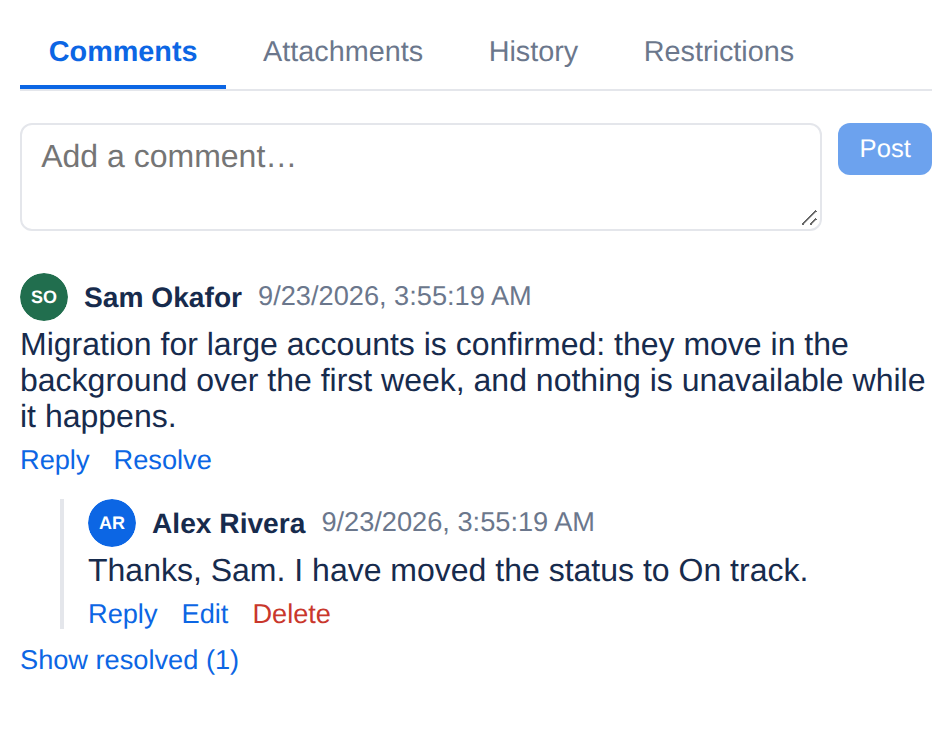
Comment on a page, or on the exact words you mean, reply in threads, mention people, and resolve a thread when it is settled. See Comments.
Notifications you control
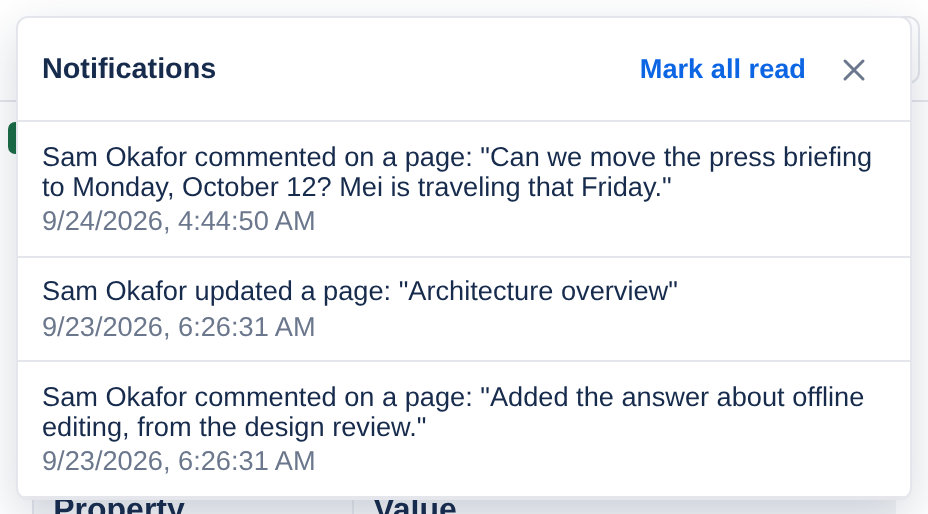
Watch a page or a whole space to hear about changes and comments, in the app’s bell and, if you choose, by email: straight away or as a daily digest. See Mentions and notifications.
Who can see what
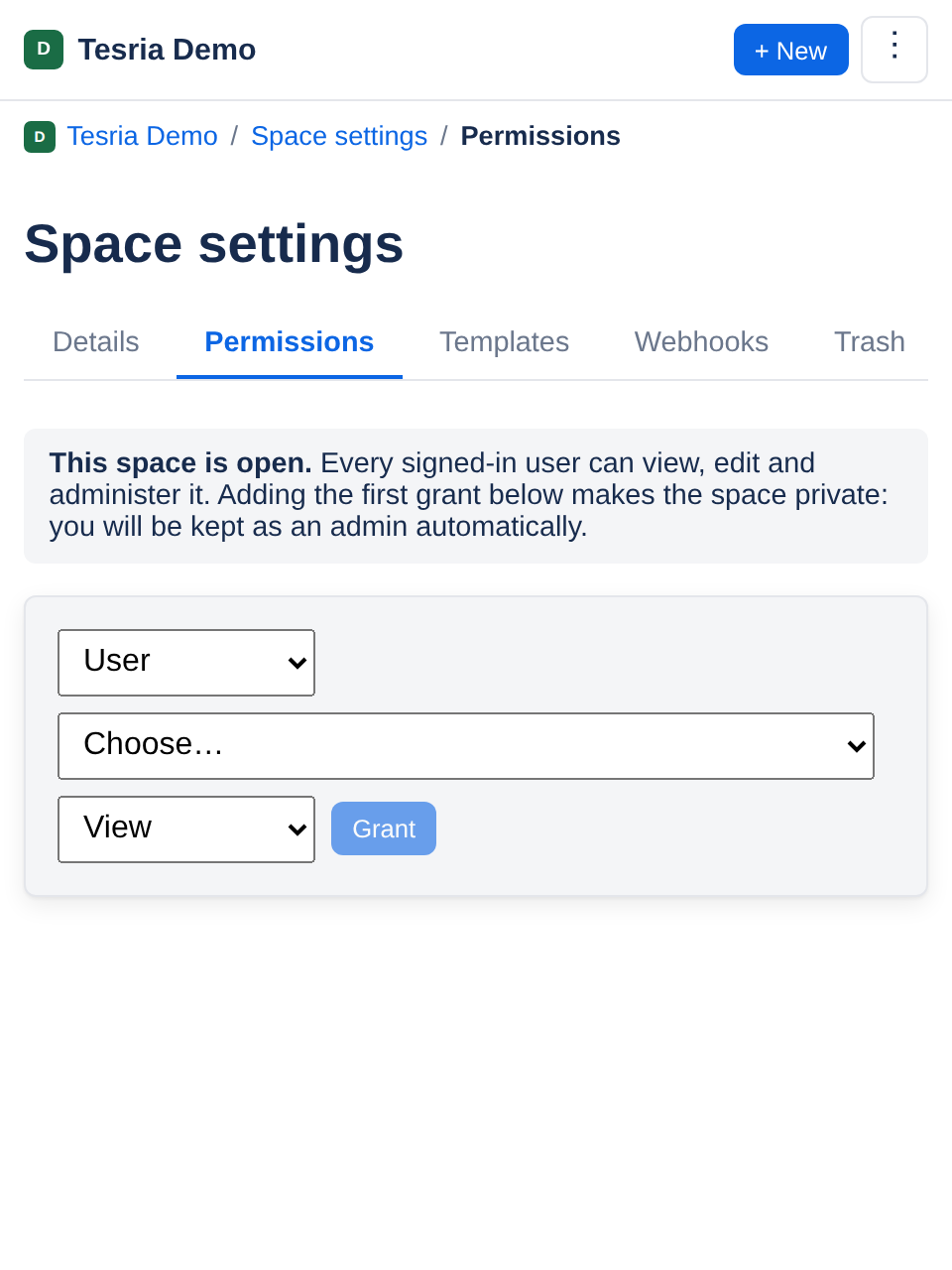
A space can be open to everyone signed in, or limited to particular people and groups; a single page can be restricted further. See Who can see a space.
Sharing and publishing
Export a page
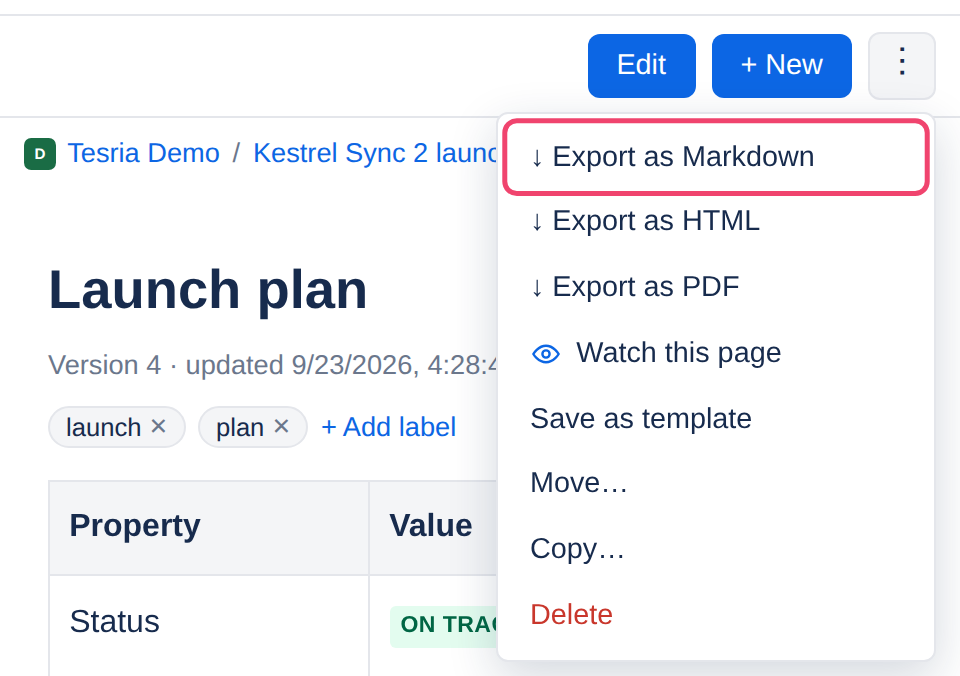
Download a page as a PDF, a Markdown file or a single HTML file that looks like the page and works on its own. See Exporting and publishing.
Publish a space as a website
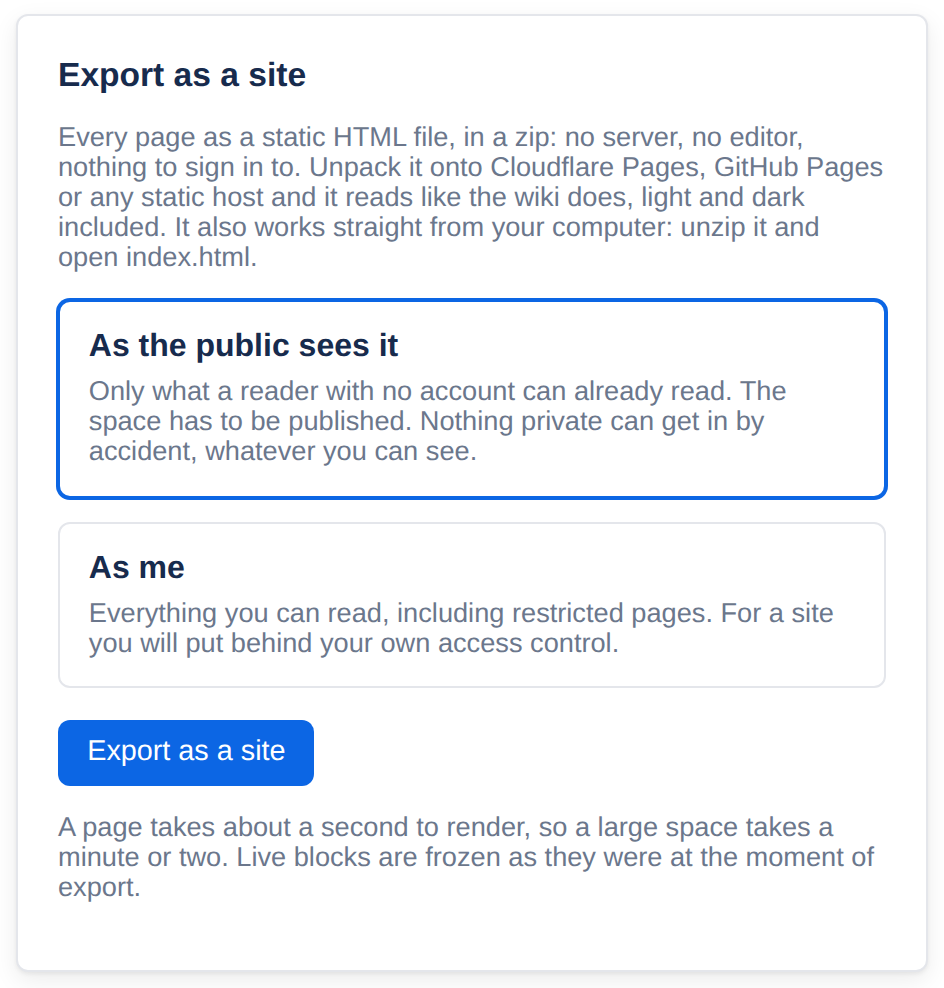
Export a whole space as a static website, with its sidebar, a filter that narrows the pages as you type, and your branding, ready to host anywhere. These docs are one. See Exporting and publishing.
Wiki packs
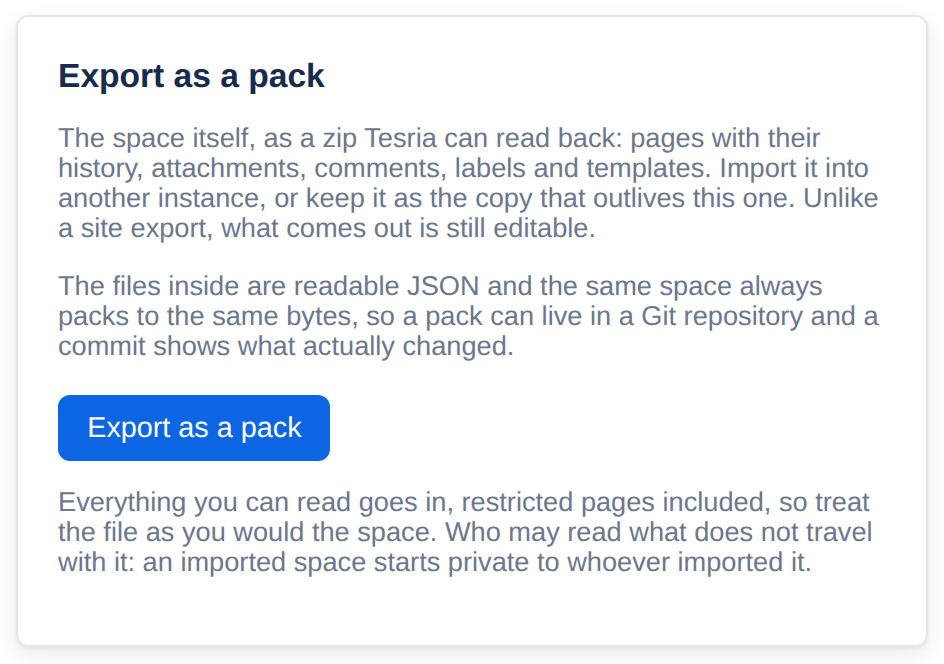
Package a whole space, with its history, comments and files, as one file you can keep as a backup or import into another Tesria. See Wiki packs.
Public reading
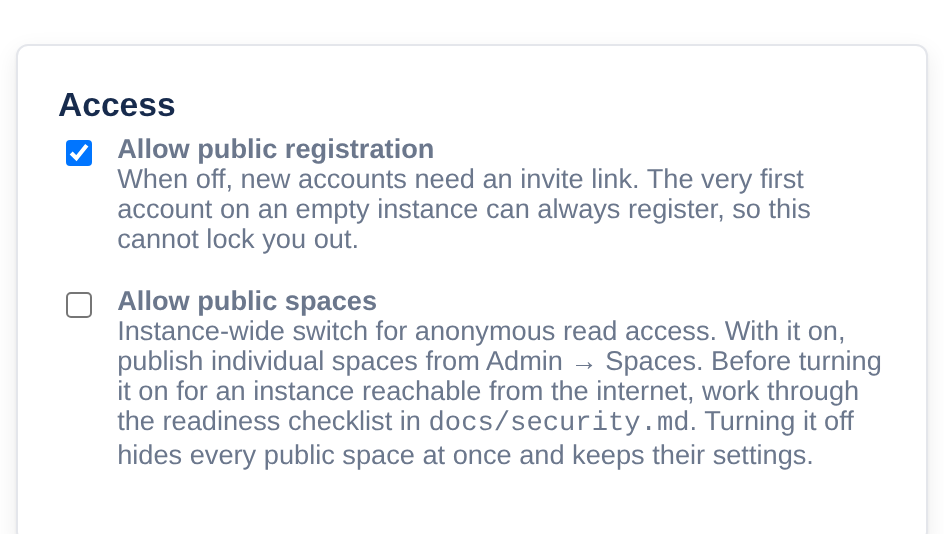
Let people without an account read chosen spaces, such as public documentation, while everything else stays private. It is off until an administrator turns it on and a space is chosen. See Public reading.
Accounts and security
Accounts your way
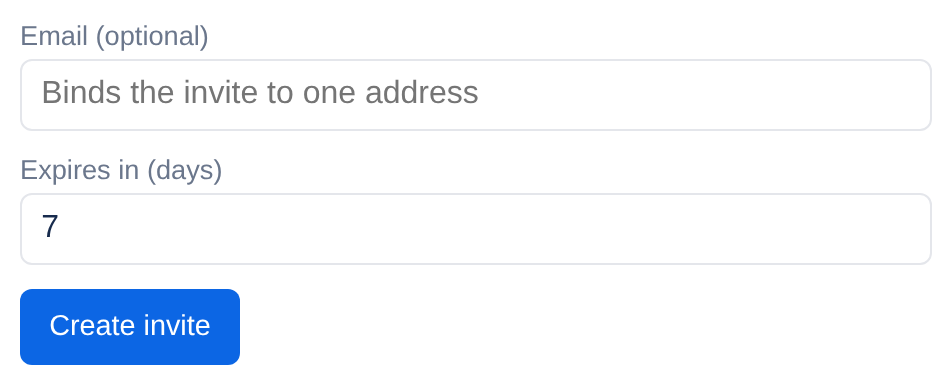
Open sign-up, invite links only, or sign-in with your organization’s single sign-on (OpenID Connect, in beta). See Accounts and invites.
Two-factor sign-in and recovery
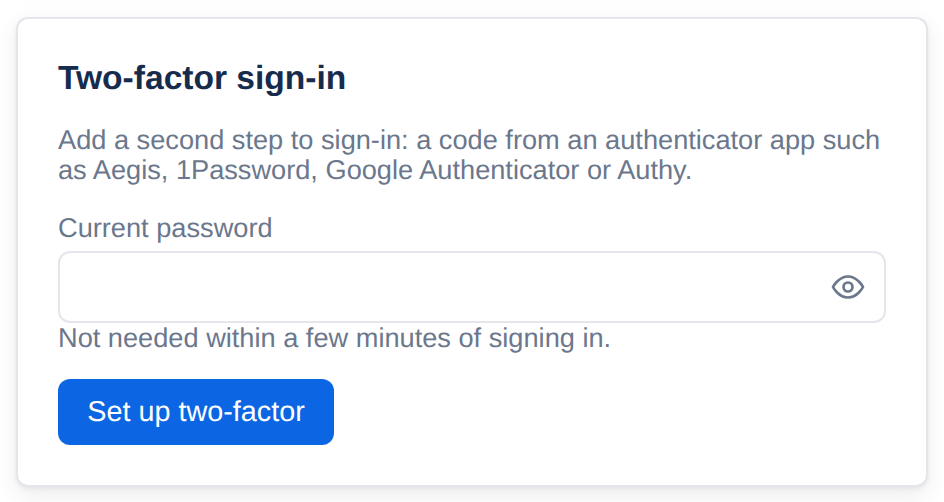
Add a code from an authenticator app to sign-in, keep recovery codes for when you lose it, and reset a forgotten password by email. See Two-factor and recovery codes.
Roles and groups
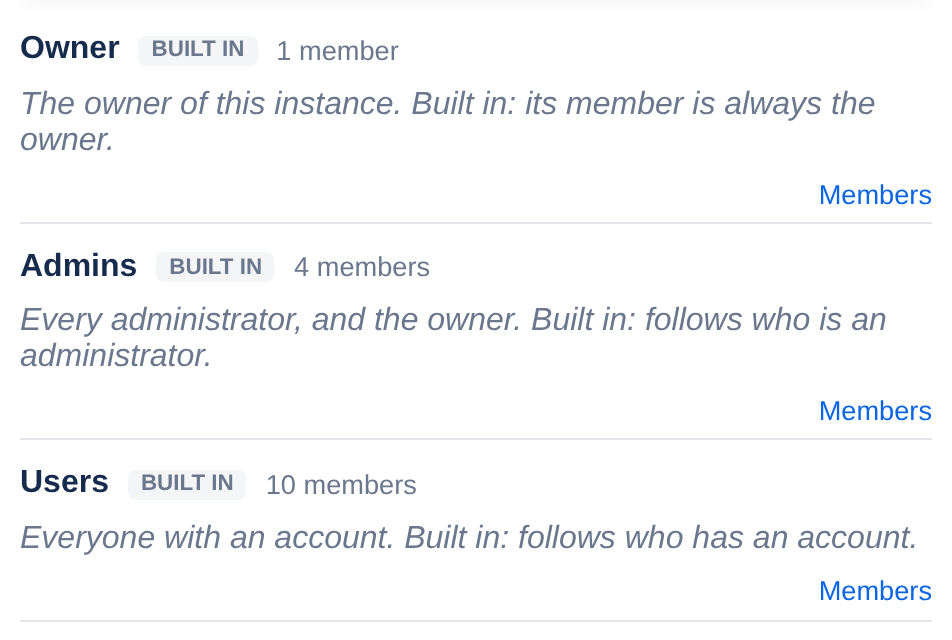
Owner, administrator and user roles, with each right a role holds shown and changeable in one table, plus your own roles and groups of people to share with at once. See Roles.
Protection built in
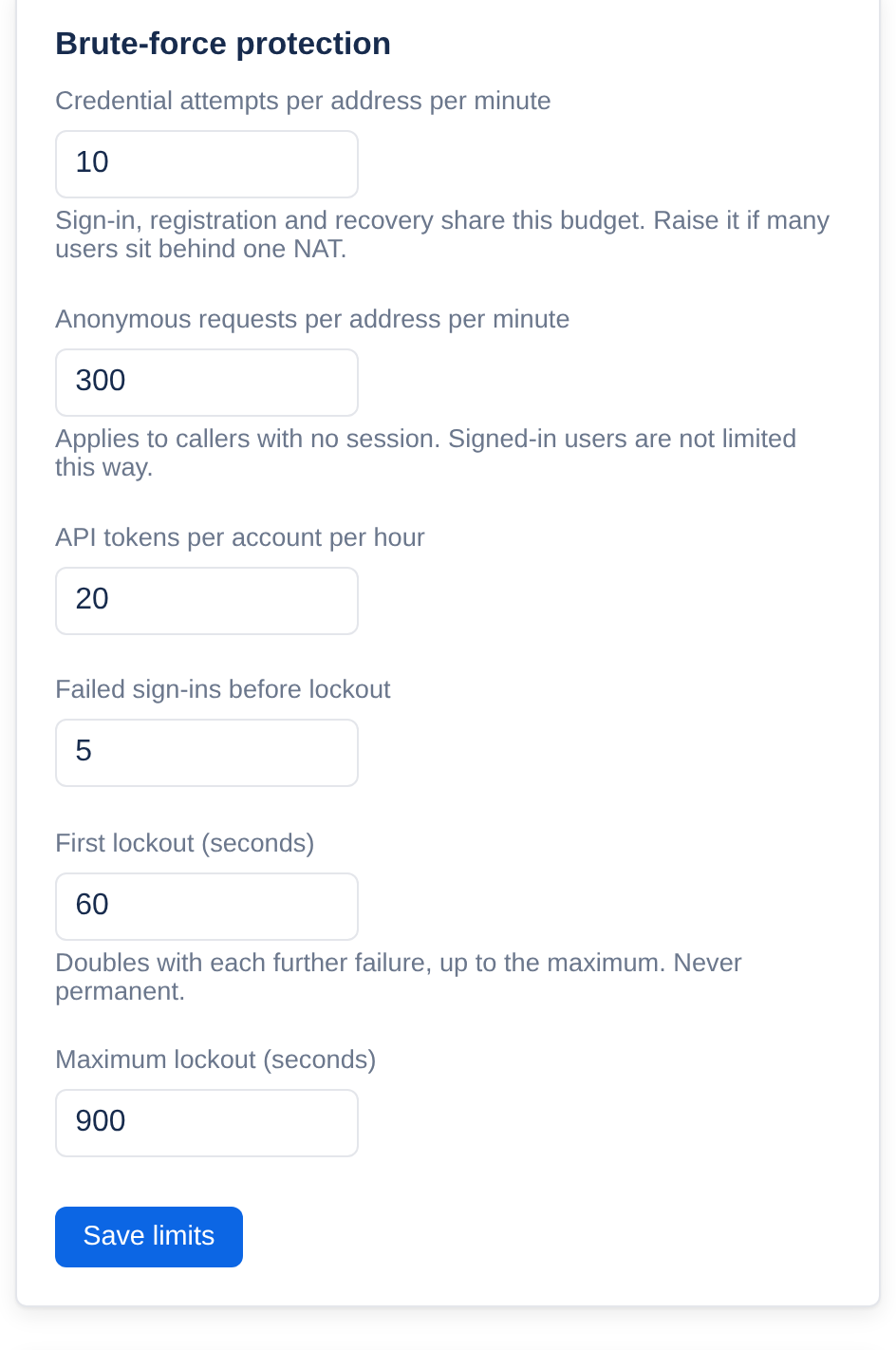
Passwords are stored with a modern slow hash, repeated wrong guesses are slowed and locked out, suspicious activity alerts administrators, and every administrative change is written to an audit log that shows if anyone tampers with it. See Security hardening.
Sessions
See every device signed in to your account and sign out any of them. See Sessions.
Running it
Installs with one command
Tesria runs in Docker. A guided setup on first start creates the owner’s account and walks through the important settings. See Installing with Docker Compose.
Secure connections without the fuss
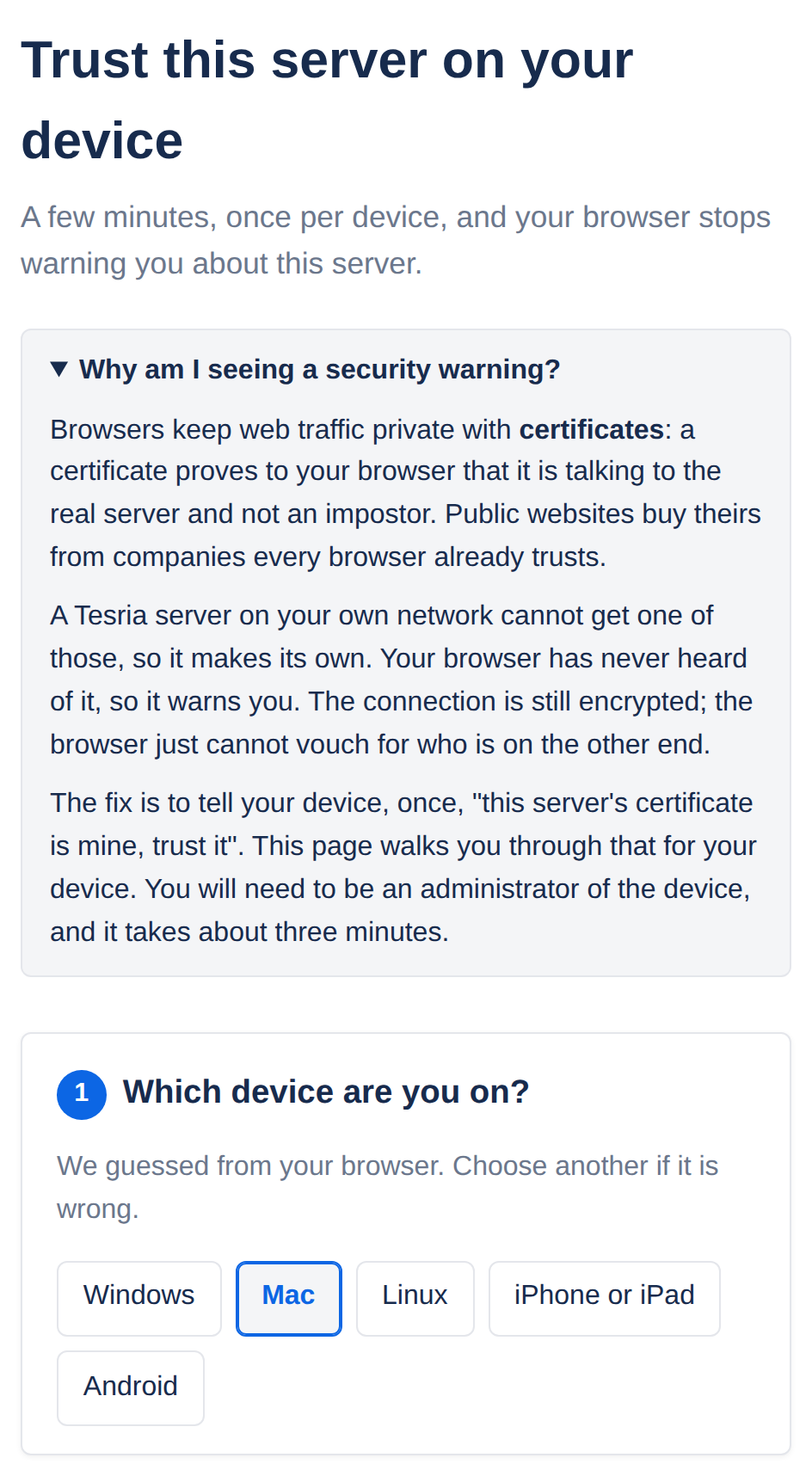
HTTPS is automatic: a free certificate for a real web address, or one of its own on a home or office network, with a built-in guide that sets each device up to trust it. See Trusting the local certificate.
Backups you can count on
Continuous backups of the database, daily copies of everything, encrypted copies to a cloud bucket, a network drive or a removable drive, and a restore from the admin pages that can itself be undone. See Backups and recovery.
An admin area
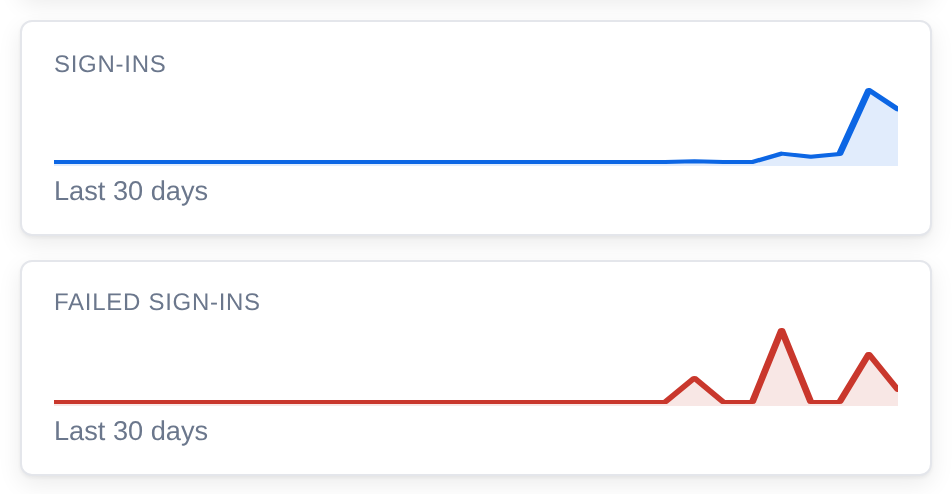
A dashboard of activity, and screens for people, spaces, invites, security, backups, roles, groups, settings and the audit log. See Administration.
Your name and colors
Replace the Tesria name and logo with your own, set the accent color, and choose light or dark for everyone. See Administration.
For developers and assistants
A REST API
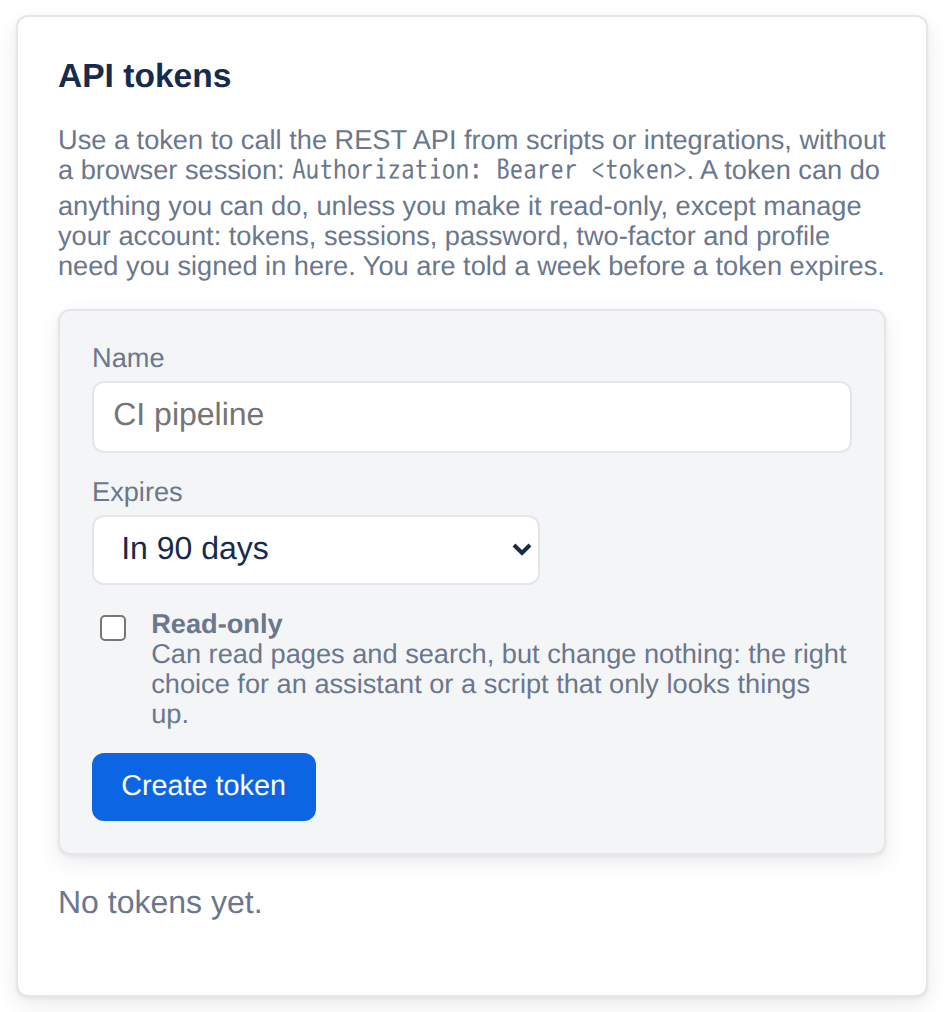
Everything the app does is available to scripts, with personal API tokens, scopes that limit what each token may do, and an interactive reference. See REST API.
Webhooks
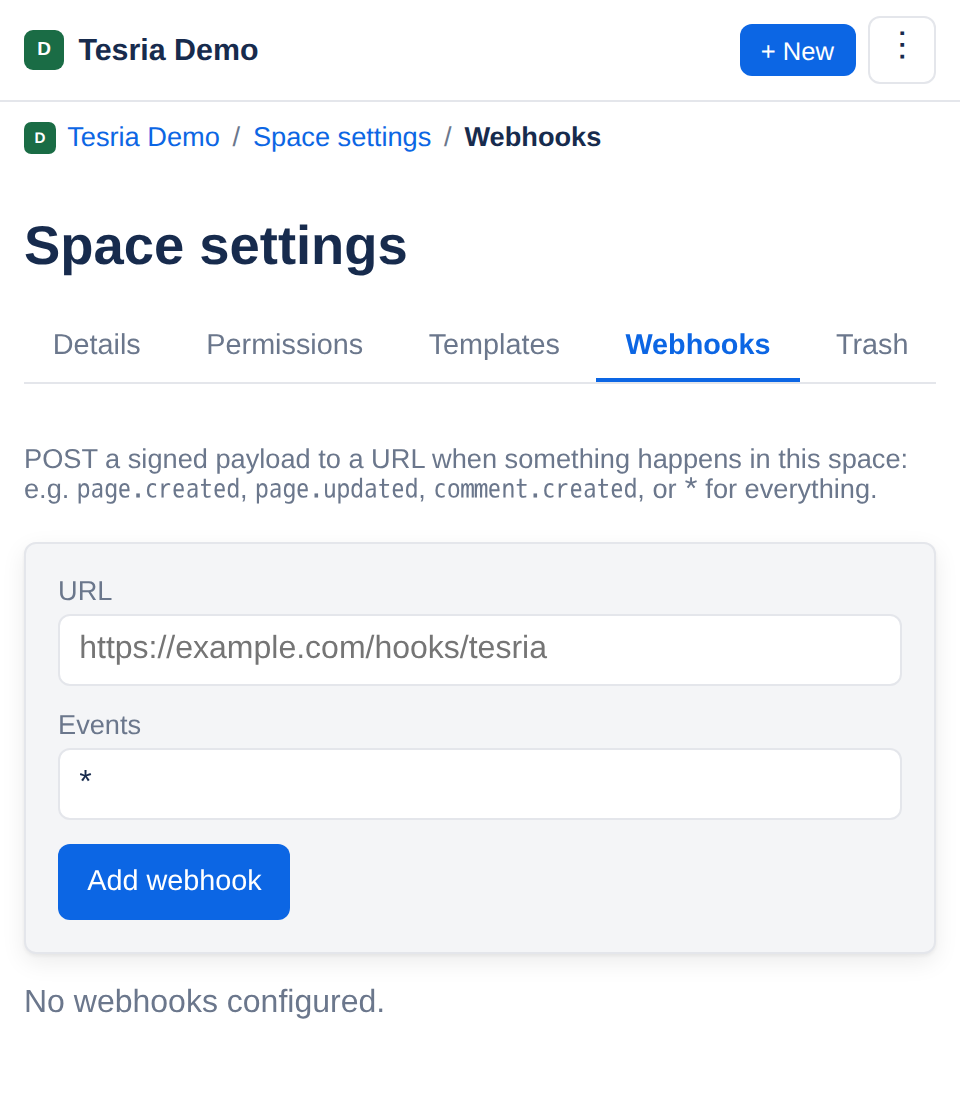
Tell another system when pages are created, updated or commented on. See REST API.
AI assistants, safely
Connect an AI assistant through MCP to search, read and write pages. What it writes arrives as tracked changes that a person accepts or rejects, like a colleague’s suggestions. See MCP.
On phones and tablets
Everything, on the go
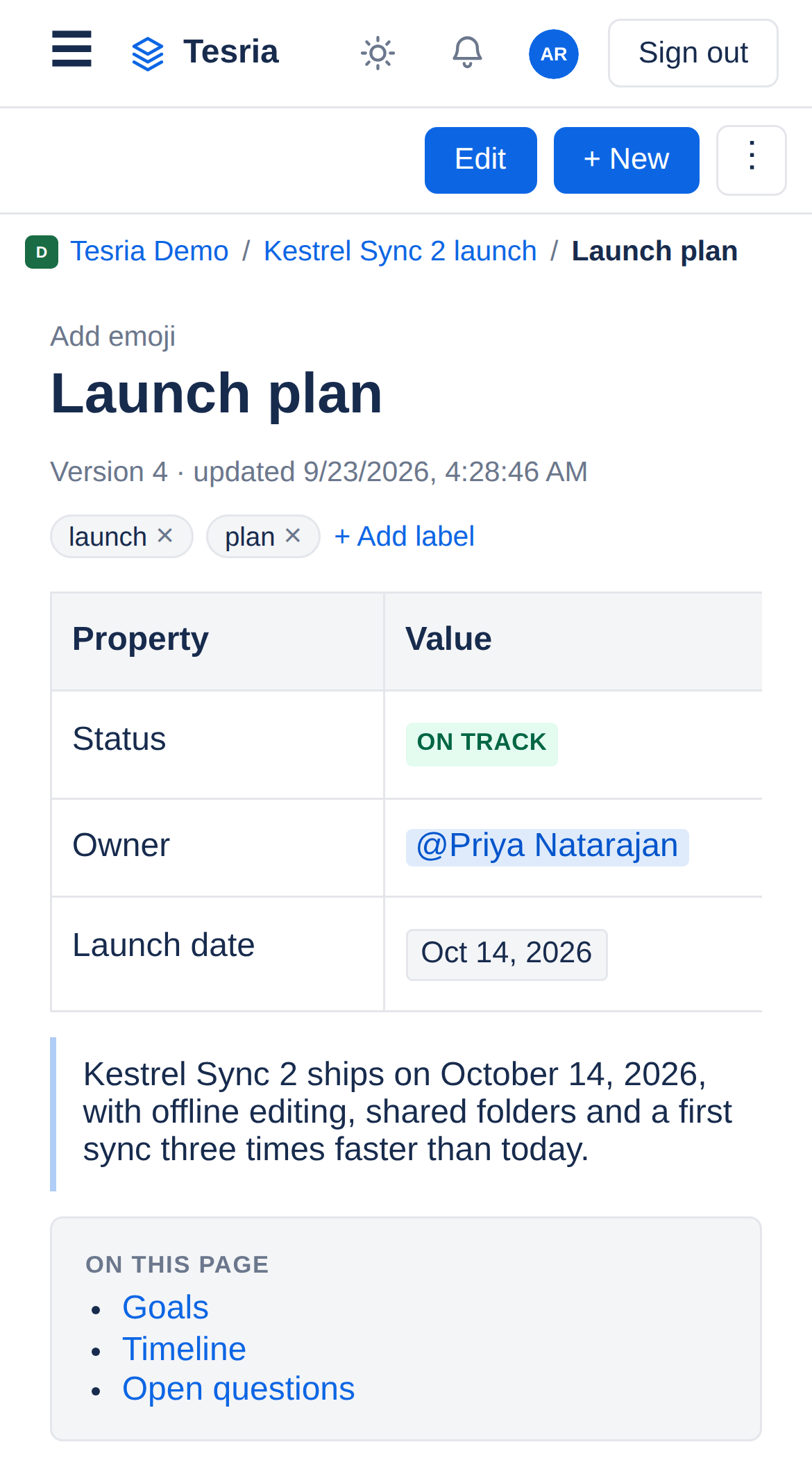
Reading, editing, tables and comments all work on a phone or tablet, with menus and toolbars made for touch. See Tesria on phones and tablets.
Your wiki, on your server. Tesria is open source under the Apache License 2.0: free to use, change and run for anything, including commercially. Your pages, files and backups stay on machines you control.
Applies to | Tesria 0.5 and later |
|---|---|
Updated | September 24, 2026 |
Changes | Revised. |